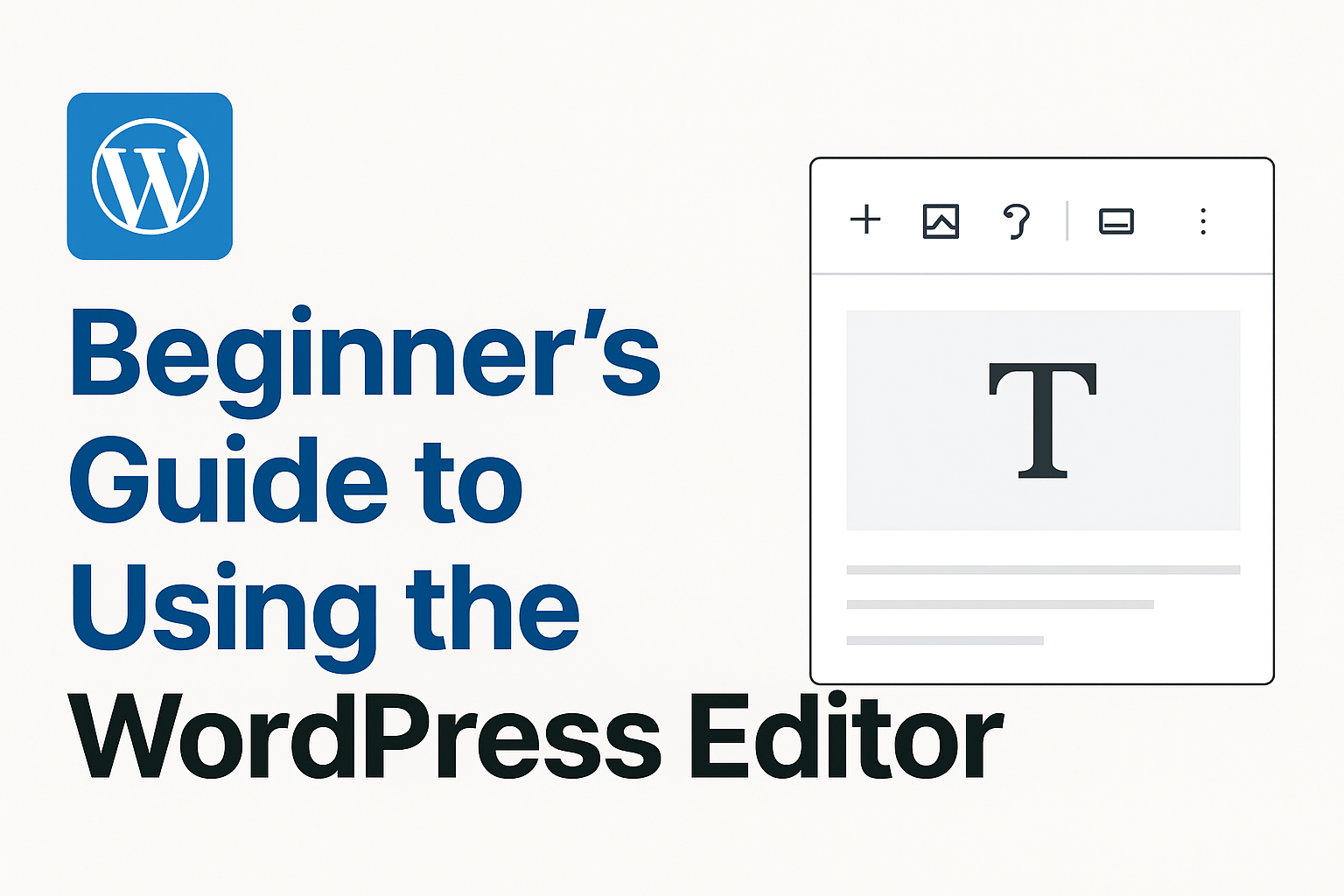
The WordPress Editor — also known as the Block Editor or Gutenberg — is one of the easiest ways to create beautiful pages and blog posts without using any code. If you’re new to WordPress, this guide will help you understand how the editor works and how you can build your content step-by-step.
What Is the WordPress Block Editor?
The Block Editor is a modern, drag-and-drop content editor that lets you build layouts using blocks.
A block can be:
- A text paragraph
- Heading
- Image
- Video
- Button
- Quote
- Table
- List
- Embed (YouTube, Twitter, etc.)
- Columns
- And much more…
Each block is independent, so you can arrange your content visually just like building with LEGO.
How to Open the WordPress Editor
You can open the editor when creating or editing a page or post:
- Dashboard → Posts → Add New
- Dashboard → Pages → Add New
You’ll be taken directly to the WordPress Block Editor screen.
Understanding the Editor Interface
Here are the most important parts:
1. Title Field
At the very top — enter your page or post title.
2. Block Insertion Button (+)
Click the + icon to add new blocks (text, images, lists, buttons, etc.).
3. Block Toolbar
Each block has its own toolbar with formatting options.
Example for a paragraph:
- Bold, italic
- Alignment
- Link
- More options
4. Sidebar Settings
On the right side you’ll find:
- Block settings (depends on the selected block)
- Document settings:
- Categories
- Tags
- Featured Image
- Excerpt
- Discussion (comments)
5. Preview & Publish
Top-right buttons allow you to:
- Preview your page
- Save Draft
- Publish when ready
How to Add Common Blocks
Add a Paragraph
- Click inside the editor
- Start typing — WordPress creates a paragraph block automatically
Add a Heading (H2, H3, H4)
- Click + → Heading
- Choose the level (H2 is best for sections)
Add an Image
- Click + → Image
- Choose: Upload, Media Library, or Insert from URL
Add a Button
- Click + → Button
- Add a link and style it from the sidebar (rounded, filled, outline)
Add a List
- Click + → List
- Choose bullet or number list
Using Layout Blocks (Columns, Groups, Spacers)
For page layouts, these are extremely helpful:
Columns
Create side-by-side content.
Example:
- Left: Image
- Right: Text
Group
Wrap multiple blocks together so you can:
- Add background
- Add padding
- Move them as one piece
Spacer
Add empty space for better design.
Embed Content (YouTube, Maps, Social Media)
WordPress has built-in embeds.
Example:
- Click + → YouTube
- Paste URL
- The video embeds automatically
You can do the same for:
- Vimeo
- Spotify
- TikTok
- Google Maps (URL embed)
Reusable Blocks (Save Time)
If you use the same block often (CTA, form text, disclaimer), you can save it:
- Select a block
- Click the 3 dots
- Choose Add to Reusable Blocks
Then insert it anytime with one click.
Tips for Writing Better Content in the WordPress Editor
✔ Use H2 for main sections
✔ Add images every 300–400 words
✔ Use short paragraphs for readability
✔ Add a featured image for blog posts
✔ Optimize images before uploading
✔ Use lists and bullets to break big content