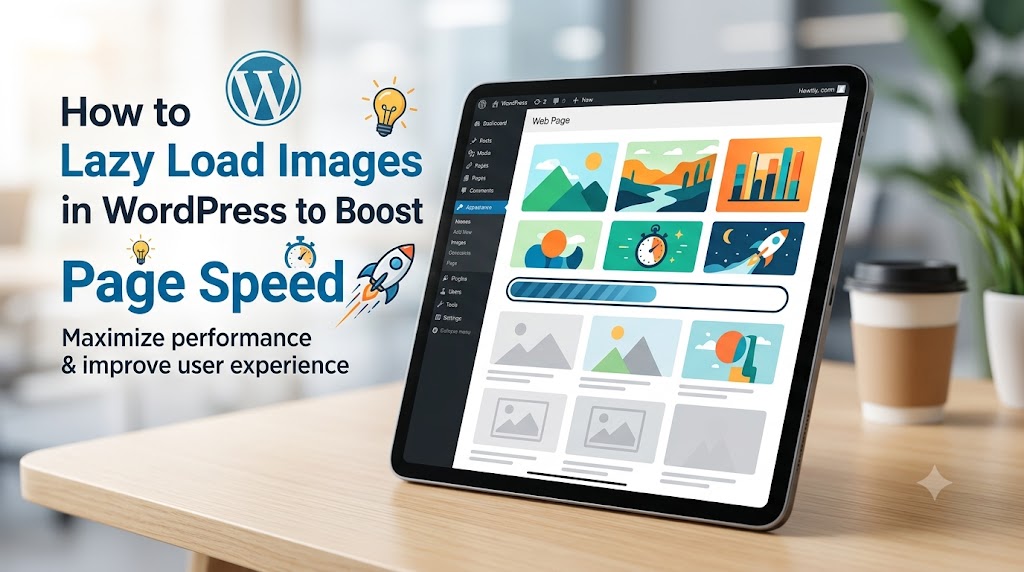
Are you tired of waiting for your WordPress website to load, only to find that the images are taking forever to appear? You’re not alone. Slow-loading images can be frustrating for both website owners and visitors, and can even negatively impact your search engine rankings. The good news is that there’s a simple solution: lazy loading. In this article, we’ll explore how to lazy load images in WordPress, and provide step-by-step instructions on how to implement this technique on your own website.
What is Lazy Loading?
Lazy loading is a technique used to defer the loading of non-essential resources, such as images, until they are actually needed. This can significantly improve the page load time of your website, as the browser doesn’t have to wait for all the images to load before displaying the page. Instead, the images are loaded only when they come into view, providing a smoother and more seamless user experience.
What Causes This Issue?
There are several reasons why images may be causing your WordPress website to load slowly. Some common root causes include:
- Large image file sizes: If your images are not optimized for web use, they can be extremely large and take a long time to load.
- Too many images: If you have a lot of images on a single page, it can take a long time for all of them to load.
- Slow server response times: If your server is taking a long time to respond to requests, it can slow down the loading of your images.
- Poorly optimized themes and plugins: If your theme or plugins are not optimized for performance, they can slow down your website.
How to Lazy Load Images in WordPress
Fortunately, lazy loading images in WordPress is relatively easy to implement. Here are the steps to follow:
- Install a plugin: There are several plugins available that can help you lazy load images in WordPress, including Lazy Loader, WP Lazy Load, and a3 Lazy Load. For this example, we’ll use the Lazy Loader plugin.
- Activate the plugin: Once you’ve installed the plugin, activate it by going to the Plugins page in your WordPress dashboard and clicking the “Activate” button.
- Configure the plugin: Once the plugin is activated, you’ll need to configure it to work with your website. This may involve setting the threshold for when images should be loaded, as well as specifying which types of images to lazy load.
function lazy_load_images() {
  // Add lazy loading to all images
  add_filter( 'the_content', 'lazy_load_images_callback' );
}
add_action( 'init', 'lazy_load_images' );

function lazy_load_images_callback( $content ) {
  // Use regular expression to find all images in the content
  $pattern = '/<imgs+[^>]*>/';
  $content = preg_replace_callback( $pattern, 'lazy_load_images_replace', $content );
  return $content;
}

function lazy_load_images_replace( $matches ) {
  $img_tag = $matches[0];
  // Add lazy loading attributes to the image tag
  $img_tag = str_replace( '<img', '<img loading="lazy"', $img_tag );
  return $img_tag;
}
Using a CDN to Further Improve Performance
In addition to lazy loading images, using a Content Delivery Network (CDN) can also help to improve the performance of your website. A CDN works by caching your website’s content at multiple locations around the world, so that when a visitor requests your website, they can be served the content from a location that is closer to them. This can significantly reduce the time it takes for your website to load, as the visitor’s browser doesn’t have to wait for the content to be retrieved from your server.
Prevention Tips
To prevent slow-loading images from becoming a problem on your WordPress website, here are some tips to follow:
- Optimize your images: Make sure your images are optimized for web use by compressing them and reducing their file size.
- Use a CDN: Consider using a CDN to cache your website’s content and reduce the time it takes for your website to load.
- Monitor your website’s performance: Keep an eye on your website’s performance using tools like Google PageSpeed Insights or Pingdom, and make adjustments as needed to ensure your website is loading quickly.
- Regularly update your plugins and themes: Make sure your plugins and themes are up-to-date, as updates often include performance improvements.
In conclusion, lazy loading images is a simple and effective way to improve the page speed of your WordPress website. By following the steps outlined in this article, you can reduce the time it takes for your website to load, and provide a better experience for your visitors. Remember to also follow the prevention tips outlined above to ensure your website continues to load quickly and efficiently.