Are you trying to make changes to your WordPress website’s configuration, but don’t know where to start? The wp-config.php file is a crucial part of your WordPress installation, controlling various aspects of your site’s behavior, from database connections to security settings. However, editing this file can be intimidating, especially for those without extensive coding experience. In this article, we’ll walk you through the process of editing the wp-config.php file in WordPress, explaining the potential pitfalls and providing step-by-step solutions to common issues.
Understanding the wp-config.php File
The wp-config.php file is a PHP script that contains essential configuration settings for your WordPress website. It’s usually located in the root directory of your WordPress installation and is executed every time a page is loaded on your site. This file defines constants that control various aspects of WordPress, such as database connections, authentication keys, and debug modes. Editing the wp-config.php file allows you to modify these settings, but it requires caution and attention to detail to avoid breaking your website.
What Causes This Issue
So, why do you need to edit the wp-config.php file in the first place? There are several common scenarios where modifying this file is necessary. For example, you might need to:
- Change your database password or username
- Update your website’s URL or domain name
- Enable or disable WordPress debug modes
- Define custom authentication keys or salts
- Modify the PHP memory limit or execution time
In these situations, editing the wp-config.php file is the most direct way to make the necessary changes. However, it’s essential to approach this process with care, as mistakes can lead to errors, security vulnerabilities, or even website crashes.
Step-by-Step Guide to Editing wp-config.php
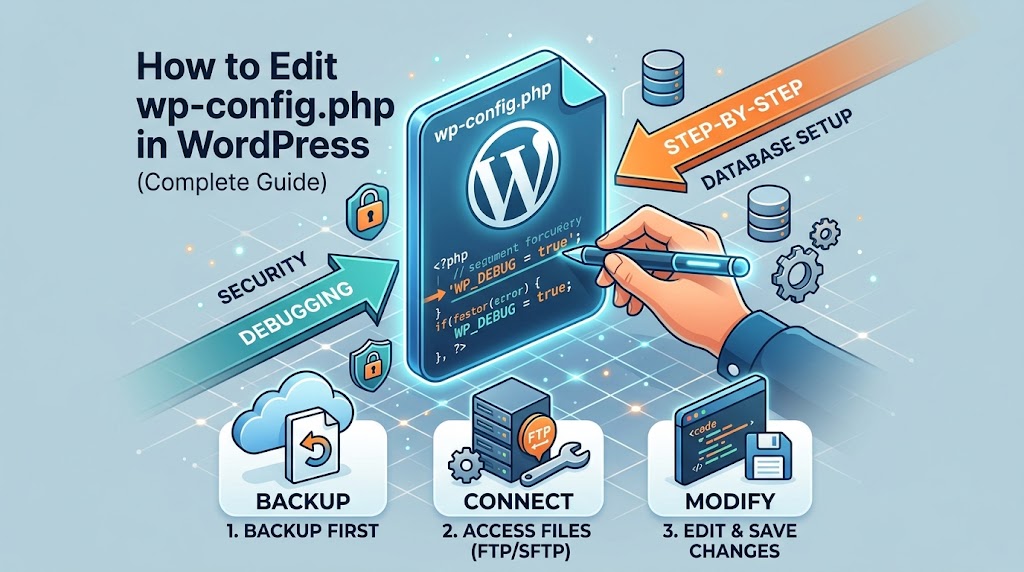
Now that we’ve covered the basics, let’s dive into the step-by-step process of editing the wp-config.php file. Please note that these instructions assume you have access to your website’s files via FTP, SFTP, or a file manager.
- Connect to your website’s files using your preferred method (e.g., FTP client, SFTP client, or file manager).
- Navigate to the root directory of your WordPress installation, usually labeled as “public_html” or “www”.
- Locate the wp-config.php file and download a copy to your local computer as a backup.
- Open the downloaded wp-config.php file in a text editor (e.g., Notepad++, Sublime Text, or Atom).
- Make the necessary changes to the file, using the examples below as a reference.
- Save the modified file and upload it back to your website’s root directory, overwriting the original wp-config.php file.
For example, to define a custom authentication key, you would add the following code to the wp-config.php file:
define('AUTH_KEY', 'put your unique phrase here');Replace “put your unique phrase here” with a random, unique string of characters.
Editing Database Settings
To update your database password or username, you’ll need to modify the following constants in the wp-config.php file:
define('DB_NAME', 'database_name_here');
define('DB_USER', 'database_username_here');
define('DB_PASSWORD', 'database_password_here');
define('DB_HOST', 'localhost');
Replace the placeholder values with your actual database credentials.
Enabling Debug Modes
To enable WordPress debug modes, add the following code to the wp-config.php file:
define('WP_DEBUG', true);
define('WP_DEBUG_LOG', true);
define('WP_DEBUG_DISPLAY', false);
This will enable debug logging and display error messages on your website.
Prevention Tips
To avoid common issues when editing the wp-config.php file, keep the following best practices in mind:
- Always create a backup of the original file before making changes.
- Use a text editor that supports syntax highlighting and PHP syntax checking.
- Avoid editing the file directly in your web browser or using a WYSIWYG editor.
- Test your changes immediately after uploading the modified file to ensure your website is functioning correctly.
- Keep your WordPress core, plugins, and themes up-to-date to minimize compatibility issues.
By following these guidelines and being cautious when editing the wp-config.php file, you can avoid common pitfalls and ensure a smooth experience.
Conclusion
In conclusion, editing the wp-config.php file in WordPress requires attention to detail and a basic understanding of PHP syntax. By following the step-by-step guide and best practices outlined in this article, you’ll be able to safely modify your website’s configuration settings and avoid common issues. Remember to always create backups, test your changes, and keep your WordPress installation up-to-date to ensure a stable and secure website.