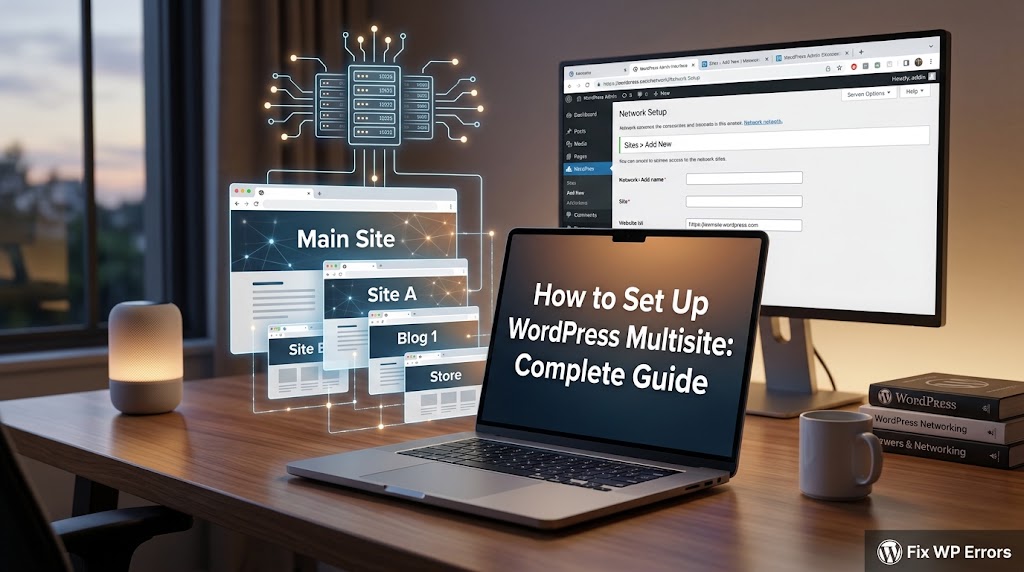
Managing multiple WordPress sites can be a daunting task, especially when each site requires its own separate installation, updates, and maintenance. This is where WordPress multisite comes in – a powerful feature that allows you to create and manage multiple sites from a single WordPress installation. However, setting up WordPress multisite can be a complex process, and if not done correctly, can lead to issues with site performance, security, and usability. In this article, we will walk you through the process of setting up WordPress multisite, covering the benefits, requirements, and step-by-step instructions to get you started.
Benefits of WordPress Multisite
Before we dive into the setup process, let’s take a look at the benefits of using WordPress multisite. With multisite, you can create and manage multiple sites from a single dashboard, making it easier to update plugins, themes, and core files. This also simplifies the process of creating new sites, as you can easily clone existing sites or create new ones from scratch. Additionally, multisite allows you to share users, plugins, and themes across sites, reducing the overall administrative burden.
Requirements for WordPress Multisite
Before you can set up WordPress multisite, you need to ensure that your server meets the minimum requirements. These include:
- PHP 7.2 or higher
- MySQL 5.6 or higher
- WordPress 5.0 or higher
- A valid domain name or subdomain
It’s also important to note that some web hosts may have specific requirements or restrictions for running WordPress multisite, so be sure to check with your host before proceeding.
Enabling WordPress Multisite
To enable WordPress multisite, you need to add the following code to your wp-config.php file:
define('MULTISITE', true);
define('SUBDOMAIN_INSTALL', true);
define('DOMAIN_CURRENT_SITE', 'example.com');
define('PATH_CURRENT_SITE', '/');
define('SITE_ID_CURRENT_SITE', 1);
define('BLOG_ID_CURRENT_SITE', 1);
Replace example.com with your domain name, and adjust the other settings as needed.
Configuring WordPress Multisite
Once you’ve enabled multisite, you need to configure the network settings. To do this, log in to your WordPress dashboard and navigate to Settings > Network Setup. Here, you’ll need to configure the following settings:
- Network Title: The title of your multisite network
- Network Admin Email: The email address of the network administrator
- Registration: Whether to allow site registration, and if so, what type of registration to allow
- Upload Settings: The maximum upload file size and type
Once you’ve configured these settings, click Save Changes to save your network settings.
Creating New Sites
To create a new site in your multisite network, navigate to Sites > Add New. Here, you’ll need to enter the following information:
- Site Address: The address of the new site (e.g.
newsite.example.com) - Site Title: The title of the new site
- Admin Email: The email address of the site administrator
Once you’ve entered this information, click Add Site to create the new site.
What Causes This Issue
There are several common issues that can cause problems with WordPress multisite, including:
- Incorrect
wp-config.phpsettings - Insufficient server resources
- Plugin and theme conflicts
- Incorrect network settings
These issues can cause problems with site performance, security, and usability, and can be difficult to diagnose and fix. However, by following the steps outlined in this article, you can avoid many of these common issues and ensure a smooth and successful multisite setup.
Prevention Tips
To prevent common issues with WordPress multisite, follow these tips:
- Regularly update your WordPress core, plugins, and themes
- Monitor your server resources and adjust as needed
- Use high-quality, multisite-compatible plugins and themes
- Regularly back up your sites and database
By following these tips, you can help ensure a stable and secure multisite network, and avoid many of the common issues that can cause problems.
Conclusion
Setting up WordPress multisite can be a complex process, but with the right guidance, you can create a powerful and flexible network of sites. By following the steps outlined in this article, you can avoid common issues and ensure a smooth and successful multisite setup. Remember to regularly update your WordPress core, plugins, and themes, monitor your server resources, and use high-quality, multisite-compatible plugins and themes to help prevent common issues. With WordPress multisite, you can simplify the process of managing multiple sites, and focus on creating great content and growing your online presence.