As a WordPress site owner, you’re likely aware of the importance of security in protecting your online presence. With the ever-increasing number of cyber threats and attacks, it’s crucial to take proactive measures to harden your site against potential vulnerabilities. A single security breach can lead to devastating consequences, including data loss, financial damage, and damage to your reputation. In this article, we’ll explore the common causes of WordPress security issues and provide a comprehensive 15-step checklist to help you secure your site and prevent potential threats.
What Causes This Issue
WordPress security issues often arise from a combination of factors, including outdated software, weak passwords, and poor configuration. Some of the most common causes of WordPress security breaches include:
- Outdated WordPress core, themes, and plugins
- Weak administrator passwords
- Unsecured file permissions
- Malicious plugins and themes
- Poorly configured security settings
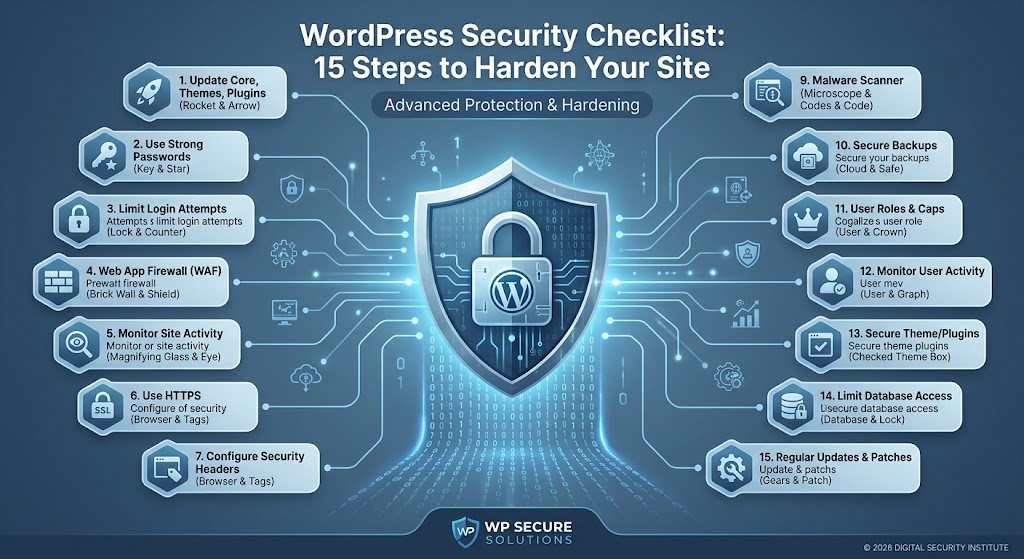
15-Step WordPress Security Checklist
To help you harden your WordPress site, we’ve compiled a comprehensive 15-step security checklist. Follow these steps to significantly improve your site’s security and protect against potential threats.
Step 1: Update WordPress Core, Themes, and Plugins
Keeping your WordPress core, themes, and plugins up-to-date is essential for maintaining security. Outdated software can leave your site vulnerable to known exploits, so it’s crucial to update regularly.
// Example: Update WordPress core to the latest version
define( 'WP_AUTO_UPDATE_CORE', true );
Step 2: Use Strong Administrator Passwords
Weak administrator passwords are a common entry point for hackers. Use a password manager to generate and store unique, complex passwords for all administrator accounts.
Step 3: Limit Login Attempts
Limiting login attempts can help prevent brute-force attacks. You can use a plugin like Wordfence or Limit Login Attempts to restrict the number of login attempts allowed within a specified time frame.
// Example: Limit login attempts using the Limit Login Attempts plugin
function limit_login_attempts() {
  // Define the maximum number of allowed attempts
  $max_attempts = 5;

  // Define the time frame for allowed attempts
  $time_frame = 60; // in minutes

  // Get the current IP address
  $ip_address = $_SERVER['REMOTE_ADDR'];

  // Check the number of attempts within the time frame
  $attempts = get_transient( 'login_attempts_' . $ip_address );
  if ( $attempts >= $max_attempts ) {
    // Block the IP address for a specified time
    wp_die( 'Excessive login attempts. Please try again later.' );
  } else {
    // Increment the attempt count
    $attempts++;
    set_transient( 'login_attempts_' . $ip_address, $attempts, $time_frame * 60 );
  }
}
add_action( 'wp_login', 'limit_login_attempts' );
Step 4: Use a Web Application Firewall (WAF)
A WAF can help protect your site from common web attacks, such as SQL injection and cross-site scripting (XSS). You can use a plugin like Wordfence or a cloud-based WAF like Cloudflare.
Step 5: Monitor Site Activity
Monitoring site activity can help you detect and respond to potential security threats. Use a plugin like Wordfence or Jetpack to monitor site activity and receive notifications for suspicious events.
Step 6: Use Secure Protocols (HTTPS)
Using secure protocols like HTTPS can help protect data transmitted between the site and users’ browsers. You can obtain an SSL certificate from a trusted certificate authority like Let’s Encrypt.
// Example: Redirect HTTP requests to HTTPS
if ( $_SERVER['HTTP_X_FORWARDED_PROTO'] == 'http' ) {
  header( 'Location: https://' . $_SERVER['HTTP_HOST'] . $_SERVER['REQUEST_URI'] );
  exit;
}
Step 7: Configure Security Headers
Configuring security headers can help protect your site from common web attacks. You can use a plugin like Wordfence or a cloud-based security platform like Cloudflare to configure security headers.
// Example: Configure security headers using the Wordfence plugin
function configure_security_headers() {
  // Define the security headers
  $headers = array(
    'Content-Security-Policy' => 'default-src 'self';',
    'X-Frame-Options' => 'DENY',
    'X-Content-Type-Options' => 'nosniff',
    'X-XSS-Protection' => '1; mode=block',
  );

  // Set the security headers
  foreach ( $headers as $header => $value ) {
    header( $header . ': ' . $value );
  }
}
add_action( 'send_headers', 'configure_security_headers' );
Step 8: Limit File Permissions
Limiting file permissions can help prevent unauthorized access to sensitive files. Use a file permissions manager like the File Permissions plugin to configure file permissions.
Step 9: Use a Malware Scanner
Using a malware scanner can help detect and remove malicious code from your site. You can use a plugin like Wordfence or a cloud-based security platform like MalCare.
Step 10: Keep Backup Files Secure
Keeping backup files secure is essential for preventing unauthorized access to sensitive data. Use a secure backup solution like VaultPress or a cloud-based backup service like Backblaze.
Step 11: Limit User Roles and Capabilities
Limiting user roles and capabilities can help prevent unauthorized access to sensitive areas of your site. Use a user role manager like the User Role Editor plugin to configure user roles and capabilities.
Step 12: Monitor User Activity
Monitoring user activity can help you detect and respond to potential security threats. Use a plugin like Wordfence or a cloud-based security platform like Jetpack to monitor user activity.
Step 13: Use a Secure Theme and Plugins
Using a secure theme and plugins can help prevent security vulnerabilities. Choose themes and plugins from trusted developers, and keep them up-to-date.
Step 14: Limit Database Access
Limiting database access can help prevent unauthorized access to sensitive data. Use a database access manager like the Database Access Manager plugin to configure database access.
Step 15: Regularly Update and Patch
Regularly updating and patching your site can help prevent security vulnerabilities. Use a plugin like Wordfence or a cloud-based security platform like Cloudflare to stay up-to-date with the latest security patches.
Prevention Tips
To prevent WordPress security issues, it’s essential to follow best practices and stay vigilant. Here are some prevention tips to help you keep your site secure:
- Regularly update WordPress core, themes, and plugins
- Use strong administrator passwords and limit login attempts
- Monitor site activity and user behavior
- Use a web application firewall (WAF) and security headers
- Keep backup files secure and limit database access
By following these prevention tips and the 15-step WordPress security checklist, you can significantly improve your site’s security and protect against potential threats. Remember to stay vigilant and regularly review your site’s security to ensure it remains secure and up-to-date.
Conclusion
In conclusion, WordPress security is a critical aspect of maintaining a secure online presence. By understanding the common causes of WordPress security issues and following the 15-step security checklist, you can harden your site against potential threats. Remember to stay vigilant, regularly update and patch your site, and follow best practices to prevent security vulnerabilities. With the right security measures in place, you can protect your site and ensure a safe and secure user experience.