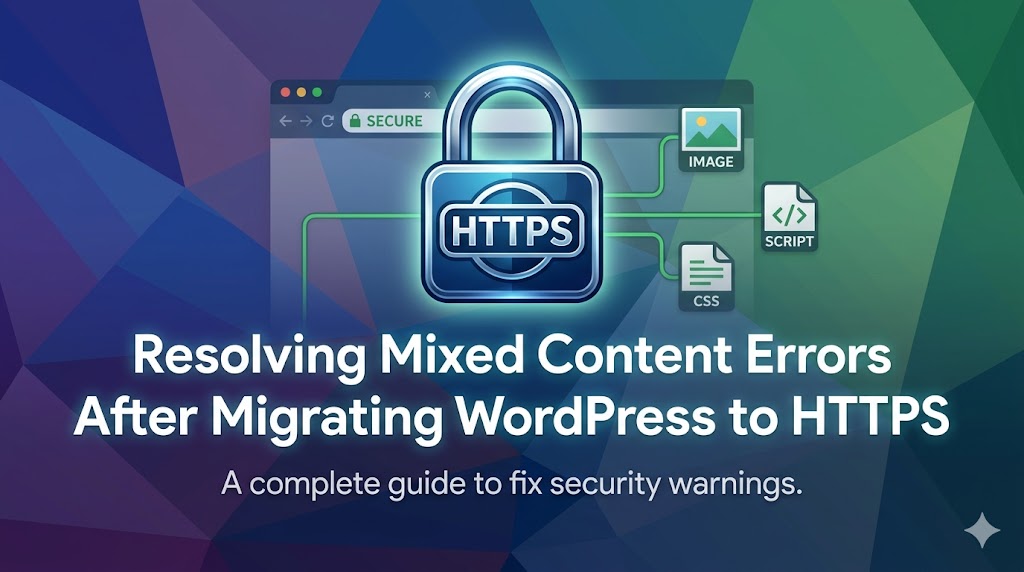
Migrating your WordPress website from HTTP to HTTPS is a significant step towards enhancing security and improving search engine rankings. However, this transition can sometimes lead to mixed content errors, which occur when your site’s HTTPS pages load HTTP resources, such as images, CSS files, or JavaScript files. These errors can compromise the security and integrity of your website, leading to warning signs in browsers and potential penalties from search engines. In this comprehensive guide, we will delve into the world of mixed content errors, exploring what causes them, how to identify them, and most importantly, how to fix them, ensuring your WordPress site runs smoothly and securely under HTTPS.
What Causes This Issue
Mixed content errors typically arise from one of two main scenarios: either your site’s content (like images or iframes) is still being served over HTTP, or your theme and plugins are referencing HTTP URLs instead of HTTPS. This can happen for several reasons, including incomplete migration processes, hardcoded HTTP URLs in your site’s database or files, or third-party plugins and themes not properly configured for HTTPS. Understanding the root cause is crucial for effectively resolving the issue.
Identifying Mixed Content Errors
Before diving into the solutions, it’s essential to know how to identify mixed content errors on your WordPress site. The most straightforward method is to look for warnings in your browser’s address bar. Most modern browsers will display a warning sign or a “Not Secure” label next to the URL when they encounter mixed content. Another approach is to use the browser’s developer tools. In Google Chrome, for example, you can open the Developer Tools (F12 or Ctrl+Shift+I), navigate to the “Security” tab, and look for any mixed content warnings.
Step-by-Step Solutions
To fix mixed content errors, you’ll need to update all HTTP URLs to HTTPS. This process involves several steps and tools. First, ensure your WordPress site’s URL is set to HTTPS in the General Settings (Settings > General). Then, you can use plugins like “Really Simple SSL” or “SSL Insecure Content Fixer” to automatically detect and fix mixed content issues. For more control or if you prefer a manual approach, you can use a tool like the “Better Search Replace” plugin to replace all HTTP URLs with HTTPS in your database.
UPDATE wp_posts SET post_content = REPLACE (post_content, 'http://example.com', 'https://example.com');This SQL query, for instance, replaces all occurrences of “http://example.com” with “https://example.com” in the post_content field of your wp_posts table. Remember to replace “example.com” with your actual domain name and to back up your database before executing any SQL queries.
Updating Themes and Plugins
Sometimes, the issue might stem from your theme or plugins referencing HTTP URLs. Check your theme’s functions.php file and any plugin files for hardcoded HTTP URLs. Update these to use HTTPS or, better still, use relative URLs or WordPress functions like get_template_directory_uri() or plugins_url() which can handle the protocol automatically.
<img src="<?php echo get_template_directory_uri(); ?>/images/logo.png" />This example uses get_template_directory_uri() to correctly reference an image file, ensuring the URL is always correct regardless of the protocol.
Using .htaccess for Redirection
Another effective way to manage mixed content is by using your site’s .htaccess file to redirect all HTTP traffic to HTTPS. This not only helps with mixed content but also ensures all visitors use a secure connection. You can add the following rules to your .htaccess file:
RewriteEngine On
RewriteCond %{HTTPS} !=on
RewriteRule ^ https://%{HTTP_HOST}%{REQUEST_URI} [L,R=301]
This configuration tells Apache to enable the rewrite engine, check if the connection is not HTTPS, and if so, redirect the request to the HTTPS version of the URL.
Prevention Tips
To avoid mixed content errors in the future, it’s crucial to adopt best practices during your initial WordPress setup and when migrating to HTTPS. Always use relative URLs or WordPress functions for referencing files. Regularly update your themes and plugins to ensure they are compatible with the latest WordPress versions and support HTTPS. Before making significant changes, like migrating to HTTPS, backup your site and database. Finally, test your site thoroughly after any changes to catch and fix mixed content errors early.
In conclusion, mixed content errors are a common challenge faced by many after transitioning their WordPress site to HTTPS. By understanding the causes, knowing how to identify these errors, and applying the step-by-step solutions outlined in this guide, you can ensure your WordPress site is secure, free from mixed content warnings, and provides the best user experience possible. Remember, maintaining a secure and up-to-date WordPress site is an ongoing process that requires regular checks and updates, but with the right knowledge and tools, you can navigate these challenges with ease.