How to Fix the WordPress “Allowed Memory Size Exhausted” Error
The WordPress “Allowed memory size exhausted” error appears when PHP reaches the amount of memory available to a WordPress request. When that happens, WordPress cannot complete the operation and may display a fatal error instead of loading the page.
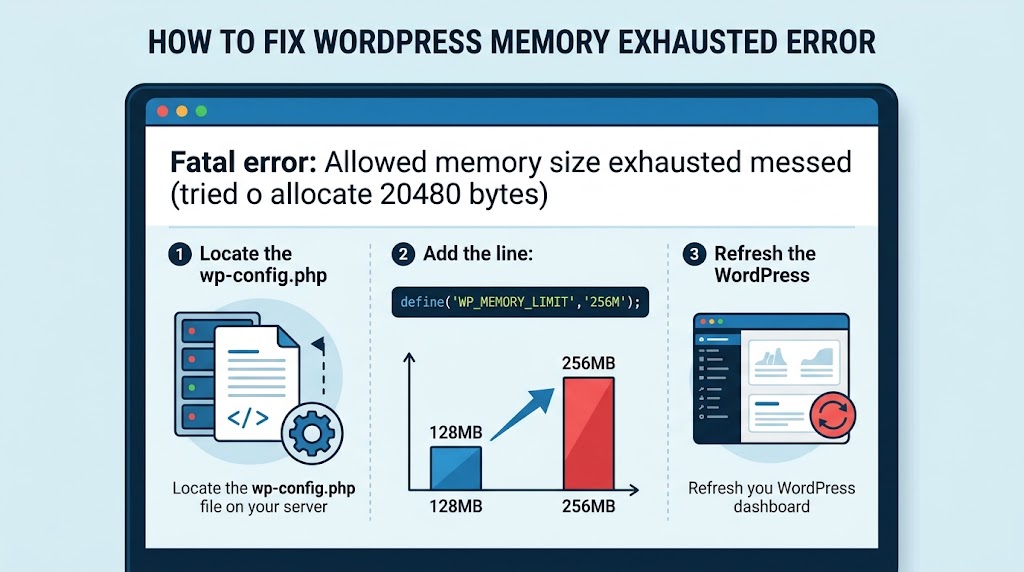
A typical error looks like this:
Fatal error: Allowed memory size of 268435456 bytes exhausted
(tried to allocate 20480 bytes)
The exact numbers can vary depending on your server and PHP configuration.
This problem can occur while loading a page, uploading an image, updating a plugin, editing a post, importing data, or performing another resource-intensive operation.
Increasing the WordPress memory limit can fix the problem, but it isn’t always the correct solution. A poorly coded plugin, theme, large import, or server configuration can also be responsible.
This guide explains how to identify the cause and fix the problem step by step.
What Does “Memory Exhausted” Mean in WordPress?
WordPress runs on PHP. Every PHP request needs memory to perform tasks such as:
- Loading WordPress core
- Loading plugins
- Loading the active theme
- Processing database queries
- Generating images
- Running WooCommerce operations
- Importing or exporting data
- Processing AJAX requests
- Building large queries or API responses
Your hosting server places a limit on how much memory a PHP process can use.
For example, if PHP is configured with:
memory_limit = 256M
a PHP request generally cannot use more than 256 MB of memory.
If the request needs more than that limit, PHP can terminate the process and produce a fatal error.
Common Causes of the WordPress Memory Exhausted Error
The error can have several causes.
1. A plugin requires too much memory
A plugin may perform a large operation or contain inefficient code that consumes a significant amount of PHP memory.
This is especially common with plugins that handle:
- Image processing
- Backups
- Imports/exports
- Page builders
- WooCommerce
- Large databases
- SEO analysis
- Security scanning
2. A theme consumes excessive memory
A theme can also use substantial memory if it performs complex queries, loads large datasets, or includes inefficient code.
3. A large operation is being performed
Operations such as these can temporarily require more memory:
- Importing products
- Processing thousands of posts
- Regenerating thumbnails
- Exporting large datasets
- Running database operations
- Bulk editing content
4. The PHP memory limit is too low
Some hosting environments use a relatively small PHP memory limit.
For a modern WordPress website, especially one using WooCommerce or several plugins, a low limit can become a problem.
5. A plugin or theme has a memory leak
If memory usage continuously increases during a request or repeated operation, simply increasing the memory limit may only hide the underlying problem.
In that situation, you should identify the code responsible.
Step 1: Check Your Current WordPress Memory Limit
Before changing anything, check the current configuration.
In WordPress, go to:
Tools → Site Health → Info → Server
Look for:
PHP memory limit
You can also check:
WordPress Constants
depending on your WordPress version and hosting configuration.
Another useful value is:
WP_MEMORY_LIMIT
These values are not necessarily the same thing.
For example:
PHP memory limit: 256M
WordPress memory limit: 128M
Increasing the WordPress value does not necessarily increase the server’s PHP limit.
Step 2: Increase WordPress Memory Using wp-config.php
One of the most common solutions is increasing the WordPress memory limit.
Open:
wp-config.php
Find:
/* That's all, stop editing! Happy publishing. */
Add the following before that line:
define( 'WP_MEMORY_LIMIT', '256M' );
define( 'WP_MAX_MEMORY_LIMIT', '512M' );
Your configuration may look like:
define( 'WP_MEMORY_LIMIT', '256M' );
define( 'WP_MAX_MEMORY_LIMIT', '512M' );

/* That's all, stop editing! Happy publishing. */
What do these constants do?
WP_MEMORY_LIMIT controls the memory WordPress requests for normal frontend operations.
WP_MAX_MEMORY_LIMIT is used for administration tasks that may require more memory.
For example:
define( 'WP_MEMORY_LIMIT', '256M' );
define( 'WP_MAX_MEMORY_LIMIT', '512M' );
does not mean that every WordPress request will automatically consume 256 MB or 512 MB.
It defines the limits WordPress requests may use, subject to the PHP/server configuration.
Step 3: Check the PHP memory_limit
If changing wp-config.php doesn’t solve the problem, your server’s PHP memory limit may be lower than the value you’re requesting.
You can check the PHP configuration from your hosting control panel.
Look for:
memory_limit
For example:
memory_limit = 128M
If WordPress requests:
256M
but PHP is limited to:
128M
changing only WP_MEMORY_LIMIT may not solve the problem.
Depending on your hosting environment, you may be able to change the PHP memory limit from:
- Hosting control panel
- PHP settings
php.ini.user.ini- Hosting support
The exact method depends on your hosting provider.
Step 4: Check Your PHP Version
An outdated PHP version can also contribute to compatibility and performance problems.
Go to:
Tools → Site Health → Info → Server
and check the PHP version.
Before changing PHP versions on a production website:
- Create a backup.
- Test the site on staging if possible.
- Check plugin compatibility.
- Check theme compatibility.
- Change PHP version.
- Test the frontend and WordPress admin.
Don’t change PHP versions blindly just because you encountered a memory error.
Step 5: Temporarily Disable Plugins
If increasing memory doesn’t solve the problem, investigate your plugins.
A plugin conflict is one of the most useful things to test.
Go to:
Plugins → Installed Plugins
and temporarily deactivate your plugins.
Then test the operation that was producing the error.
For example, if the error occurs when uploading an image:
- Deactivate plugins.
- Try uploading the image again.
- If the upload works, a plugin may be involved.
- Reactivate plugins one at a time.
- Test the upload after each activation.
When the problem returns, you’ve identified a likely source.
Important
If you cannot access WordPress admin, you can deactivate plugins through the database or file system, depending on your hosting setup.
On a development or staging site, you can also temporarily rename:
wp-content/plugins
to something such as:
wp-content/plugins-disabled
WordPress will no longer be able to load the plugins from that directory.
Restore the original directory name after testing.
Step 6: Test the Active Theme
If disabling plugins doesn’t solve the problem, temporarily test with a default WordPress theme.
For example:
Twenty Twenty-Five
Twenty Twenty-Four
Use whichever current default theme is available on your installation.
If the problem disappears after switching themes, investigate your active theme.
Look particularly at:
- Custom queries
- Large loops
- API requests
- Image processing
- Custom WooCommerce functionality
- AJAX handlers
functions.php- Custom template code
A custom theme can cause memory exhaustion just as a plugin can.
Step 7: Enable WordPress Debugging
If you still don’t know what’s causing the problem, WordPress debugging can provide useful information.
Open:
wp-config.php
and use:
define( 'WP_DEBUG', true );
define( 'WP_DEBUG_LOG', true );
define( 'WP_DEBUG_DISPLAY', false );
This configuration records PHP errors in:
/wp-content/debug.log
For example:
define( 'WP_DEBUG', true );
define( 'WP_DEBUG_LOG', true );
define( 'WP_DEBUG_DISPLAY', false );
Then reproduce the problem.
Afterward, check:
wp-content/debug.log
Look for:
- Fatal errors
- Plugin names
- Theme files
- PHP functions
- File paths
- Line numbers
A message such as:
/wp-content/plugins/example-plugin/includes/process.php
can give you a strong indication of which component is involved.
Important
Do not leave debugging enabled unnecessarily on a production site.
After troubleshooting, turn it off:
define( 'WP_DEBUG', false );
Also avoid displaying PHP errors publicly because error messages can expose paths and other technical information.
Step 8: Check the PHP Error Log
WordPress’s debug.log isn’t the only place you can find useful information.
Your hosting provider may provide a separate PHP error log.
Depending on your hosting environment, look for sections such as:
- PHP Errors
- Error Logs
- PHP Logs
- Server Logs
- Application Logs
The server log can sometimes reveal the problem even when WordPress debugging doesn’t provide enough information.
Step 9: Don’t Automatically Blame Memory
This is an important troubleshooting step.
Suppose you receive:
Allowed memory size of 268435456 bytes exhausted
The obvious solution appears to be:
Increase memory to 512M.
Sometimes that works.
But imagine a plugin suddenly starts consuming hundreds of megabytes because of a bug.
Increasing the limit may simply allow the plugin to consume even more memory.
For example:
128M → error
256M → error
512M → error
1024M → error
In this situation, the underlying problem needs to be investigated.
If the error appeared immediately after installing or updating a plugin, test that plugin first.
Step 10: Check What Changed Recently
Ask yourself:
When did the problem start?
Was there a recent:
- Plugin update?
- Theme update?
- WordPress update?
- PHP version change?
- WooCommerce update?
- Server migration?
- New custom code?
- Large content import?
This can significantly narrow down the cause.
For example:
The website worked normally yesterday, then a plugin was updated, and the memory error started immediately afterward.
That’s a much stronger lead than simply assuming the server doesn’t have enough memory.
Step 11: WooCommerce Sites May Need More Memory
WooCommerce websites can require more PHP resources because they may load:
- Products
- Variations
- Orders
- Customer data
- Payment gateways
- Shipping methods
- Tax calculations
- Cart information
- Third-party integrations
If the error occurs specifically in WooCommerce admin pages or during imports/exports, investigate the operation itself rather than simply increasing memory.
For large WooCommerce stores, also check:
- Database size
- Product variation count
- Import batch size
- Plugins
- Third-party APIs
- Scheduled actions
- PHP execution time
- Server resources
Step 12: Large Imports Can Trigger Memory Errors
Importing a large number of posts, products, users, or other records can require significant memory.
Instead of importing everything in one operation, use smaller batches when the import tool supports it.
For example:
10,000 records
      ↓
1,000 records per batch
      ↓
10 smaller operations
This can reduce memory usage and make failures easier to diagnose.
If an import plugin has settings for:
- Batch size
- Memory usage
- Processing limit
- Number of records per request
try reducing the batch size before dramatically increasing the PHP memory limit.
Step 13: Check Server Resources
PHP memory isn’t the only resource that matters.
Your hosting environment may also have limits involving:
- CPU
- RAM
- PHP workers
- Processes
- Execution time
- Database resources
- Disk space
- I/O
A website can therefore have:
PHP memory_limit = 512M
and still experience problems because the hosting account has other resource restrictions.
If increasing PHP memory has no effect, check your hosting resource usage.
Step 14: Common wp-config.php Mistake
A common mistake is adding the constants after this line:
/* That's all, stop editing! Happy publishing. */
Don’t do that.
Place them before it:
define( 'WP_MEMORY_LIMIT', '256M' );
define( 'WP_MAX_MEMORY_LIMIT', '512M' );

/* That's all, stop editing! Happy publishing. */
Also make sure you don’t accidentally define the same constant multiple times.
For example, avoid having:
define( 'WP_MEMORY_LIMIT', '128M' );
and later:
define( 'WP_MEMORY_LIMIT', '256M' );
Clean up duplicate definitions rather than adding more and more values.
Step 15: What Memory Limit Should You Use?
There is no single memory value that is correct for every WordPress website.
As a general starting point:
128M  → Smaller/simple sites
256M  → Many standard WordPress sites
512M  → Resource-intensive operations/sites
But don’t increase memory simply because a larger number is available.
The appropriate value depends on:
- Website size
- Plugins
- Theme
- WooCommerce
- Traffic
- Import/export operations
- Server resources
- PHP configuration
More memory isn’t automatically better.
Quick Fix
If you’re getting the error and need to test the most common solution first:
- Open
wp-config.php. - Add:
define( 'WP_MEMORY_LIMIT', '256M' );
define( 'WP_MAX_MEMORY_LIMIT', '512M' );
- Save the file.
- Test the operation again.
- If the problem remains, check the PHP
memory_limit. - If the PHP limit is already sufficient, investigate plugins and themes.
- Check
wp-content/debug.logand your hosting PHP error log.
If Increasing Memory Doesn’t Fix the Problem
Work through this checklist:
Memory exhausted error
        ↓
Check current PHP memory_limit
        ↓
Increase WordPress memory if appropriate
        ↓
Still failing?
        ↓
Disable plugins
        ↓
Problem gone?
   ↙             ↘
 YES             NO
  ↓               ↓
Find plugin      Test theme
conflict             ↓
              Still failing?
                    ↓
             Check debug.log
                    ↓
             Check PHP logs
                    ↓
             Check server limits
                    ↓
          Investigate custom code
This approach is generally more useful than repeatedly increasing the memory limit.
Frequently Asked Questions
What causes the WordPress memory exhausted error?
The error occurs when a PHP request reaches its available memory limit. Plugins, themes, large operations, imports, image processing, WooCommerce, custom code, and server configuration can all contribute.
How do I increase WordPress memory?
Add the following before the “That’s all, stop editing!” line in wp-config.php:
define( 'WP_MEMORY_LIMIT', '256M' );
define( 'WP_MAX_MEMORY_LIMIT', '512M' );
Your hosting environment may still impose a lower PHP memory limit.
Is 256M enough for WordPress?
For many standard WordPress sites, 256 MB can be sufficient, but there is no universal requirement. WooCommerce, page builders, large imports, and resource-intensive plugins may require more.
Is 512M too much?
Not necessarily. A higher limit can be appropriate for certain administrative or resource-intensive operations, but giving PHP more memory doesn’t fix inefficient code or a plugin bug.
Why does WordPress still show the memory error after increasing WP_MEMORY_LIMIT?
Your hosting provider may have a lower PHP memory_limit, or the problem may be caused by a plugin, theme, custom code, or unusually large operation.
Can a plugin cause memory exhaustion?
Yes. Plugins can consume significant memory, especially those handling large datasets, imports, image processing, backups, security scans, or complex API operations.
Can a theme cause memory exhaustion?
Yes. A theme can cause excessive memory usage through inefficient queries, loops, API calls, image processing, or custom functionality.
Should I always increase the memory limit when I see this error?
No. Increasing memory is a useful troubleshooting step, but you should investigate the underlying cause if the problem continues or appeared after a plugin/theme/code change.
Final Thoughts
The WordPress memory exhausted error is usually straightforward to resolve once you identify where the memory is being consumed.
Start by checking your PHP and WordPress memory limits. If necessary, increase the limits to an appropriate value. If the error continues, don’t keep increasing the limit indefinitely.
Instead, investigate:
- Plugins
- Themes
- Custom code
- Large imports
- Image processing
- WooCommerce operations
- PHP error logs
- Server resource limits
The goal isn’t simply to give WordPress more memory. The goal is to make sure the operation causing the problem is using resources appropriately.
If the problem started immediately after a plugin or theme change, start your investigation there. That often provides the fastest route to the underlying cause.