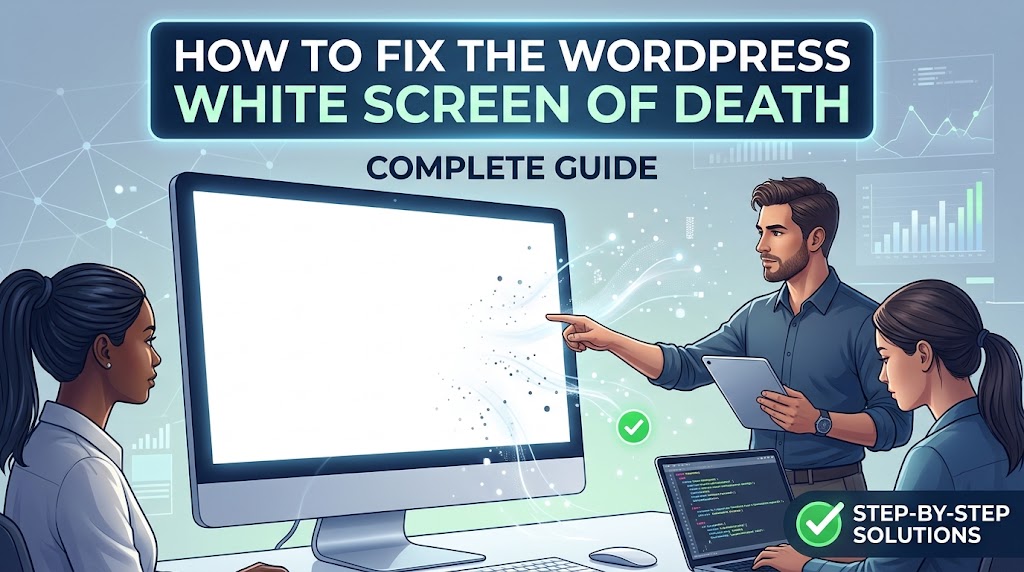
The WordPress White Screen of Death (WSOD) happens when a WordPress website stops producing normal page output and you are left with a blank white page, a partially loaded page, or sometimes a generic “There has been a critical error on this website” message.
The problem can affect:
- The entire website
- Only the WordPress admin
- A single page
- A specific post
- A custom post type
- A WooCommerce page
- AJAX or REST requests
The cause is often a PHP fatal error, plugin conflict, theme problem, exhausted PHP memory, incompatible custom code, or a server-side problem.
Modern WordPress versions also include Recovery Mode, which can help identify and isolate fatal errors caused by plugins or themes without requiring immediate FTP access.
This guide walks through a systematic way to find the actual cause instead of randomly disabling settings or reinstalling WordPress.
What Is the WordPress White Screen of Death?
The White Screen of Death is the common name for a WordPress site that stops rendering because something has gone wrong during execution.
A typical example looks like this:
Your website
     ↓
WordPress loads
     ↓
Plugin/theme/custom code executes
     ↓
PHP fatal error occurs
     ↓
Page stops rendering
     ↓
Blank page / critical error
Historically, this often appeared as a completely blank page.
Modern WordPress versions can instead display a message such as:
There has been a critical error on this website.
WordPress’s built-in fatal-error handling and Recovery Mode were introduced to make these failures easier to diagnose.
Common Causes of the WordPress White Screen
The most common causes include:
- Plugin conflicts
- Theme conflicts
- PHP fatal errors
- PHP memory exhaustion
- Incompatible PHP versions
- Broken custom code
- Syntax errors
- Failed plugin or theme updates
- Corrupted WordPress files
- Database problems
.htaccessproblems- Server configuration errors
- Security/WAF interference
- Incorrect file permissions
- CDN or caching problems
The important thing is that a white screen is a symptom, not a diagnosis.
Your first goal should be finding the underlying error.
1. Don’t Start by Reinstalling WordPress
A common reaction to a broken WordPress site is:
“I’ll just reinstall WordPress.”
Don’t make that your first step.
A reinstall won’t necessarily fix:
- A bad plugin
- A broken theme
- A PHP compatibility problem
- Custom code
- A memory limit
- A server configuration issue
- A database problem
You could also make troubleshooting harder if you start changing files before identifying the original problem.
Instead:
Backup
   ↓
Identify the error
   ↓
Isolate the cause
   ↓
Fix the cause
   ↓
Test the site
2. Check Whether WordPress Recovery Mode Is Available
If WordPress detects a fatal PHP error caused by a plugin or theme, it can activate Recovery Mode.
WordPress sends the site administrator an email containing information about the problem and a link that can be used to enter Recovery Mode.
Check the administrator’s email inbox for a message about a technical issue with the website.
Also check:
- Spam
- Junk
- Email filtering
- Hosting mail logs if necessary
The email can identify the component that caused the fatal error.
3. What Happens in Recovery Mode?
Recovery Mode temporarily pauses the faulty plugin or theme for your administrator session.
This allows you to log in and investigate the problem without necessarily disabling the component for every visitor.
You may see information identifying:
- Plugin
- Theme
- File
- Function
- PHP error
- Line number
For example:
Plugin:
example-plugin

File:
wp-content/plugins/example-plugin/includes/class-example.php

Line:
142

Error:
Call to undefined function example_function()
That information is extremely valuable.
Instead of guessing which plugin is broken, you have a specific starting point.
4. If Recovery Mode Works
If you can access WordPress through Recovery Mode:
Step 1
Go to:
Plugins
Look for the plugin identified by the error.
Step 2
Deactivate the problematic plugin.
Step 3
Exit Recovery Mode.
Step 4
Open the website normally.
If the site loads again, you have confirmed that the plugin is involved.
Don’t immediately assume the plugin itself is defective.
The underlying cause could also be:
- PHP version compatibility
- Another plugin conflict
- Theme compatibility
- Missing PHP extension
- Custom code
- Plugin update problem
5. Check What Changed Immediately Before the Problem
This is one of the most useful troubleshooting questions:
What changed immediately before the website broke?
Think about:
- Plugin update
- Theme update
- WordPress update
- PHP version change
- New custom code
functions.phpmodification- New plugin installation
- Server migration
- Database migration
- CDN change
- Security configuration change
For example:
Website worked
     ↓
Plugin updated
     ↓
Website becomes blank
That is a strong diagnostic clue.
6. Enable WordPress Debug Logging
If Recovery Mode doesn’t identify the problem clearly, enable WordPress debugging.
Open:
wp-config.php
and use:
define( 'WP_DEBUG', true );
define( 'WP_DEBUG_LOG', true );
define( 'WP_DEBUG_DISPLAY', false );
Make sure these definitions appear before:
/* That's all, stop editing! Happy publishing. */
WordPress documents WP_DEBUG_LOG as a way to save errors to wp-content/debug.log, while WP_DEBUG_DISPLAY can prevent errors from being displayed publicly.
Then reproduce the problem.
For example:
- Enable debugging.
- Visit the broken page.
- Refresh it.
- Trigger the error again.
- Open:
wp-content/debug.log
Look for the newest error.
7. Why Use WP_DEBUG_DISPLAY as False?
Avoid displaying PHP errors directly to normal visitors on a production website.
Use:
define( 'WP_DEBUG', true );
define( 'WP_DEBUG_LOG', true );
define( 'WP_DEBUG_DISPLAY', false );
instead.
This allows you to investigate the problem through the log without exposing debugging information in the site’s HTML.
WordPress specifically warns that debug information can contain sensitive information and should not normally be displayed on a publicly accessible production site.
8. Find the Fatal Error in debug.log
Open:
wp-content/debug.log
Look near the bottom of the file first.
You might find something like:
PHP Fatal error: Uncaught Error:
Call to undefined function example_function()
in /home/site/public_html/wp-content/plugins/example-plugin/example.php:142
This tells you:
Error:
Call to undefined function

Plugin:
example-plugin

File:
example.php

Line:
142
Now you have something concrete to investigate.
9. Common PHP Fatal Errors
You may encounter errors such as:
Call to undefined function
Call to undefined function example_function()
Possible causes:
- Missing PHP extension
- Plugin compatibility issue
- Function removed or renamed
- Incorrect custom code
Call to undefined method
Call to undefined method Example_Class::something()
Possible causes:
- Plugin conflict
- Incorrect class version
- Incompatible plugin code
Cannot redeclare function
Cannot redeclare example_function()
Possible causes:
- Same function loaded twice
- Plugin conflict
- Theme/plugin duplicate code
Allowed memory size exhausted
Allowed memory size exhausted
Possible causes:
- Plugin using excessive memory
- Theme/custom code
- Large operation
- WooCommerce process
- Image processing
- Insufficient PHP memory limit
PHP’s memory_limit restricts the amount of memory a PHP script can allocate.
10. Fix a Syntax Error
A simple PHP syntax error can take down the entire website.
For example:
function my_function() {
    echo 'Hello'
}
The missing semicolon can cause PHP to stop parsing the file.
Correct:
function my_function() {
    echo 'Hello';
}
Syntax errors commonly happen after manually editing:
functions.php- Custom plugins
- Theme files
wp-config.php- Template files
If the problem started immediately after editing PHP code, inspect that change first.
11. Check functions.php
If you recently edited:
wp-content/themes/your-theme/functions.php
and the site immediately went blank, the theme may be responsible.
Use SFTP or your hosting File Manager to access the file.
Look for:
- Missing semicolons
- Missing braces
- Incorrect quotes
- Invalid PHP
- Functions declared twice
- Incorrect class names
- Missing includes
If necessary, restore the previous version from Git or a backup.
12. Temporarily Disable Plugins
If you cannot access wp-admin, you can disable plugins through SFTP or your hosting file manager.
Go to:
wp-content/
Rename:
plugins
to:
plugins-disabled
WordPress will no longer load the plugins from the original directory.
The official WordPress troubleshooting documentation also recommends renaming the plugins directory when administration screens cannot be accessed.
Important
Don’t leave the directory renamed permanently.
Once you determine the problem is plugin-related:
- Rename it back to
plugins. - Restore normal access.
- Identify the specific plugin.
- Disable or fix only the problematic plugin.
13. Find the Specific Plugin
If disabling all plugins restores the website:
All plugins disabled
       ↓
Website works
       ↓
Plugin conflict confirmed
Now isolate the plugin.
A simple method is:
Enable plugin 1
Test
Enable plugin 2
Test
Enable plugin 3
Test
For a large plugin list, you can use a binary approach.
For example:
20 plugins
   ↓
Enable 10
   ↓
Test
   ↓
Problem remains
   ↓
Test the remaining 10
This can reduce the number of tests dramatically.
14. Check the Active Theme
If disabling plugins doesn’t fix the problem, test the theme.
The WordPress documentation recommends switching to a default WordPress theme when the active theme is suspected.
If you have wp-admin access:
Appearance → Themes
Activate an available default WordPress theme.
If you don’t have access to wp-admin, you can rename the active theme directory through SFTP.
For example:
wp-content/themes/my-theme
could temporarily become:
wp-content/themes/my-theme-disabled
WordPress can then fall back to another available theme.
15. Be Careful With Custom Themes
Custom themes can cause WSOD through:
functions.php- Template files
- Custom classes
- Required files
- ACF code
- WooCommerce templates
- Custom REST endpoints
- Shortcodes
- Hooks
- PHP version incompatibility
If the error points into your theme, don’t immediately replace the entire theme.
Find the exact file and line first.
If the project uses Git, compare the broken version with the last known working commit.
16. Check PHP Version Compatibility
A WordPress site can break after a PHP version change.
For example:
PHP version changed
       ↓
Older plugin/theme code
       ↓
PHP fatal error
       ↓
Website breaks
Check:
Tools → Site Health → Info
or your hosting control panel.
If the fatal error identifies a plugin or theme, check that product’s current PHP compatibility information.
Don’t blindly switch to an old PHP version and leave it there permanently.
The better solution is usually to update or replace incompatible code.
17. Check PHP Memory
If the error says:
Allowed memory size exhausted
check your PHP memory limit.
You can sometimes increase the WordPress memory limit with:
define( 'WP_MEMORY_LIMIT', '256M' );
in wp-config.php.
However, this does not necessarily override the server’s PHP memory_limit.
PHP itself controls the maximum memory available to a script.
Check the actual PHP value through:
- Hosting control panel
- Site Health
- PHP configuration
- Hosting support
Don’t simply increase memory to extremely large values without finding out what is consuming it.
18. Find the Plugin Consuming Memory
If increasing memory temporarily fixes the site, investigate the underlying cause.
Look at the fatal error.
For example:
Allowed memory size exhausted
in wp-content/plugins/example-plugin/...
If the error points directly into a plugin, test that plugin.
Possible causes include:
- Large database query
- Recursive code
- Huge data processing
- Image processing
- Import/export operation
- Poorly optimized plugin
- Plugin conflict
Increasing memory can be useful as a temporary workaround, but it isn’t always the actual fix.
19. Check .htaccess
On Apache servers, a damaged .htaccess file can cause website errors.
Before changing it, make a backup.
You can temporarily rename:
.htaccess
to:
.htaccess-backup
Then test the site.
If the website works again, regenerate .htaccess.
In WordPress:
Settings → Permalinks
and click:
Save Changes
WordPress can regenerate the standard rewrite rules.
Important
Don’t delete .htaccess permanently without checking whether your hosting environment or custom configuration relies on it.
20. Check Server Error Logs
WordPress’s debug.log isn’t always enough.
The failure may happen at the PHP or web-server level.
Check your hosting logs for:
PHP errors
Apache errors
Nginx errors
ModSecurity
WAF
Server errors
For example:
PHP Fatal error
Allowed memory size exhausted
Permission denied
Premature end of script headers
can provide more information than the browser’s blank page.
21. Check the Browser Console
Sometimes the WordPress page itself isn’t the only problem.
Open:
Chrome → Inspect → Console
Look for JavaScript errors.
Also check:
Network
and reload the page.
Look for:
500
403
404
502
503
A frontend JavaScript problem usually doesn’t cause a true PHP WSOD, but it can make a functioning page appear broken.
This is especially relevant when:
- Only one section is blank.
- AJAX content doesn’t load.
- The WordPress dashboard is partially broken.
- A page builder interface fails.
22. Check Whether Only One Page Is Broken
A useful question is:
Is the entire website broken, or only one URL?
Try:
/
/wp-admin/
/about/
/contact/
/a-specific-post/
If only one page fails, the problem could be related to:
- That post’s data
- Custom fields
- Template code
- Shortcode
- Block
- Query
- Custom post type
- Plugin functionality
If the entire site is broken, investigate:
- Plugin
- Theme
wp-config.php- PHP
- Core files
- Server configuration
23. Check Custom Post Types and Templates
If only a custom post type page is broken, inspect its template.
For example:
single-location.php
single-job.php
single-product.php
A PHP error inside that template may only affect the corresponding URLs.
Likewise, check:
archive-location.php
taxonomy-location_category.php
if an archive or taxonomy page is affected.
This is particularly important on sites with custom themes and extensive ACF/CPT functionality.
24. Check ACF and Custom Fields
If the problem appeared after adding custom ACF code, check for assumptions such as:
$value = get_field( 'some_field' );
echo $value['something'];
If the field returns a string, false, or null instead of the expected array, custom code can fail.
Safer code often checks the returned value before accessing nested data.
For example:
$value = get_field( 'some_field' );

if ( is_array( $value ) && isset( $value['something'] ) ) {
    echo esc_html( $value['something'] );
}
The exact fix depends on the error reported in the log.
25. Check WooCommerce
If the WSOD happens only on WooCommerce pages, investigate:
- WooCommerce
- Payment plugins
- Shipping plugins
- Product extensions
- Theme WooCommerce templates
- Custom checkout code
- Custom cart code
Check whether the issue started after:
- WooCommerce update
- Payment gateway update
- Theme update
- PHP update
Again, use the fatal error to identify the actual source rather than disabling everything indefinitely.
26. Check Recently Updated Plugins
A very common troubleshooting pattern is:
Everything worked yesterday
        ↓
Plugin updated
        ↓
Website broke
If that’s what happened:
- Identify the updated plugin.
- Check the fatal error.
- Disable the plugin.
- Confirm the website returns.
- Check whether a newer compatible version exists.
- Contact the plugin developer if necessary.
- Restore a known-working version only if appropriate.
If you have a staging environment, reproduce the problem there before changing production.
27. Check WordPress Core Files
If the error points to WordPress core files rather than a plugin or theme, investigate whether core files are corrupted or incomplete.
You can use:
Dashboard → Updates
to reinstall the current WordPress version when wp-admin is available.
If wp-admin isn’t available, use your hosting tools or a clean WordPress package to restore core files.
Do not overwrite:
wp-content/
wp-config.php
when doing a core replacement unless you specifically understand what you are replacing.
Your uploads, plugins, themes, and configuration should be treated separately from WordPress core.
28. Don’t Replace the Whole Website Immediately
A common mistake is restoring the entire website from backup without investigating.
A full restore can be appropriate if:
- The site was compromised.
- Files are severely corrupted.
- A major deployment failed.
- A known-good backup is available.
- The cause is understood.
But if a single plugin caused the fatal error, restoring the entire site can unnecessarily roll back unrelated changes.
Diagnose first whenever practical.
29. If You Recently Edited wp-config.php
Be especially careful with syntax in:
wp-config.php
For example:
define( 'WP_DEBUG', true );
is valid.
But:
define( 'WP_DEBUG', true
is missing the closing syntax and can prevent WordPress from loading.
Even a small PHP syntax mistake in wp-config.php can stop the entire application from starting.
If the WSOD started immediately after editing this file, check it first.
30. Don’t Display Debug Information on Production
For troubleshooting, this is useful:
define( 'WP_DEBUG', true );
define( 'WP_DEBUG_LOG', true );
define( 'WP_DEBUG_DISPLAY', false );
But after the problem is fixed, return debugging to the site’s normal production configuration.
WordPress recommends using debugging primarily for development and staging environments and warns about exposing debug information publicly.
31. What If There Is No debug.log?
If:
wp-content/debug.log
doesn’t exist, don’t immediately assume debugging isn’t working.
First:
- Confirm
WP_DEBUGis enabled. - Confirm
WP_DEBUG_LOGis enabled. - Confirm you reproduced the error after enabling debugging.
- Check whether the configured log path is different.
- Check filesystem permissions.
- Check the PHP/server error log.
WordPress documents that WP_DEBUG_LOG writes to wp-content/debug.log when enabled, unless another valid path is specified.
32. Don’t Turn On WP_DISABLE_FATAL_ERROR_HANDLER on Production
You may find older troubleshooting guides suggesting:
define( 'WP_DISABLE_FATAL_ERROR_HANDLER', true );
This disables WordPress’s fatal-error handler.
For normal production troubleshooting, don’t add this just because you have a WSOD.
WordPress’s Recovery Mode exists specifically to help deal with fatal errors caused by plugins and themes.
If you are debugging a development environment and specifically need the raw PHP behavior, there are legitimate reasons to change fatal-error handling—but that is a different situation.
33. A Complete WSOD Troubleshooting Workflow
When a client sends you:
“The WordPress site is just white.”
Use this sequence.
Step 1 — Check the frontend
Is the entire site broken or only one URL?
Step 2 — Check wp-admin
Try:
/wp-admin/
Step 3 — Check Recovery Mode
Look for the WordPress technical-issue email.
Step 4 — Identify what changed
Ask:
- Plugin update?
- Theme update?
- PHP change?
- Custom code?
- WordPress update?
- Migration?
Step 5 — Check the error
Look at:
Recovery Mode email
wp-content/debug.log
PHP error log
server error log
Step 6 — Disable the suspected plugin
Use wp-admin or SFTP.
Step 7 — Test the theme
Switch to a default theme.
Step 8 — Check PHP memory
Look for:
Allowed memory size exhausted
Step 9 — Check PHP compatibility
Compare the active PHP version with the plugin/theme requirements.
Step 10 — Check .htaccess
Only if the server configuration suggests it.
Step 11 — Check core files
Reinstall/replace WordPress core if necessary.
Step 12 — Test everything again
Verify:
- Homepage
- Posts
- Pages
- Admin
- Forms
- WooCommerce
- AJAX
- REST API
- Custom post types
34. What to Do If You Cannot Access WordPress Admin
Use this emergency workflow:
Can't access wp-admin
        ↓
Check Recovery Mode email
        ↓
Check debug.log
        ↓
Use SFTP/File Manager
        ↓
Temporarily disable plugins
        ↓
Test website
        ↓
Restore plugin directory
        ↓
Identify specific plugin
        ↓
Test theme if necessary
If you have SSH access, WP-CLI can also be useful for experienced administrators.
For example:
wp plugin list
and:
wp plugin deactivate plugin-slug
can help isolate a plugin without using wp-admin.
Only use WP-CLI commands appropriate to your hosting environment and site.
35. How to Fix a WSOD Caused by a Plugin
Once you’ve identified the plugin:
Option 1 — Update it
Check whether a newer compatible version exists.
Option 2 — Roll back
If the problem was introduced by a recent update, restore the previous known-working version if you have a safe rollback process.
Option 3 — Replace it
If the plugin is abandoned or incompatible, find an alternative.
Option 4 — Fix custom code
If it’s your own plugin, inspect the exact fatal error and line number.
Don’t edit third-party plugin files directly unless you fully understand the maintenance consequences.
36. How to Fix a WSOD Caused by a Theme
If the theme is responsible:
- Switch to a default theme.
- Confirm the website works.
- Inspect the theme’s error.
- Check recent code changes.
- Compare against Git/backup.
- Fix the offending code.
- Test on staging.
- Reactivate the theme.
For a custom theme, Git is particularly useful because you can quickly compare the current version against the last working commit.
37. How to Fix a WSOD Caused by Custom Code
If the error points to your custom code, inspect the exact line.
Typical problems include:
Undefined function
Undefined method
Undefined variable
Missing class
Missing include
Syntax error
Type error
Argument count error
Memory exhaustion
Don’t fix the symptom without understanding why the code reached that state.
For example, if code expects an array:
$value['name']
verify that $value is actually an array first.
38. Check PHP Error Messages Carefully
Don’t focus only on the last line of a fatal error.
For example:
Fatal error:
Uncaught TypeError:
...
in /wp-content/plugins/example/example.php:142
The useful information can include:
- Error type
- Message
- File
- Line number
- Function
- Call stack
The file and line number can often identify the responsible component immediately.
39. Don’t Assume the File Named in the Error Is Always the Root Cause
Suppose the error points to:
wp-includes/
That doesn’t automatically mean WordPress core is broken.
A plugin can call a core function incorrectly and cause the failure to appear during core execution.
Similarly, an error inside:
wp-includes/class-wp-hook.php
doesn’t automatically mean that file needs to be replaced.
Look at the complete stack trace and determine which plugin, theme, or custom code initiated the problematic call.
40. Clear Caches After Fixing the Error
Once the underlying issue is fixed, clear relevant caches.
Depending on your setup, this may include:
- WordPress cache
- Page cache
- Object cache
- CDN cache
- Browser cache
- PHP OPcache
This is particularly important when the website appears fixed in one environment but visitors still see an old error.
Don’t use cache clearing as a substitute for fixing the underlying PHP error.
41. Check PHP OPcache When Appropriate
If you have changed PHP files and the old behavior appears to continue, PHP OPcache can sometimes be part of the picture.
Your hosting environment normally manages this for you.
If a code change definitely exists on disk but PHP appears to execute an older version, ask your host whether OPcache needs to be reset.
This is less common than plugin/theme errors, so investigate the actual logs first.
42. When a 500 Error Looks Like a WSOD
A browser may show:
500 Internal Server Error
instead of a blank page.
Treat this as a server-side error rather than automatically calling it a WordPress rendering problem.
Check:
PHP error log
Apache/Nginx log
WordPress debug.log
The 500 response is the symptom.
The log usually contains the useful diagnosis.
43. When the Problem Is Actually a Database Error
Not every blank WordPress page is caused by PHP.
Database problems can also manifest as serious WordPress errors or blank output. WordPress’s documentation lists both PHP and database errors among possible causes of a white screen.
Look for errors involving:
MySQL
MariaDB
wpdb
Database connection
SQL syntax
Table doesn't exist
Unknown column
If you see a database-specific error, troubleshoot the database rather than repeatedly disabling plugins.
44. When to Restore a Backup
Restoring a backup makes sense when:
- The site was recently compromised.
- A deployment broke many files.
- A migration failed.
- Multiple files were corrupted.
- You have a verified known-good backup.
- The cause is understood or restoration is the safest recovery path.
Before restoring, confirm:
- Backup date
- Database state
- Uploaded media
- Plugin versions
- Theme files
wp-config.php- Custom code
- Recent content changes
Don’t restore an old backup blindly if newer orders, users, posts, or other important data would be lost.
45. Preventing Future White Screen Problems
A good prevention strategy includes:
Keep WordPress updated
Keep core, plugins, and themes maintained.
Use staging
Test major updates before production whenever practical.
Maintain backups
Keep regular backups of:
- Database
wp-content- Uploads
- Themes
- Plugins
- Configuration
Use version control
For custom development, use Git.
Monitor PHP compatibility
Don’t upgrade the server’s PHP version blindly on a production site.
Avoid abandoned plugins
Unmaintained software creates compatibility and security risks.
Keep debugging available for development
Use:
WP_DEBUG
WP_DEBUG_LOG
on development/staging environments when needed.
46. WordPress White Screen Checklist
Use this checklist when troubleshooting:
- Confirm whether the whole site or one URL is affected
- Check
/wp-admin/ - Check Recovery Mode email
- Identify recent changes
- Check
debug.log - Check PHP error logs
- Check server logs
- Disable suspected plugins
- Test with all plugins disabled
- Test a default theme
- Check PHP version
- Check PHP memory limit
- Check custom PHP code
- Check
.htaccess - Check WordPress core files
- Check database errors
- Check CDN/WAF
- Clear relevant caches
- Test frontend
- Test wp-admin
- Test forms/AJAX
- Test WooCommerce if applicable
- Test custom post types
- Disable debugging after troubleshooting
Frequently Asked Questions
What causes the WordPress White Screen of Death?
Common causes include PHP fatal errors, plugin conflicts, theme problems, incompatible custom code, memory exhaustion, PHP compatibility problems, server configuration issues, and database errors.
How do I fix the WordPress White Screen of Death?
Start by checking Recovery Mode and the WordPress administrator email. Then inspect wp-content/debug.log and your PHP/server logs. Disable the suspected plugin or theme and test again.
Why is my WordPress website showing “There has been a critical error on this website”?
This message generally indicates that WordPress encountered a serious PHP error. Recovery Mode may provide more information and allow you to access the dashboard safely.
How do I access WordPress when the site is completely blank?
First check for a Recovery Mode email. If that isn’t available, use SFTP or your hosting File Manager to inspect logs and temporarily disable plugins.
Can a plugin cause a white screen?
Yes. Plugin compatibility problems and PHP fatal errors are common causes of WordPress WSOD.
Can a theme cause a white screen?
Yes. A syntax error, incompatible code, or broken theme functionality can prevent WordPress from rendering a page.
Does increasing PHP memory fix the White Screen of Death?
It can fix a memory-exhaustion error, but only if insufficient memory is actually the cause. Check the error message before increasing the limit.
Where is the WordPress debug log?
By default, when WP_DEBUG and WP_DEBUG_LOG are enabled, WordPress writes the log to:
wp-content/debug.log
Should I disable all WordPress plugins?
Temporarily disabling all plugins can be a useful diagnostic step, especially when wp-admin is inaccessible. Once the site works, identify the specific plugin responsible instead of leaving everything disabled.
Should I reinstall WordPress?
Not as a first troubleshooting step. Identify the actual error first. Reinstalling WordPress won’t necessarily fix a plugin, theme, PHP, memory, or server problem.
What if Recovery Mode doesn’t send an email?
Check spam/junk folders and your site’s email configuration. If the email still doesn’t arrive, use the standard debugging process through SFTP/File Manager and inspect debug.log and server logs. WordPress specifically documents manual plugin deactivation as an alternative when Recovery Mode email access isn’t available.
Final Thoughts
The WordPress White Screen of Death looks serious because the site may appear completely inaccessible, but the blank page itself usually isn’t the real problem.
The real problem is normally somewhere behind it:
Plugin
   ↓
Theme
   ↓
Custom Code
   ↓
PHP
   ↓
Database
   ↓
Server
The fastest way to fix a WSOD is therefore not to start changing random settings.
Use a controlled troubleshooting process:
Check Recovery Mode
        ↓
Find the fatal error
        ↓
Check debug.log
        ↓
Check server logs
        ↓
Isolate plugin/theme
        ↓
Fix the actual cause
        ↓
Test the complete website
Once you have the exact PHP error, file, and line number, a seemingly mysterious white screen often becomes a straightforward debugging problem.
For related troubleshooting, see:
- How to Fix WordPress Plugin Conflicts
- How to Fix WordPress Memory Exhausted Error
- WordPress Security Checklist
- How to Scan and Fix a Hacked WordPress Site
These guides cover several of the most common causes and related problems that can take a WordPress website offline.