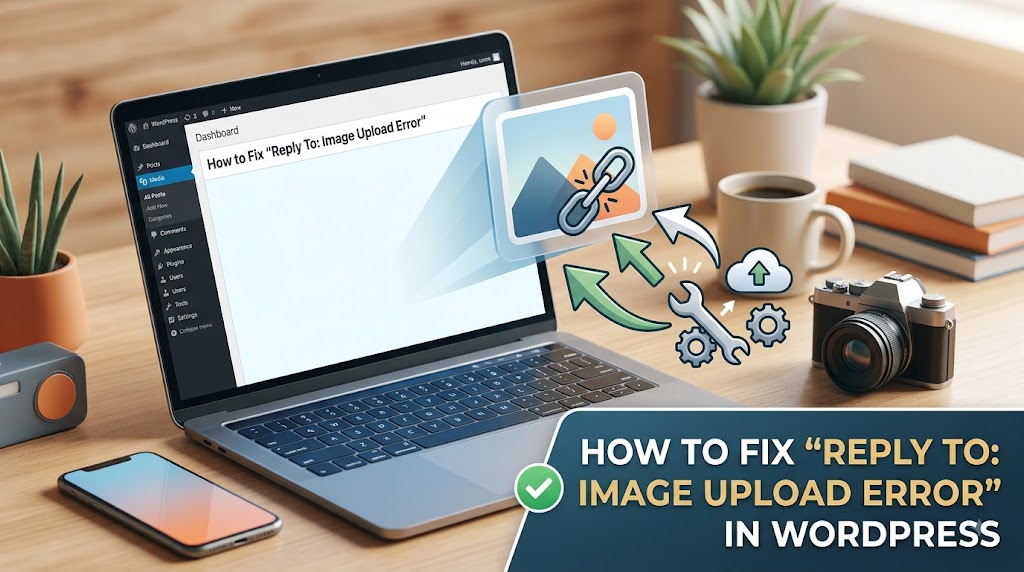
Trying to upload an image to WordPress but getting an error?
Image upload problems can be caused by many different things, including PHP upload limits, insufficient memory, incorrect file permissions, unsupported image formats, server configuration, security plugins, CDN/WAF rules, or problems with WordPress’s image-processing libraries.
Common messages include:
- “Unable to create directory.”
- “The uploaded file could not be moved to wp-content/uploads.”
- “The uploaded file exceeds the upload_max_filesize directive in php.ini.”
- “Post-processing of the image failed.”
- “HTTP error.”
- “Sorry, you are not allowed to upload this file type.”
- “The server cannot process the image.”
- The upload appears to finish but the image never appears in the Media Library.
- WordPress uploads the original image but fails while creating thumbnails.
The good news is that most WordPress image upload problems can be diagnosed without reinstalling WordPress or changing dozens of settings at random.
This guide explains how to identify the actual cause and fix it safely.
1. First, Identify the Exact Upload Error
Before changing anything, try uploading the image again and pay attention to the exact message WordPress displays.
Different errors usually point toward different parts of the upload process.
For example:
| Error or symptom | Possible cause |
|---|---|
| Unable to create directory | Permissions, ownership, uploads path |
| File exceeds upload limit | upload_max_filesize or post_max_size |
| HTTP error | Server, PHP, security plugin, CDN, image processing |
| 403 Forbidden | Permissions, WAF, security rules |
| 413 Request Entity Too Large | Server/proxy upload limit |
| 500 Internal Server Error | PHP/server error or image processing |
| Post-processing failed | GD/Imagick, memory, image dimensions |
| File type not permitted | MIME type or WordPress restrictions |
| Upload works for small images only | PHP/server size or memory limits |
| Upload works after disabling a plugin | Plugin conflict |
Don’t immediately increase every PHP limit or change file permissions to 777.
First determine which part of the upload process is failing.
2. Check the Maximum Upload Size in WordPress
Start with:
WordPress Dashboard → Media → Add New
WordPress displays the maximum file size that can be uploaded on the Media upload screen. That limit is affected by the server’s PHP configuration.
You can also check:
Tools → Site Health → Info → Media Handling
Depending on your WordPress version and server configuration, Site Health can show values such as:
- File uploads
- Maximum size of post data
- Maximum size of an uploaded file
- Maximum effective file size
- Maximum number of files
- GD version
- GD supported formats
- Imagick information
This is one of the fastest ways to determine whether the server is limiting your upload.
Example
Suppose WordPress reports:
Max upload file size: 2 MB
and you’re trying to upload:
hero-image.jpg - 5.4 MB
The problem isn’t WordPress’s Media Library.
The file is simply larger than the server’s configured upload limit.
3. Check upload_max_filesize
PHP controls the maximum size of an individual uploaded file through:
upload_max_filesize
For example:
upload_max_filesize = 64M
PHP’s documentation confirms that this setting controls the maximum size of an uploaded file.
If your server has:
upload_max_filesize = 2M
a 5 MB image cannot be uploaded through PHP.
Example configuration
A reasonable configuration for many WordPress sites might look like:
upload_max_filesize = 64M
However, don’t automatically increase the limit to something extremely large.
Choose a value appropriate for the site.
If the website only needs images under 10 MB, there is little reason to allow 500 MB uploads.
4. Check post_max_size
Another important PHP setting is:
post_max_size
This controls the maximum size of POST data and also affects file uploads.
For uploads to work correctly, PHP requires post_max_size to be larger than upload_max_filesize.
For example:
upload_max_filesize = 64M
post_max_size = 80M
is more appropriate than:
upload_max_filesize = 64M
post_max_size = 32M
The second configuration can still prevent a 64 MB upload from working.
PHP also recommends keeping memory_limit larger than post_max_size in general.
5. Check PHP Memory Limit
Uploading an image is not always the end of the process.
WordPress may need to process the image and generate additional image sizes after the original file is uploaded.
A large image can therefore require significantly more memory than its file size suggests.
For example:
Image file:
4 MB

Image dimensions:
8000 × 6000 pixels
The file might only be 4 MB on disk, but processing the image can require considerably more memory.
PHP’s:
memory_limit
controls the maximum amount of memory a PHP script can allocate.
A common WordPress configuration is:
define( 'WP_MEMORY_LIMIT', '256M' );
You can add this to wp-config.php before the line:
/* That's all, stop editing! Happy publishing. */
For example:
define( 'WP_MEMORY_LIMIT', '256M' );

/* That's all, stop editing! Happy publishing. */
Important
This does not necessarily override the server’s PHP memory_limit.
If the hosting environment restricts PHP to a lower value, you may need to change the PHP configuration through your hosting control panel or ask your hosting provider.
Don’t keep increasing memory indefinitely. If a normal image causes PHP memory exhaustion, investigate the image dimensions, image-processing library, plugin conflicts, and server configuration.
6. Check PHP Execution and Input Limits
Very large images or slow server environments can also run into PHP execution-related limits.
Relevant settings can include:
max_execution_time = 300
max_input_time = 300
max_input_time is particularly relevant to receiving request data, including file uploads. PHP documents that it controls the time allowed for a script to receive input, including uploaded files.
However, don’t assume that increasing max_execution_time will fix every slow upload.
Your web server, reverse proxy, CDN, hosting platform, and PHP configuration can all have separate limits.
7. Check the wp-content/uploads Directory
WordPress normally stores uploaded media inside:
wp-content/uploads/
Depending on your Media settings, WordPress may organize files into year/month directories such as:
wp-content/uploads/2026/09/
WordPress can automatically create these directories when the relevant parent directory is writable.
If WordPress cannot create or write to the uploads directory, you may see errors such as:
Unable to create directory.
or:
The uploaded file could not be moved to wp-content/uploads.
8. Check File and Folder Permissions
Incorrect permissions are one of the most common causes of upload problems.
A common WordPress baseline is:
Directories: 755
Files:       644
But permissions alone aren’t the whole story.
Ownership also matters.
For example, a directory may have apparently correct permissions but still be unwritable by the PHP/web-server user.
Using SFTP or your hosting file manager, check:
wp-content/
wp-content/uploads/
and, if necessary:
wp-content/uploads/2026/
wp-content/uploads/2026/09/
Do not use 777 as the automatic fix
You may find advice telling you to change the uploads directory to:
777
Avoid treating that as a normal solution.
It can mask an ownership or server configuration problem while giving much broader write permissions than necessary.
If 755 doesn’t work because the PHP process doesn’t own the directory, investigate ownership and the hosting environment instead of blindly using 777.
9. Check the WordPress Uploads Path
Go to:
Settings → Media
Check the uploading-related settings.
WordPress normally uses:
wp-content/uploads
as the uploads directory, and the Media settings control whether uploads are organized into year/month folders.
If the site has been migrated, manually configured, or moved between hosting providers, an incorrect upload path can cause problems.
This is particularly worth checking if:
- The site was recently migrated.
- The domain was changed.
- WordPress was moved into a subdirectory.
- The uploads directory was manually changed.
- Existing images work but new images cannot be uploaded.
10. Check Whether WordPress Can Create New Folders
If the error says:
Unable to create directory.
try checking whether the following directories exist:
wp-content/uploads/
and the current year/month directories.
For example:
wp-content/uploads/2026/09/
If the month directory doesn’t exist, WordPress may be trying to create it during the upload.
If it cannot create the directory, investigate:
- Directory permissions.
- Directory ownership.
- Disk space.
- Incorrect uploads path.
- Security restrictions.
- Hosting restrictions.
11. Check Available Disk Space
Sometimes everything looks correct but the server simply doesn’t have enough storage.
Check your hosting control panel for:
- Disk usage
- File usage
- Inode usage
- Backup storage
- Database storage
A server can have an apparently reasonable amount of disk space while being affected by inode limits or account quotas.
If the account is full, WordPress may fail when trying to:
- Upload the original image.
- Create thumbnails.
- Create intermediate image sizes.
- Create temporary files.
Free some space and try the upload again.
12. Check the Image File Type
WordPress performs file-type and MIME-type checks during uploads. Its upload handling code sanitizes filenames and checks extensions/MIME information before moving files into the uploads directory.
Common image formats include:
.jpg
.jpeg
.png
.gif
.webp
Depending on your WordPress version and server image-processing support, other modern formats such as AVIF may also be available.
If a particular format fails while JPEG or PNG works, the problem may be related to:
- WordPress support
- Server image libraries
- MIME configuration
- Security plugins
- Hosting restrictions
- Incorrect file extension
- Corrupt image data
13. Test With a Simple JPEG
When troubleshooting an image upload problem, don’t test only with the image that originally failed.
Create a simple test image such as:
test.jpg
For example:
1200 × 800 pixels
500 KB
JPEG
Try uploading it.
If the JPEG works
The problem is likely related to:
- Image size
- Image dimensions
- Image format
- Image metadata
- Image corruption
- Image-processing requirements
If the JPEG also fails
The problem is more likely related to:
- PHP limits
- Permissions
- Hosting
- WordPress configuration
- Plugin conflicts
- Security rules
- Server configuration
This simple test can save a lot of time.
14. Test the Image Dimensions
A surprisingly important factor is image dimensions.
An image can have a relatively small file size but extremely large dimensions.
For example:
10,000 × 10,000 pixels
can require substantial memory during image processing.
Try resizing the image to something more practical before uploading.
For a website hero image, you might use something like:
1920 × 1080
instead of uploading an enormous original from a camera.
WordPress can create resized versions and thumbnails, but that does not mean every original image should be extremely large.
15. Check GD and Imagick
WordPress relies on server-side image-processing capabilities to work with images.
Two common PHP image libraries are:
- GD
- Imagick
You can check available image-processing information under:
Tools → Site Health → Info → Media Handling
WordPress’s Site Health information can report GD and Imagick-related information and supported formats.
If WordPress can upload the original file but fails while processing it, this area deserves particular attention.
16. “The Server Cannot Process the Image”
One common situation is:
- The image starts uploading.
- The upload appears to complete.
- WordPress tries to process the image.
- WordPress reports that the server cannot process the image.
This is different from simply exceeding the upload size.
Possible causes include:
- Insufficient PHP memory.
- Extremely large image dimensions.
- GD/Imagick problems.
- Unsupported image format.
- Corrupt image.
- Plugin interference.
- Server restrictions.
Start by testing a smaller JPEG.
If a small JPEG works but a large image fails, investigate memory and image-processing limits before changing unrelated WordPress settings.
17. Check Whether the Image Is Corrupt
Sometimes the WordPress configuration is perfectly fine and the image itself is the problem.
Try opening the image on your computer.
Then:
- Open it in an image editor.
- Export it again as JPEG or PNG.
- Give it a simple filename.
- Try uploading the newly exported image.
For example, instead of:
My Holiday Photo – Final Version (2).jpg
try:
holiday-photo.jpg
This removes several variables at once.
18. Avoid Problematic File Names
WordPress sanitizes uploaded filenames, but it’s still good practice to use simple filenames.
Prefer:
wordpress-image-upload-error.jpg
instead of:
WordPress Image Upload Error!!! Final Version #2 (NEW).jpg
Avoid unnecessary:
- Special characters
- Very long filenames
- Multiple punctuation characters
- Unusual Unicode characters
This isn’t usually the root cause of an upload problem, but simplifying the filename is an easy troubleshooting step.
19. Check Security Plugins
Security plugins can interfere with media uploads.
Temporarily test whether the problem disappears when security-related plugins are disabled.
Examples of functionality that can interfere include:
- Web application firewall rules
- File upload restrictions
- MIME restrictions
- Request filtering
- Malware scanning
- Login/session security
- REST/AJAX filtering
Don’t leave security protection disabled permanently.
The goal is simply to determine whether the plugin is responsible.
If disabling a plugin fixes the upload, re-enable it and investigate its settings or logs.
20. Check Other Plugin Conflicts
Image uploads can also be affected by plugins that aren’t primarily security plugins.
Potential examples include:
- Image optimization plugins
- CDN plugins
- Caching plugins
- Media management plugins
- Backup plugins
- WooCommerce extensions
- Custom upload plugins
- Performance plugins
- WebP/AVIF conversion plugins
If the problem started immediately after installing or updating a plugin, that is an important clue.
Use a systematic plugin-isolation process rather than disabling everything permanently.
You can also use WordPress’s troubleshooting tools to test plugins without affecting normal visitors.
21. Check Your Browser Console
If the upload interface fails with a generic message, open your browser’s developer tools.
In Chrome:
Right-click → Inspect → Console
Then try the upload again.
Look for errors such as:
403
404
500
413
401
or JavaScript errors.
Also check:
Network → Fetch/XHR
and upload the image again.
Look for the request that fails.
The response may reveal whether the problem is coming from:
- WordPress
- PHP
- A REST/AJAX request
- A security plugin
- CDN/WAF
- Server configuration
22. What Does HTTP 413 Mean?
A:
413 Request Entity Too Large
response generally means the request is larger than a server or intermediary is configured to accept.
Possible limits can exist at:
- Nginx
- Apache
- Reverse proxy
- CDN
- Hosting platform
- PHP
Increasing only:
upload_max_filesize
may therefore not solve a 413 error.
You need to identify which layer is rejecting the request.
23. What Does HTTP 403 Mean?
A:
403 Forbidden
response means the server is refusing the request.
Possible causes include:
- File permissions
- Directory permissions
- WAF rules
- Security plugins
- ModSecurity
- CDN security rules
- Server configuration
If the browser’s Network tab shows a 403 during the upload, check your hosting and security logs.
24. What Does HTTP 500 Mean?
A:
500 Internal Server Error
usually means something failed on the server side.
Possible causes include:
- PHP fatal error
- Memory exhaustion
- Plugin conflict
- Image-processing failure
- Server configuration
- PHP extension problem
Check:
wp-content/debug.log
if WordPress debugging is enabled.
Also check your hosting provider’s:
- PHP error log
- Apache/Nginx error log
- Security log
The exact error in the server log is usually much more useful than the generic “HTTP error” shown in WordPress.
25. Enable WordPress Debug Logging
If the upload problem is difficult to reproduce, temporarily enable WordPress logging.
In wp-config.php:
define( 'WP_DEBUG', true );
define( 'WP_DEBUG_LOG', true );
define( 'WP_DEBUG_DISPLAY', false );
This allows WordPress errors to be written to:
wp-content/debug.log
Try uploading the image again and then inspect the log.
Look for errors mentioning:
Allowed memory size
Fatal error
Imagick
ImageMagick
GD
Permission denied
mkdir
file_put_contents
wp-content/uploads
Important
Don’t leave verbose debugging enabled on a production site longer than necessary.
After troubleshooting, return your configuration to its normal production settings.
26. Check the Server Error Logs
WordPress’s debug.log isn’t always enough.
If the upload fails before WordPress can properly process the request, the relevant information may exist only in the server logs.
Depending on your hosting provider, look for:
PHP error log
Apache error log
Nginx error log
ModSecurity log
WAF log
For example, a WAF log may show that a security rule blocked the upload even though WordPress itself has no useful error.
This is especially important when you see:
403
413
500
during the upload.
27. Check wp-content/uploads Through SFTP
If you have SFTP access, inspect:
/wp-content/uploads/
Try uploading a small test file through SFTP.
If you can create:
wp-content/uploads/test.txt
but WordPress cannot upload an image, the problem may not simply be basic filesystem permissions.
If even SFTP cannot write to the directory, investigate:
- Ownership
- Permissions
- Disk quota
- Hosting restrictions
Don’t assume WordPress is responsible until you’ve tested the underlying directory.
28. Check Whether the Disk Is Full
A full server can produce confusing errors.
For example, WordPress might report:
Unable to create directory.
when the actual problem is that the server cannot create another file.
Check:
Disk space
Inodes
Hosting quota
Temporary storage
This is particularly important on shared hosting.
29. Check PHP Configuration
If you have access to PHP configuration, check:
file_uploads = On

upload_max_filesize = 64M
post_max_size = 80M

memory_limit = 256M

max_execution_time = 300
max_input_time = 300
These are example values, not universal requirements.
PHP’s documentation confirms that upload_max_filesize controls the maximum individual upload and that post_max_size also affects uploads.
Don’t blindly copy these values onto every server.
Your actual requirements depend on:
- Image sizes
- Hosting resources
- WooCommerce usage
- Other uploads
- PHP version
- Server configuration
30. If You Cannot Change PHP Settings
Many managed and shared hosting environments don’t allow you to directly edit php.ini.
In that situation, check your hosting control panel.
Common interfaces provide a PHP configuration area where you can change values such as:
memory_limit
upload_max_filesize
post_max_size
max_execution_time
If those settings are locked, contact your hosting provider.
Tell them exactly what you need rather than simply saying:
WordPress image upload isn’t working.
For example:
WordPress image uploads are failing for files larger than 10 MB. Please check the PHP
upload_max_filesize,post_max_size, PHP memory limit, and any server/WAF upload restrictions.
This gives the hosting support team something specific to investigate.
31. Don’t Change Everything at Once
One of the biggest mistakes when troubleshooting WordPress uploads is changing multiple settings simultaneously.
For example:
Change permissions
Install an image plugin
Increase PHP memory
Disable security
Change .htaccess
Change PHP version
Install another plugin
If the problem suddenly disappears, you won’t know what fixed it.
Instead, use a controlled process:
1. Test a small JPEG
2. Check upload limit
3. Check Site Health
4. Check uploads directory
5. Check permissions/ownership
6. Check memory
7. Check image dimensions
8. Check image-processing libraries
9. Test plugins
10. Check browser/server logs
32. Use WordPress Site Health Before Changing Code
WordPress Site Health can provide useful information about the server’s media-handling environment.
Go to:
Tools → Site Health → Info
Look for the Media Handling section.
Depending on your environment, you can find information about:
- File uploads
- Maximum upload size
- Maximum POST size
- Effective upload size
- Number of allowed uploads
- GD
- Imagick
- Supported image formats
This can quickly tell you whether the problem is at the PHP/server level.
33. WebP Upload Problems
WebP is widely used for modern WordPress websites, but problems can still occur depending on the WordPress version, hosting environment, image-processing libraries, and plugins.
If:
image.jpg
uploads successfully but:
image.webp
does not, test the following:
- Upload the JPEG.
- Confirm the JPEG works.
- Check Site Health.
- Check supported image formats.
- Check GD/Imagick.
- Temporarily test without image optimization plugins.
- Check security plugin restrictions.
- Check the server logs.
Don’t immediately assume that WordPress itself is broken.
The server’s available image-processing support can be an important factor.
34. AVIF Upload Problems
AVIF is another modern image format that can be useful for performance, but support depends on the WordPress and server environment.
If AVIF uploads fail while JPEG and PNG work, check your current WordPress version and the server’s image-processing capabilities.
In particular, inspect:
Tools → Site Health → Info → Media Handling
and check the available image-processing libraries and formats.
If your website doesn’t need AVIF uploads directly, using a supported format such as JPEG or PNG can also be a practical troubleshooting test.
35. Check Image Optimization Plugins
If you use a plugin that automatically converts or compresses images, temporarily test the upload without its processing features.
A plugin might perform additional operations after WordPress receives the original file.
For example:
Upload
   ↓
WordPress receives image
   ↓
Plugin optimizes image
   ↓
Plugin converts WebP/AVIF
   ↓
Plugin creates additional files
   ↓
CDN sync
A failure anywhere in that chain can make the original WordPress upload appear to be broken.
Disable only the relevant functionality for testing.
36. Check CDN and WAF Configuration
If your website uses a CDN or Web Application Firewall, uploads may pass through additional infrastructure.
For example:
Browser
   ↓
CDN
   ↓
WAF
   ↓
Web Server
   ↓
PHP
   ↓
WordPress
A request can therefore be rejected before WordPress receives it.
If WordPress logs show nothing but the browser reports:
403
413
check your CDN/WAF logs.
This is particularly important after:
- Changing CDN providers
- Enabling aggressive security rules
- Changing firewall settings
- Migrating hosts
- Moving DNS behind a proxy
37. Check Caching and Performance Plugins
Caching plugins don’t normally prevent basic Media Library uploads, but performance plugins can modify JavaScript, AJAX requests, REST requests, or other parts of the admin environment.
As a test, temporarily disable:
- JavaScript optimization
- Admin-side optimization
- CDN integration
- Image optimization
- Lazy-loading modifications
Then test the upload again.
If the upload works, re-enable features one at a time.
38. Try the Browser Uploader
If the normal multi-file uploader isn’t working, WordPress provides a Browser Uploader as an alternative on the Media Add New screen.
Try:
Media → Add New → Browser Uploader
If the browser uploader works but the normal uploader doesn’t, investigate:
- JavaScript errors
- AJAX requests
- Browser extensions
- Security plugins
- Caching/optimization
- REST/AJAX restrictions
This can help determine whether the problem is with the upload itself or the uploader interface.
39. Check Your Browser
Before making server changes, try another browser.
For example:
Chrome → Firefox
or:
Chrome → Incognito
Also temporarily disable browser extensions.
If the upload works in another browser, inspect:
- Browser console
- JavaScript errors
- Extensions
- Cached admin scripts
This is a quick way to rule out a client-side issue.
40. Check if the Problem Started After a Migration
If image uploads stopped working immediately after moving a WordPress website, investigate the migration.
Common migration-related problems include:
- Wrong file ownership
- Incorrect permissions
- Missing
wp-content/uploads - Incorrect site URL
- Incorrect uploads path
- Different PHP version
- Missing GD/Imagick
- Different PHP limits
- CDN configuration
- WAF configuration
- Disk permissions
Existing images may still display perfectly even though new uploads fail.
That is because displaying an existing image doesn’t require WordPress to create a new file.
41. Check if the Problem Started After Changing PHP Versions
Changing PHP versions can affect:
- Plugins
- Themes
- GD
- Imagick
- Image-processing behavior
- PHP extensions
- Server configuration
If uploads worked before a PHP upgrade and stopped immediately afterward, check:
PHP error logs
Site Health
GD/Imagick
Plugin compatibility
Memory limits
Don’t automatically downgrade PHP permanently.
First identify the specific compatibility problem.
42. A Practical Troubleshooting Workflow
When a client tells you:
WordPress won’t upload images.
Use this workflow.
Step 1 — Test a small JPEG
Use:
test.jpg
1200 × 800
under 1 MB
Step 2 — Test the original image
If the small JPEG works but the original fails, investigate:
- File size
- Dimensions
- Format
- Image corruption
Step 3 — Check Site Health
Go to:
Tools → Site Health → Info → Media Handling
Step 4 — Check PHP limits
Verify:
upload_max_filesize
post_max_size
memory_limit
max_input_time
max_execution_time
Step 5 — Check uploads directory
Verify:
wp-content/uploads/
Step 6 — Check permissions and ownership
Don’t use 777 as the first solution.
Step 7 — Check disk space
Check:
Disk
Inodes
Quota
Step 8 — Check GD/Imagick
Use Site Health.
Step 9 — Test plugins
Especially:
Security
Image optimization
CDN
Caching
Media
Step 10 — Check browser Network/Console
Look for:
403
413
500
Step 11 — Check server logs
Look for the exact PHP/server error.
Step 12 — Retest
After making one change, upload the same test image again.
43. Common Mistakes to Avoid
Mistake 1: Setting permissions to 777
Don’t use:
777
as a default fix.
Investigate ownership and the server user first.
Mistake 2: Increasing every PHP limit
Don’t automatically set:
memory_limit = 1024M
upload_max_filesize = 1G
post_max_size = 1G
Large limits aren’t automatically better.
They can also hide the underlying problem.
Mistake 3: Installing another plugin
If image uploads are broken, installing another “image fixer” plugin can make diagnosis harder.
First determine whether the problem is:
PHP
Server
Permissions
WordPress
Plugin
Image
CDN
Mistake 4: Assuming every HTTP error is WordPress
A 403 or 413 may be generated by your:
CDN
WAF
Nginx
Apache
Hosting platform
before WordPress ever processes the request.
Mistake 5: Ignoring image dimensions
A 2 MB image can still be extremely large in pixel dimensions.
Always check both:
File size
Image dimensions
Mistake 6: Editing WordPress core
Don’t modify WordPress core files to solve a normal upload problem.
Core changes will be overwritten by updates and can create additional problems.
44. Quick Fix Checklist
Before contacting hosting support, check:
- Exact WordPress error identified
- Tested a small JPEG
- Tested another browser
- Checked Media upload limit
- Checked Site Health
- Checked
upload_max_filesize - Checked
post_max_size - Checked
memory_limit - Checked
max_input_time - Checked
max_execution_time - Checked
wp-content/uploads - Checked permissions
- Checked directory ownership
- Checked disk space
- Checked inode/quota limits
- Checked GD
- Checked Imagick
- Tested without image optimization plugins
- Tested without security plugins
- Checked browser Console
- Checked Network requests
- Checked PHP/server logs
- Checked CDN/WAF logs
- Retested after each change
45. When to Contact Your Hosting Provider
Contact your hosting provider when:
- PHP limits cannot be changed.
- The uploads directory has incorrect ownership.
- The server returns 413 errors.
- The WAF is blocking uploads.
- PHP is crashing.
- Imagick/GD is unavailable or broken.
- Disk or inode limits are being reached.
- Server logs show configuration errors.
- The problem started after a server migration or PHP change.
Give the hosting provider useful information.
For example:
WordPress Media Library uploads are failing with a 413 response for files above 10 MB. The PHP
upload_max_filesizeis already 64M andpost_max_sizeis 80M. Please check whether Nginx, the reverse proxy, CDN, or WAF has a lower request-size limit.
That’s much more useful than:
WordPress image upload doesn’t work.
46. Frequently Asked Questions
Why does WordPress say “Unable to create directory”?
This commonly indicates that WordPress cannot create or write to the uploads directory. Check wp-content/uploads, permissions, ownership, disk space, and the configured uploads path.
Why can I upload small images but not large ones?
Check upload_max_filesize, post_max_size, PHP memory, server request limits, and image dimensions.
Why does WordPress show an HTTP error when uploading images?
“HTTP error” is a generic message. The actual cause may be PHP, image processing, a plugin, a CDN/WAF, permissions, or server configuration. Check the browser Network tab and server/PHP logs.
Why does a 413 error happen when uploading images?
A 413 response means the request is too large for some server or intermediary in the request path. Check PHP, web-server, proxy, CDN, and WAF limits.
Why does my image upload but WordPress says processing failed?
The original upload may have succeeded while WordPress failed while processing the image or generating image sizes. Check memory, image dimensions, GD/Imagick, plugins, and server logs.
Why does JPEG work but WebP or AVIF fail?
The server’s image-processing capabilities, WordPress support, MIME restrictions, security plugins, or optimization software may treat the formats differently. Check Site Health and test the upload without relevant plugins.
Should I set the uploads directory to 777?
No. Don’t use 777 as a general WordPress fix. Investigate permissions and ownership instead.
Does increasing WordPress memory fix image uploads?
Sometimes, especially when large images fail during processing. However, memory is only one possible cause. Check the actual error and server logs first.
Why did image uploads stop after moving hosts?
A migration can change PHP limits, file ownership, permissions, image-processing libraries, CDN/WAF behavior, or server configuration. Compare the old and new environments.
Can a plugin prevent image uploads?
Yes. Security, image optimization, caching, media, and CDN-related plugins can interfere with uploads or image processing.
47. Final Thoughts
WordPress image upload errors can look like simple Media Library problems, but the actual cause may be anywhere from the image itself to PHP, the filesystem, WordPress, a plugin, the web server, or a CDN/WAF.
The most effective approach is to troubleshoot the upload as a chain:
Image
   ↓
Browser
   ↓
CDN / WAF
   ↓
Web Server
   ↓
PHP
   ↓
WordPress
   ↓
Uploads Directory
   ↓
GD / Imagick
   ↓
Generated Image Sizes
Start with the exact error instead of changing everything at once.
For most problems, the combination of a small test JPEG, WordPress Site Health, PHP upload limits, uploads-directory permissions, plugin isolation, and server logs will identify the underlying issue.
Once uploads are working correctly, you can then focus on optimizing image dimensions, compression, responsive images, WebP/AVIF, lazy loading, and performance.
For that next step, see our guide on How to Optimize WordPress Images for Better Performance.
If the upload problem is caused by a plugin, also see our guide on How to Fix WordPress Plugin Conflicts.
And if you suspect unauthorized file changes or suspicious behavior rather than a normal upload problem, follow a proper WordPress hacked-site recovery and cleanup process instead of simply changing upload permissions.