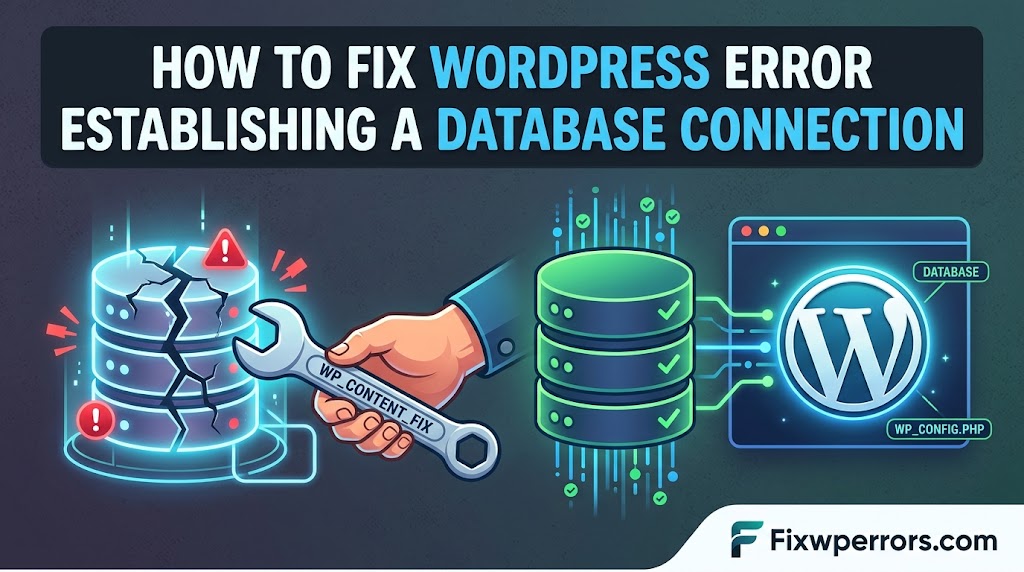
However, the WordPress Error Establishing a Database Connection is one of the most common and serious WordPress errors.
However, WordPress Error Establishing a Database Connection occurs, WordPress cannot connect to the database. It stores your site’s content, users, settings, posts, pages, and other information.
Additionally, you may see.
Error Establishing a Database Connection
Sometimes the website may work intermittently. However, at other times both the frontend and WordPress admin become completely inaccessible.
The good news is that the problem is usually caused by a limited number of things.
However, these causes are often straightforward to fix.
- Incorrect database credentials
- Incorrect database hostname
- Database server problems
- Database user permission problems
- A corrupted database or table
- Hosting resource limits
- Too many database connections
- Recent hosting or migration changes
- Incorrect
wp-config.phpconfiguration - Problems with MySQL/MariaDB
- A plugin or custom application making problematic database requests
Firstly, this guide explains how to identify the actual cause.
Then it shows how to fix it safely.
What Does “Error Establishing a Database Connection” Mean?
WordPress needs a database to function.
Your WordPress files contain the PHP code, themes, plugins, media references, and application logic. Your database contains information such as:
- Posts
- Pages
- Users
- Settings
- Comments
- WooCommerce data
- Plugin data
- Theme settings
- Custom post types
- Taxonomies
- Metadata
WordPress uses the database connection information from wp-config.php to connect to MySQL or MariaDB.
The main database constants are:
define( 'DB_NAME', 'database_name' );
define( 'DB_USER', 'database_user' );
define( 'DB_PASSWORD', 'database_password' );
define( 'DB_HOST', 'localhost' );
WordPress’s official documentation identifies these as the database connection settings in wp-config.php. DB_HOST is often localhost, but it is not always the correct value for every hosting environment.
If WordPress cannot connect successfully, it cannot load the site normally.
What Causes a WordPress Database Connection Error?
There isn’t just one cause.
The most common possibilities are:
1. Incorrect database name
The value of DB_NAME does not match the actual database.
2. Incorrect database username
The WordPress database user is incorrect or no longer exists.
3. Incorrect database password
The database user’s password was changed but wp-config.php still contains the old password.
4. Incorrect database host
DB_HOST may not be correct for your hosting environment.
5. Database server is down
The MySQL or MariaDB server may be unavailable.
6. Database user has insufficient privileges
The database exists, but the configured user does not have access to it.
7. Database corruption
One or more database tables may be damaged.
8. Hosting resource problems
The server may be running out of available resources or database connections.
9. Recent migration or hosting changes
Database names, users, passwords, or hostnames can change during migrations.
10. Plugin or custom code problems
A plugin or custom application can generate problematic database queries or consume database resources.
The first step is therefore not to reinstall WordPress.
Start by identifying which part of the database connection is failing.
Before You Change Anything: Make a Backup
If you still have access to your hosting control panel, phpMyAdmin, SSH, or WP-CLI, create a database backup before making changes.
This is particularly important if you are going to:
- Repair tables
- Modify database data
- Import a database
- Change database users
- Run SQL commands
- Restore a backup
WordPress’s documentation recommends backing up the database before performing database repair operations.
If you use WP-CLI, you can create a database dump with:
wp db dump backup.sql
WP-CLI’s wp db dump command uses the database credentials from wp-config.php to create a database export.
Step 1: Check Whether the Problem Is Temporary
Before changing configuration files, determine whether the database server is actually available.
Try loading the website several times.
Also try:
https://example.com/wp-admin/
If both the frontend and admin show the database connection error, the problem is likely happening at the database connection level rather than being limited to a particular WordPress page.
If the error appears occasionally and then disappears, this can point toward:
- Database server instability
- Hosting resource limits
- Connection limits
- Temporary MySQL/MariaDB problems
- Traffic spikes
- A plugin generating excessive database activity
In that situation, check your hosting resource usage and database/server logs rather than immediately changing wp-config.php.
Step 2: Check wp-config.php
The first file to inspect is:
wp-config.php
It is normally located in the root directory of your WordPress installation.
Look for:
define( 'DB_NAME', 'database_name' );
define( 'DB_USER', 'database_user' );
define( 'DB_PASSWORD', 'database_password' );
define( 'DB_HOST', 'localhost' );
WordPress uses these values when creating its database connection.
Compare these values with the database information provided by your hosting account.
Step 3: Verify DB_NAME
The DB_NAME value must match the actual database name.
For example:
define( 'DB_NAME', 'mywebsite_wp' );
Log into your hosting control panel and open:
- MySQL Databases
- phpMyAdmin
- Database Management
The exact interface depends on your hosting provider.
Confirm that:
mywebsite_wp
actually exists.
A common problem after a migration is that the database was imported with a different name.
For example:
Old database:
client_old_wp

New database:
client_new_wp
But wp-config.php still contains:
define( 'DB_NAME', 'client_old_wp' );
WordPress will then try to connect to the wrong database.
Step 4: Verify DB_USER
Next check:
define( 'DB_USER', 'database_user' );
Make sure the database user actually exists.
For example, your hosting panel might show:
Database:
client_wp

User:
client_wp_user
Your configuration should use the correct user:
define( 'DB_USER', 'client_wp_user' );
Do not assume that the database name and database username are the same.
They often are not.
Step 5: Verify DB_PASSWORD
Check:
define( 'DB_PASSWORD', 'password' );
If the database user’s password was changed recently, WordPress will still use the old password until wp-config.php is updated.
This commonly happens when:
- A hosting account is migrated
- A database user is recreated
- A developer changes database credentials
- A security incident requires credential rotation
- A staging site is copied to another server
If you are unsure of the password, reset the database user’s password through your hosting control panel and update wp-config.php with the new value.
Be careful when editing this line because special characters must remain correctly quoted.
Step 6: Check DB_HOST
The database host is frequently:
define( 'DB_HOST', 'localhost' );
But localhost is not universal.
Your hosting provider may require a hostname such as:
mysql.example-host.com
or another server address.
WordPress’s installation documentation explicitly notes that localhost is common but not always the correct database hostname.
If your hosting provider gives you a specific database hostname, use that value.
Do not randomly change localhost to 127.0.0.1 or another hostname without understanding your hosting environment.
Step 7: Confirm the Database User Has Access
Having the correct username and password isn’t enough.
The database user must also have permission to access the database.
For example:
Database:
mywebsite_wp

User:
mywebsite_user
The user needs to be assigned to the database with the required privileges.
If the database exists but the user was removed from it, WordPress may still show:
Error Establishing a Database Connection
even though the database name, username, and password appear correct.
Your hosting control panel may have an option such as:
Add User to Database
or:
Manage Database Users
Use that interface to verify the relationship between the database and user.
Step 8: Test the Database Through phpMyAdmin
If phpMyAdmin is available, try logging in and selecting the WordPress database.
If phpMyAdmin cannot connect to MySQL either, the problem may be outside WordPress.
Possible causes include:
- MySQL server unavailable
- Incorrect database credentials
- Database server resource limits
- Hosting configuration problems
- Database corruption
If phpMyAdmin works but WordPress does not, focus your investigation on:
wp-config.php- Database credentials
- Database user permissions
- Database host
- WordPress configuration
Step 9: Check Whether the Database Server Is Down
Sometimes WordPress itself isn’t the problem.
The MySQL/MariaDB server may simply be unavailable.
This is especially important when:
- Multiple websites on the same server stop working
- The error appears suddenly
- The error comes and goes
- phpMyAdmin cannot connect
- Your hosting provider reports a database outage
In this situation, contact your hosting provider and ask them to check the database server.
Ask specifically whether:
- MySQL/MariaDB is running
- The database server is reachable
- There are connection limits
- The server has sufficient resources
- There are database errors in the server logs
WordPress’s own troubleshooting documentation recommends contacting the host when the database server itself is unavailable.
Step 10: Check Hosting Resource Limits
A database server can become unavailable or unreliable when a hosting account reaches its resource limits.
Depending on your hosting plan, check:
- CPU usage
- RAM usage
- Concurrent processes
- PHP workers
- Database connections
- I/O usage
- Disk space
- Inodes
Shared hosting environments can be particularly sensitive to resource limits.
If the database connection error appears during traffic spikes or busy operations, look at your hosting resource graphs.
The problem may not be an incorrect password at all.
Step 11: Check Disk Space
A full server can cause unexpected database problems.
Check whether your hosting account has enough:
- Disk space
- Inodes
- Temporary storage
Also check whether the database itself is consuming significant disk space.
WordPress’s documentation notes that some MySQL-related errors can be caused by a full /tmp directory or other server storage limitations.
If your hosting account is completely out of disk space, fix that before attempting database repairs.
Step 12: Check for Database Corruption
If the database server is running and the credentials are correct, one or more tables may be damaged.
A corrupted table can produce errors such as:
Table is marked as crashed
or:
Error 145
WordPress documents Error 145 as an indication that a database table is damaged or corrupted.
If you are comfortable with database administration, you can inspect the tables through phpMyAdmin.
Before repairing anything:
Create a backup.
Then select the affected table and use the appropriate repair functionality.
Step 13: Use WordPress’s Built-in Database Repair
WordPress includes a database repair mechanism.
Add this temporarily to wp-config.php:
define( 'WP_ALLOW_REPAIR', true );
WordPress documents the repair script at:
/wp-admin/maint/repair.php
The repair functionality is specifically designed for situations where users may not be able to log in because the database is damaged.
After repairing the database, remove this line from wp-config.php immediately:
define( 'WP_ALLOW_REPAIR', true );
Do not leave the repair functionality enabled unnecessarily.
Step 14: Repair the Database With WP-CLI
If you have SSH and WP-CLI access, you can also use:
wp db repair
WP-CLI documents this command as a way to repair the database using the mysqlcheck utility.
This is particularly useful for developers and server administrators.
Before running repair commands, make sure you have a current database backup.
Step 15: Check the Table Prefix
Open:
wp-config.php
and look for:
$table_prefix = 'wp_';
The value should correspond to the actual WordPress table prefix in the database.
For example:
$table_prefix = 'abc_';
would expect tables such as:
abc_posts
abc_options
abc_users
abc_usermeta
If the prefix doesn’t match the actual database tables, WordPress may not function correctly.
This is particularly important after:
- Migrations
- Manual database imports
- Restores
- Staging-to-production deployments
- Security cleanup
Do not change the prefix unless you understand the database structure and have a backup.
Step 16: Check Recent Site Migrations
Database connection errors are common after migrations.
If the problem started immediately after moving the site, check:
Old server
DB_NAME = old_database
DB_USER = old_user
DB_PASSWORD = old_password
DB_HOST = old_host
New server
DB_NAME = new_database
DB_USER = new_user
DB_PASSWORD = new_password
DB_HOST = new_host
Your new wp-config.php must contain the credentials for the new server.
Also verify that the database was actually imported successfully.
A migration can copy the WordPress files while the database import fails or remains incomplete.
Step 17: Check Staging and Production Configuration
If you have staging and production environments, make sure you don’t accidentally use the wrong database credentials.
For example:
Staging:
staging_wp

Production:
production_wp
A production wp-config.php pointing to the staging database can cause serious problems even if the connection itself works.
Keep environment-specific database credentials separate.
Step 18: Check Whether a Plugin Is Causing Database Problems
A plugin can contribute to database-related problems without directly causing the initial connection failure.
Examples include plugins that:
- Run expensive queries
- Generate large amounts of database traffic
- Perform imports
- Synchronize external APIs
- Create scheduled jobs
- Process large datasets
- Run frequent background tasks
If the database connection fails only during a particular operation, identify what is happening immediately before the failure.
For example:
Normal frontend → works

/wp-admin/ → works

Product import → database error
That points toward the import process or the resources it consumes rather than a basic database credential problem.
Step 19: Check Server and PHP Logs
If the error continues, inspect your logs.
Depending on your hosting environment, you may have:
PHP error log
MySQL error log
Apache error log
Nginx error log
PHP-FPM log
WordPress debug.log
WordPress debugging can also be enabled temporarily:
define( 'WP_DEBUG', true );
define( 'WP_DEBUG_LOG', true );
define( 'WP_DEBUG_DISPLAY', false );
Then check:
wp-content/debug.log
Remember that a database connection failure can happen very early in the WordPress bootstrap process, so server/database logs may contain more useful information than the WordPress debug log.
Step 20: Use WP-CLI to Test the Connection
If you have SSH access, WP-CLI can help determine whether WordPress can connect using the credentials in wp-config.php.
Try:
wp db check
If available in your WP-CLI installation, this can help verify the database connection and tables.
You can also open a MySQL console using:
wp db connect
WP-CLI’s wp db connect command uses the database credentials from wp-config.php.
If WP-CLI cannot connect either, investigate the database credentials or server rather than WordPress templates.
Step 21: Don’t Immediately Repair or Replace the Database
Database repair should not be your first response to every connection error.
If the real problem is:
DB_PASSWORD
repairing tables won’t fix it.
If the real problem is:
DB_HOST
repairing tables won’t fix it.
If the database server is down:
mysql server unavailable
repairing tables won’t fix it either.
Always identify the problem first.
A useful troubleshooting order is:
- Check whether the database server is available.
- Verify
DB_NAME. - Verify
DB_USER. - Verify
DB_PASSWORD. - Verify
DB_HOST. - Verify database user permissions.
- Test through phpMyAdmin or WP-CLI.
- Check hosting resources.
- Check database/table health.
- Repair only when corruption is confirmed or reasonably suspected.
What If Only One Page Has a Database Error?
This is an important distinction.
If the entire site displays:
Error Establishing a Database Connection
investigate the basic database connection first.
But if:
Homepage → works
Posts → work
Admin → works
Custom report page → database error
the problem may be specific to the code running on that page.
Investigate:
- Custom SQL queries
- Plugins
- Theme templates
- REST API requests
- AJAX requests
- WooCommerce queries
- Custom post type queries
- External integrations
A site-wide connection failure and a single-operation database failure should not be treated as the same problem.
Common Database Configuration Example
A typical wp-config.php configuration looks like:
define( 'DB_NAME', 'example_database' );
define( 'DB_USER', 'example_user' );
define( 'DB_PASSWORD', 'your-database-password' );
define( 'DB_HOST', 'localhost' );
Your actual values will be different.
Never copy these example values directly into a production website.
Your hosting provider should provide the correct database information.
What About Changing localhost to 127.0.0.1?
You may find troubleshooting guides recommending:
define( 'DB_HOST', '127.0.0.1' );
instead of:
define( 'DB_HOST', 'localhost' );
This is not a universal fix.
Whether it works depends on your server configuration, MySQL/MariaDB setup, sockets, and networking configuration.
Use the database hostname provided by your hosting provider.
Don’t change DB_HOST randomly just because a tutorial recommends it.
What If the Error Keeps Coming Back?
An intermittent database connection error deserves special attention.
For example:
10:00 AM → site works
10:15 AM → database error
10:20 AM → site works
11:00 AM → database error
This can indicate a server-side or resource-related problem rather than incorrect credentials.
Investigate:
- Database server availability
- Connection limits
- CPU usage
- RAM usage
- PHP workers
- Traffic spikes
- Slow queries
- Cron jobs
- WooCommerce scheduled actions
- Imports
- External API synchronization
- Hosting outages
If your configuration hasn’t changed and the error repeatedly appears and disappears, contact your hosting provider with the exact times the failures occurred.
They can often check database and server logs that are not available from WordPress.
What If the Database Is Completely Corrupted?
If the database is severely damaged, you may need to restore it from a known-good backup.
A typical recovery process is:
- Put the site into maintenance mode if necessary.
- Make a copy of the current database.
- Identify the backup to restore.
- Verify the backup is complete.
- Restore the database.
- Verify
wp-config.php. - Test the site.
- Check users, posts, settings, WooCommerce data, and plugins.
- Review logs for the original cause.
Don’t overwrite the only copy of a damaged database without first preserving it.
How to Prevent Database Connection Problems
You cannot prevent every database outage, but you can reduce the likelihood and make recovery easier.
Keep regular backups
Maintain automated database backups and periodically verify that they can actually be restored.
Keep WordPress updated
Keep WordPress, plugins, and themes maintained.
Monitor hosting resources
Watch:
- CPU
- RAM
- Disk space
- Database usage
- PHP workers
- Traffic
Avoid unnecessary plugins
Every additional plugin can introduce database queries, scheduled tasks, or external integrations.
Optimize expensive queries
For custom development, avoid unnecessarily loading huge datasets.
Monitor scheduled tasks
Large imports and background processes should be broken into manageable batches.
Maintain staging
Test major changes on staging before production.
Document database credentials
When migrating a site, clearly document:
DB_NAME
DB_USER
DB_PASSWORD
DB_HOST
$table_prefix
This makes troubleshooting considerably easier.
Quick Troubleshooting Checklist
When you see Error Establishing a Database Connection, work through this list:
- Confirm the error is actually database-related
- Check whether the problem affects the entire site
- Back up the database
- Open
wp-config.php - Verify
DB_NAME - Verify
DB_USER - Verify
DB_PASSWORD - Verify
DB_HOST - Confirm the database exists
- Confirm the database user exists
- Confirm the user has access to the database
- Test the database through phpMyAdmin
- Check whether MySQL/MariaDB is running
- Check hosting resource limits
- Check available disk space
- Check database/server logs
- Check for corrupted tables
- Verify
$table_prefix - Check recent migrations
- Check plugins and custom database code
- Check scheduled tasks
- Use WP-CLI if available
- Repair the database only when appropriate
- Restore a known-good backup if necessary
- Remove
WP_ALLOW_REPAIRafter using it
Frequently Asked Questions
Why is WordPress saying Error Establishing a Database Connection?
WordPress cannot establish a usable connection to its database.
Common causes include incorrect database credentials, an incorrect database host, database server problems, insufficient user permissions, corrupted tables, or hosting resource problems.
Where are WordPress database credentials stored?
They are normally stored in:
wp-config.php
The important constants are:
DB_NAME
DB_USER
DB_PASSWORD
DB_HOST
WordPress uses these values to create its database connection.
Can a wrong database password cause this error?
Yes.
If the database password in wp-config.php doesn’t match the password assigned to the database user, WordPress cannot authenticate with the database server.
Is localhost always the correct DB_HOST?
No.
localhost is common, but some hosting environments use a different database hostname. WordPress’s documentation specifically notes that localhost is not universal.
How do I repair a WordPress database?
First create a backup.
You can use WordPress’s built-in repair functionality by temporarily adding:
define( 'WP_ALLOW_REPAIR', true );
Then access:
/wp-admin/maint/repair.php
Remove the constant from wp-config.php when finished. WordPress documents this repair functionality in its wp-config.php documentation.
WP-CLI users can also use:
wp db repair
Can a plugin cause a database connection error?
Yes, particularly if it performs heavy or problematic database operations.
However, if the entire site cannot connect to the database, first verify the database server and connection credentials before assuming a plugin is responsible.
Should I reinstall WordPress?
Usually, no.
Reinstalling WordPress files does not fix:
- Incorrect database passwords
- Wrong database host
- Missing database users
- Database server outages
- Hosting resource limits
- Corrupted database tables
Find the cause first.
Why does my WordPress site work sometimes and show the database error at other times?
An intermittent error can indicate a database server, resource, connection-limit, or workload problem.
Check hosting resource usage and server/database logs, and ask your hosting provider to investigate the database server if the problem continues.
Final Thoughts
The Error Establishing a Database Connection message can look intimidating because it often takes the entire WordPress site offline.
But the troubleshooting process is relatively systematic.
Start with the basics:
DB_NAME
DB_USER
DB_PASSWORD
DB_HOST
Then verify that the database exists, the user has access, and the database server is actually available.
If those are correct, move on to hosting resources, database corruption, migrations, plugins, custom code, and server logs.
Most importantly, don’t start changing random database settings or reinstalling WordPress without identifying the failure first.
A methodical approach can usually tell you whether the problem is:
configuration → permissions → server → resources → corruption → code
Once you know which category you’re dealing with, the appropriate fix becomes much clearer.