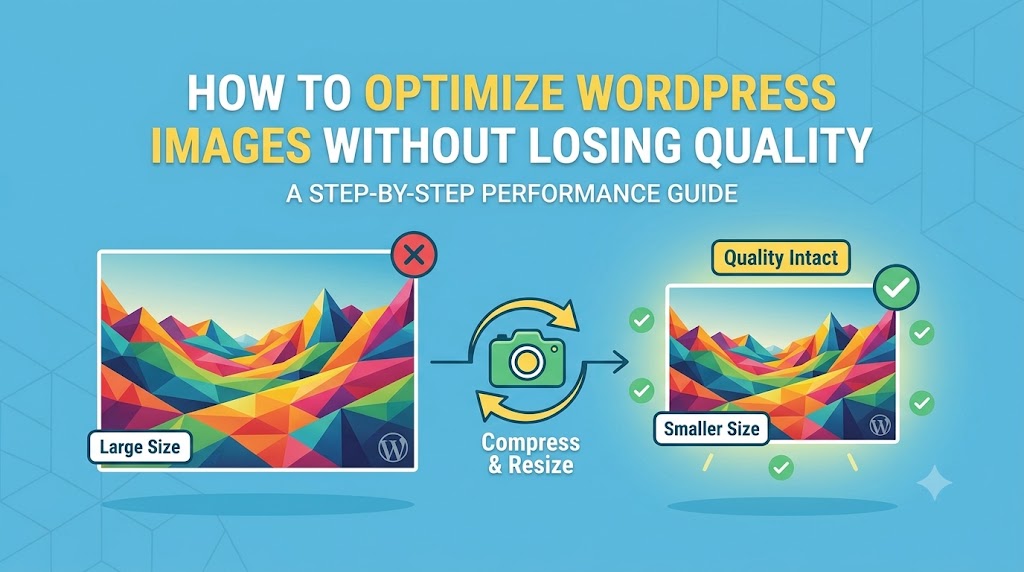
Are you tired of uploading high-quality images to your WordPress site, only to find that they’re being compressed and losing their clarity? You’re not alone. Many WordPress users struggle with optimizing their images without sacrificing quality, which can lead to a slow-loading website and a poor user experience. In this article, we’ll explore the common causes of image quality loss in WordPress and provide step-by-step solutions to help you optimize your images without losing their integrity.
What Causes This Issue
There are several reasons why your WordPress images may be losing quality. One of the main culprits is the default image compression settings in WordPress. When you upload an image to your WordPress site, it’s automatically compressed to reduce its file size. While this can help improve page load times, it can also result in a loss of image quality. Another common cause is the use of poorly optimized image plugins or themes that don’t prioritize image quality. Additionally, using the wrong image file format or not optimizing images before uploading them to WordPress can also contribute to quality loss.
Understanding Image File Formats
Before we dive into the solutions, it’s essential to understand the different image file formats and their uses. The most common image file formats are JPEG, PNG, and GIF. JPEG (Joint Photographic Experts Group) is ideal for photographic images, while PNG (Portable Network Graphics) is better suited for graphics and images with transparent backgrounds. GIF (Graphics Interchange Format) is typically used for animated images. Choosing the right file format for your images can help minimize quality loss during compression.
Step-by-Step Solutions
To optimize your WordPress images without losing quality, follow these step-by-step solutions:
Method 1: Using the WordPress Image Editor
WordPress has a built-in image editor that allows you to edit and optimize your images without leaving the dashboard. To access the image editor, go to the Media library and select the image you want to optimize. Click on the Edit Image button, and then use the Scale or Crop tools to resize your image. You can also use the Compression slider to adjust the compression level.
Method 2: Using a Third-Party Plugin
There are many third-party plugins available that can help you optimize your WordPress images without losing quality. Some popular options include ShortPixel, TinyPNG, and ImageOptim. These plugins use advanced algorithms to compress your images without sacrificing quality. To use a third-party plugin, simply install and activate it on your WordPress site, and then follow the plugin’s instructions for optimizing your images.
Method 3: Using Code to Optimize Images
If you’re comfortable with coding, you can use the following code snippet to optimize your WordPress images:
function optimize_images() {
  // Add this code to your theme's functions.php file
  add_filter('wp_editor_set_quality', 'custom_image_quality');
  function custom_image_quality() {
    return 90; // Adjust the quality level to your needs
  }
}
add_action('init', 'optimize_images');
This code sets the default image quality to 90%, which is a good balance between quality and file size. You can adjust the quality level to your needs by changing the value in the code snippet.
Prevention Tips
To prevent image quality loss in the future, follow these prevention tips:
- Use the correct image file format for your images (JPEG, PNG, or GIF).
- Optimize your images before uploading them to WordPress using a tool like Adobe Photoshop or GIMP.
- Avoid using poorly optimized image plugins or themes that don’t prioritize image quality.
- Regularly update your WordPress site and plugins to ensure you have the latest image optimization features.
Conclusion
In conclusion, optimizing WordPress images without losing quality requires a combination of understanding image file formats, using the right tools and plugins, and following best practices. By following the step-by-step solutions and prevention tips outlined in this article, you can ensure that your WordPress images are optimized for quality and file size, resulting in a faster-loading website and a better user experience. Remember to always prioritize image quality and use the right tools to achieve the best results.