WordPress plugins make it easy to add new features to a website without writing everything from scratch. However, installing plugins from different developers can sometimes cause compatibility problems.
A plugin conflict can cause anything from a broken button or missing CSS to a WordPress white screen, PHP fatal error, failed AJAX request, or completely inaccessible admin area.
The good news is that most plugin conflicts can be diagnosed systematically.
In this guide, you’ll learn how to identify a WordPress plugin conflict, find the plugin causing the problem, use WordPress troubleshooting tools, check browser and PHP errors, and safely resolve the conflict.
What Is a WordPress Plugin Conflict?
A WordPress plugin conflict happens when two or more components of a WordPress website interfere with each other.
The problem may involve:
- Two plugins
- A plugin and the active theme
- A plugin and WordPress core
- A plugin and WooCommerce
- A plugin and a server configuration
- A plugin and another JavaScript library
- A plugin and caching or optimization software
For example, Plugin A may load a JavaScript library while Plugin B loads a different version of the same library. The result could be a JavaScript error that prevents a form, menu, slider, or AJAX feature from working.
Not every WordPress problem is caused by a plugin conflict, so the goal is to test the problem rather than assume the cause.
Common Signs of a Plugin Conflict
Plugin conflicts can produce many different symptoms.
Common examples include:
1. A WordPress page suddenly breaks
You may see:
- Missing content
- Broken layouts
- Incorrect spacing
- Missing CSS
- A page that stops loading
2. A button stops working
For example:
- Mobile menu does not open
- Popup does not appear
- Form cannot be submitted
- Add to Cart button does nothing
- AJAX filtering stops working
3. WordPress displays a fatal error
You may see an error such as:
There has been a critical error on this website.
The underlying PHP error may identify the plugin responsible.
4. The WordPress admin stops working
A plugin can sometimes interfere with:
- Dashboard pages
- Gutenberg
- Media Library
- WooCommerce screens
- Custom post types
- ACF fields
- Plugin settings
5. AJAX or REST API requests fail
Features that depend on background requests may stop working even though the page itself loads normally.
6. Problems appear immediately after installing or updating a plugin
This is one of the strongest clues.
If a feature worked yesterday and stopped immediately after a plugin update, the update should be one of the first things you investigate.
Before Troubleshooting: Create a Backup
Before disabling plugins, changing configuration, or editing files, create a current backup.
Ideally, have backups of:
- WordPress files
- Database
wp-config.php- Theme files
- Custom plugins
- Uploaded media
If your hosting provider offers staging, testing the problem on a staging copy is even safer.
Avoid making major troubleshooting changes directly on a busy production website whenever possible.
Step 1: Identify Exactly What Is Broken
Before disabling anything, reproduce the problem.
Ask:
- Which page is affected?
- Does the problem happen for everyone?
- Does it happen only when logged in?
- Does it happen on mobile?
- Does it happen in every browser?
- Does it happen on the front end or only in wp-admin?
- Did the problem begin after an update?
- Is only one feature broken?
- Is the entire website unavailable?
Write down the exact steps required to reproduce the problem.
For example:
Open the checkout page → select PayPal → click Continue → JavaScript error appears and the checkout does not proceed.
This is much more useful than simply saying:
Checkout is broken.
Step 2: Check Whether the Problem Is Actually a Plugin Conflict
A broken website does not automatically mean you have a plugin conflict.
Other possible causes include:
- Incorrect PHP configuration
- Server errors
- DNS problems
- Database errors
- Theme bugs
- WordPress core problems
- Expired API credentials
- CDN issues
- Caching
- JavaScript errors
- Incorrect file permissions
Start with the evidence available in the browser, WordPress, and server logs.
Step 3: Use WordPress Health Check and Troubleshooting
The WordPress troubleshooting tools can help you investigate plugin conflicts without immediately disabling plugins for every visitor.
The important advantage is that troubleshooting mode can allow you to test plugins and themes in an isolated environment.
This makes it easier to answer questions such as:
Does the problem still happen when all plugins are disabled?
If the problem disappears, you have strong evidence that a plugin or plugin combination is involved.
You can then activate plugins individually and test again.
Step 4: Disable Plugins Systematically
If you cannot use a troubleshooting mode or staging environment, you can temporarily deactivate plugins.
Do not randomly deactivate and reactivate plugins without keeping track of your tests.
Instead, use a systematic process.
Suppose you have:
- Plugin A
- Plugin B
- Plugin C
- Plugin D
- Plugin E
First deactivate the plugins and reproduce the problem.
If the problem disappears, reactivate them one at a time:
- Activate Plugin A
- Test
- Activate Plugin B
- Test
- Activate Plugin C
- Test
- Continue until the problem returns
When the problem returns, the last plugin activated becomes a strong suspect.
However, don’t stop there.
Two plugins can conflict with each other even though both work correctly when tested independently.
Step 5: Test the Theme Too
Sometimes the problem isn’t between two plugins.
It may be:
Plugin + Theme
To test this, temporarily switch to a default WordPress theme such as Twenty Twenty-Four or another current default theme available on the installation.
Then reproduce the problem.
If the problem disappears with the default theme, the conflict may involve your theme.
This is particularly important when troubleshooting:
- Custom JavaScript
- WooCommerce templates
- Page builders
- Custom post types
- Theme-specific shortcodes
- Custom AJAX functionality
- Custom CSS
- Navigation menus
If you’re working with a custom theme, also inspect recently changed theme files.
Step 6: Check the Browser Console
Many plugin conflicts are actually JavaScript conflicts.
Your browser’s Developer Tools can reveal errors that aren’t visible on the page.
In Chrome, open Developer Tools and select:
Console
You may see errors such as:
Uncaught TypeError: Cannot read properties of undefined
or:
Uncaught ReferenceError: jQuery is not defined
or:
Failed to load resource: the server responded with a status of 404
These messages can provide important clues.
For example, if a plugin expects jQuery to be available but its script runs before jQuery has loaded, a feature may stop working.
Step 7: Check the Network Tab
The browser’s Network tab is particularly useful for AJAX and REST API problems.
Reload the page and look for requests returning:
- 400
- 401
- 403
- 404
- 500
- 502
- 503
Click the failed request and inspect:
- Request URL
- Request method
- Status code
- Response
- Request payload
- Console errors
For example, a plugin may send an AJAX request to:
/wp-admin/admin-ajax.php
If that request returns HTTP 500, the browser may only show a generic failure while the actual PHP error appears in the WordPress or server log.
Step 8: Enable WordPress Debug Logging
For development or staging environments, WordPress debugging can provide valuable information.
Add or update these settings in wp-config.php:
define( 'WP_DEBUG', true );
define( 'WP_DEBUG_LOG', true );
define( 'WP_DEBUG_DISPLAY', false );
With logging enabled, WordPress can write errors to:
/wp-content/debug.log
Keeping WP_DEBUG_DISPLAY disabled prevents PHP errors from being displayed publicly on the website.
Important
Do not leave verbose debugging enabled on a production website indefinitely.
Debug logs can contain sensitive information and can grow over time.
After troubleshooting, disable debugging if you do not need it.
Step 9: Look for PHP Fatal Errors
A plugin conflict may produce a PHP fatal error.
For example:
PHP Fatal error: Uncaught Error: Call to undefined function ...
or:
PHP Fatal error: Cannot redeclare ...
or:
PHP Fatal error: Uncaught TypeError ...
Look at the file path and plugin directory in the error.
For example:
/wp-content/plugins/example-plugin/includes/class-example.php
This gives you an important clue about which plugin is involved.
However, the plugin mentioned in the error isn’t always the only cause.
Plugin A may call a function that Plugin B has changed, removed, or loaded incorrectly.
Always consider the complete error and the changes that happened immediately before the problem appeared.
Step 10: Check PHP and Server Logs
Your hosting control panel may provide PHP or server error logs.
These can reveal problems that WordPress itself does not display.
Depending on your hosting environment, look for:
- PHP errors
- PHP fatal errors
- Memory exhaustion
- ModSecurity blocks
- 500 errors
- Permission errors
- Timeout errors
- Server configuration problems
For example:
Allowed memory size exhausted
may look like a plugin problem but could actually be caused by PHP memory limits.
Similarly:
Maximum execution time exceeded
does not necessarily mean the plugin itself is defective.
The plugin may simply be triggering an operation that exceeds the server’s configured limits.
Step 11: Check for jQuery and JavaScript Conflicts
jQuery-related problems are common on WordPress websites, especially when plugins and custom themes load scripts differently.
Look for errors such as:
jQuery is not defined
or:
$ is not a function
or:
Uncaught TypeError
Common causes include:
- Incorrect script loading order
- A plugin bundling an old JavaScript library
- A script being loaded twice
- Incorrect dependency declarations
- Aggressive JavaScript optimization
- Combining or delaying scripts
- Theme code expecting a library that is no longer loaded
Caching and optimization plugins can make these problems more difficult to diagnose.
Step 12: Temporarily Disable JavaScript Optimization
If the problem appeared after enabling an optimization feature, temporarily disable options such as:
- JavaScript minification
- JavaScript combination
- Defer JavaScript
- Delay JavaScript execution
- CSS optimization
- CSS combination
Then clear all relevant caches and test again.
If the problem disappears, the issue may not be a direct plugin-to-plugin conflict.
Instead, an optimization process may be changing the order or timing in which scripts load.
This distinction is important.
Step 13: Clear Every Relevant Cache
Caching can make you think a plugin conflict still exists after you’ve already fixed it.
Depending on your setup, clear:
- WordPress cache
- Page cache
- Plugin cache
- Server cache
- CDN cache
- Browser cache
- Object cache
Also test the page in a private/incognito browser window.
If you use a CDN, make sure you’re not testing an old cached version of the page or JavaScript file.
Step 14: Test Plugins in Groups
If you have dozens of plugins, testing every plugin individually can take a long time.
A faster diagnostic technique is to use a binary-search approach.
For example, if you have 20 plugins:
- Disable roughly half.
- Test the problem.
- If the problem remains, the conflicting plugin is probably in the active group.
- If the problem disappears, the conflicting plugin is probably in the disabled group.
- Continue splitting the suspected group in half.
This can dramatically reduce the number of tests required.
Once you’ve narrowed it down, test the suspected plugins individually.
Step 15: Check Recently Updated Plugins
Look at the site’s plugin update history.
If the problem appeared immediately after an update, compare:
- Plugin version before the problem
- Plugin version after the problem
- WordPress version
- PHP version
- Theme version
If the plugin developer provides a changelog, review the changes.
Look specifically for changes involving:
- JavaScript
- PHP compatibility
- WordPress compatibility
- WooCommerce compatibility
- API changes
- Database changes
- Deprecated functions
A recent update does not automatically prove that the plugin is responsible, but it gives you a useful starting point.
Step 16: Check Plugin Compatibility With Your PHP Version
Older plugins may have problems with newer PHP versions.
For example, a plugin written years ago may rely on PHP behavior that has since changed.
Check:
- Current PHP version
- WordPress requirements
- Plugin requirements
- Theme requirements
If the problem started after a PHP upgrade, that is an important clue.
Do not permanently downgrade PHP just to hide the problem.
Instead, identify whether the plugin or theme needs to be updated or replaced.
Step 17: WooCommerce Plugin Conflicts
WooCommerce websites can be especially difficult to troubleshoot because many plugins interact with the same areas.
Common conflict areas include:
- Cart
- Checkout
- Payment gateways
- Shipping
- Product variations
- Coupons
- Customer accounts
- My Account
- Order emails
- AJAX fragments
- Product filters
For a WooCommerce-specific problem, test with:
- WooCommerce
- Your active theme
- The plugin directly involved in the feature
Then add other plugins back gradually.
For example, if checkout works with only WooCommerce and the theme active, start activating payment, shipping, analytics, marketing, and other plugins individually.
Step 18: Check REST API Errors
Modern WordPress features increasingly depend on the REST API.
A plugin conflict can cause REST API requests to fail.
You may see errors such as:
401 Unauthorized
403 Forbidden
500 Internal Server Error
Check the browser Network tab and WordPress Site Health for clues.
Security plugins, firewall rules, authentication systems, and server security settings can sometimes interfere with legitimate REST API requests.
Step 19: Check AJAX Errors
Many WordPress plugins use AJAX.
Common examples include:
- Search
- Filters
- Forms
- Shopping carts
- Login forms
- Admin settings
- Map filters
- Load More buttons
If an AJAX feature stops working, inspect the request in Developer Tools.
Pay attention to:
admin-ajax.php
A failed AJAX request may be caused by:
- PHP fatal errors
- Nonce problems
- Permissions
- JavaScript errors
- Security plugins
- Server rules
- Incorrect AJAX handlers
- Plugin conflicts
The HTTP status code and response body are often more useful than the visible error on the page.
Step 20: Don’t Ignore Security Plugins
Security plugins can sometimes block legitimate requests.
For example, a security plugin may block:
- REST API requests
- AJAX requests
- Login attempts
- XML-RPC requests
- Admin requests
- External API requests
If you suspect a security plugin, temporarily test the problem in a safe environment or use its logs to determine whether a request was blocked.
Do not permanently disable security protection on a production website just to make a feature work.
Find out what is being blocked first.
Step 21: Test on a Staging Site
A staging environment is one of the safest ways to troubleshoot difficult plugin conflicts.
On staging:
- Create a current copy of the website.
- Confirm the problem exists.
- Disable plugins.
- Test the problem.
- Change the theme if necessary.
- Enable plugins individually.
- Check logs.
- Test JavaScript.
- Test database-dependent features.
- Identify the conflicting component.
Once you understand the cause, apply the appropriate fix to production.
How to Determine Which Plugin Is Causing the Conflict
Finding the plugin is only the first part.
You also want to understand why the conflict happens.
For example:
Plugin A + Plugin B
Plugin A modifies a WordPress hook that Plugin B also uses.
Plugin + Theme
A theme loads a JavaScript library in a way that conflicts with the plugin.
Plugin + Optimization
A caching plugin delays a JavaScript file that another plugin expects to load immediately.
Plugin + PHP
An older plugin uses code that is incompatible with the current PHP version.
Plugin + Server
A firewall or server rule blocks a request generated by the plugin.
Understanding the actual cause helps you choose the correct solution.
What Should You Do After Finding the Conflicting Plugin?
There are several possible solutions.
1. Update the Plugin
The developer may already have released a compatibility fix.
2. Update WordPress
An outdated WordPress installation can cause compatibility problems.
3. Update the Theme
If the problem is between the plugin and theme, an updated theme may contain the fix.
4. Update PHP
If the plugin requires a newer PHP version, update PHP after confirming compatibility with your complete WordPress stack.
5. Change Plugin Settings
Sometimes the conflict is caused by a specific feature rather than the entire plugin.
For example:
- JavaScript optimization
- CSS optimization
- AJAX features
- Compatibility modes
- Script loading
- API integrations
Disabling one setting may resolve the problem.
6. Replace the Plugin
If the plugin is abandoned or incompatible with your current setup, replacing it may be the safest long-term solution.
7. Contact the Plugin Developer
Provide useful diagnostic information instead of simply reporting:
Your plugin doesn’t work.
Include:
- WordPress version
- PHP version
- Plugin version
- Theme
- Browser
- Exact steps to reproduce
- Console error
- PHP error
- Network request
- Whether the issue occurs with other plugins disabled
This gives the developer something actionable.
Avoid Editing Plugin Files Directly
You may be tempted to open the plugin and change its PHP or JavaScript files.
Be careful.
Plugin updates will normally overwrite those changes.
If you need a permanent customization, consider:
- A custom plugin
- A child theme
- WordPress hooks
- Filters
- Actions
- Custom JavaScript
- Custom CSS
Only modify the original plugin files temporarily for testing unless you fully understand the maintenance implications.
How to Disable a Plugin When You Cannot Access wp-admin
If a plugin causes a fatal error and you cannot access the WordPress dashboard, you can disable it through your hosting file manager, SFTP, or SSH.
Navigate to:
wp-content/plugins/
Find the suspected plugin directory.
For example:
wp-content/plugins/example-plugin/
Rename it temporarily:
wp-content/plugins/example-plugin-disabled/
WordPress will no longer load the plugin.
Then test the website again.
Important
Do not rename random plugin folders without understanding what you’re disabling.
If you’re unsure which plugin caused the problem, use your logs to identify the likely component first.
Useful WordPress Debug Configuration
For troubleshooting, a common development configuration is:
define( 'WP_DEBUG', true );
define( 'WP_DEBUG_LOG', true );
define( 'WP_DEBUG_DISPLAY', false );
After testing, remove or disable debugging if it is no longer needed.
Never display sensitive PHP errors to normal website visitors.
Plugin Conflict Troubleshooting Checklist
Use this checklist whenever a WordPress feature suddenly stops working.
Reproduce the problem
- Identify the exact broken feature
- Record the steps required to reproduce it
- Check whether the problem occurs on multiple browsers
- Check whether logged-in and logged-out users are affected
Check recent changes
- Plugin updates
- Theme updates
- WordPress updates
- PHP changes
- New plugins
- New custom code
- Cache/CDN changes
Diagnose
- Check WordPress Site Health
- Test with plugins disabled
- Test the theme
- Check browser Console
- Check Network requests
- Check
debug.log - Check PHP/server logs
- Check AJAX requests
- Check REST API requests
Fix
- Update the affected software
- Adjust conflicting settings
- Clear caches
- Replace abandoned plugins
- Contact the plugin developer
- Apply the fix on staging first
- Test production after the change
Common Mistakes When Troubleshooting Plugin Conflicts
Disabling everything without testing
This may tell you that a plugin is involved, but it doesn’t tell you which one.
Changing several things at once
If you change five settings simultaneously, you won’t know which change fixed the problem.
Make one controlled change at a time whenever practical.
Ignoring browser errors
A page can look fine while its JavaScript is failing in the background.
Always check the Console for interactive features.
Ignoring server logs
A generic WordPress error may hide the actual PHP problem.
Assuming the last plugin installed is responsible
It is a useful clue, but not proof.
Existing plugins may only become incompatible after another plugin, WordPress, PHP, or theme update.
Troubleshooting only in production
When possible, use staging.
Forgetting to clear caches
You may fix the problem but continue seeing an old cached version.
Leaving debugging enabled forever
Debugging is useful during development but should be managed carefully on production sites.
How to Prevent WordPress Plugin Conflicts
You cannot completely eliminate plugin conflicts, but you can reduce the chances.
Keep WordPress updated
Keep WordPress core, themes, and plugins maintained.
Remove plugins you don’t use
Unused plugins increase maintenance requirements and can create unnecessary security and compatibility risks.
Choose actively maintained plugins
Before installing a plugin, check:
- Recent updates
- WordPress compatibility
- Support activity
- Documentation
- Changelog
- Number of active installations where available
Use staging for major changes
Test significant plugin, theme, PHP, and WordPress changes before applying them to production.
Keep backups
A reliable backup makes troubleshooting and recovery much easier.
Avoid duplicate functionality
If two plugins perform essentially the same job, you may be creating unnecessary opportunities for conflicts.
For example, don’t install multiple plugins that all try to:
- Minify JavaScript
- Optimize CSS
- Lazy-load images
- Create page caching
- Modify the same SEO metadata
- Handle the same form functionality
Choose a clear strategy for each function.
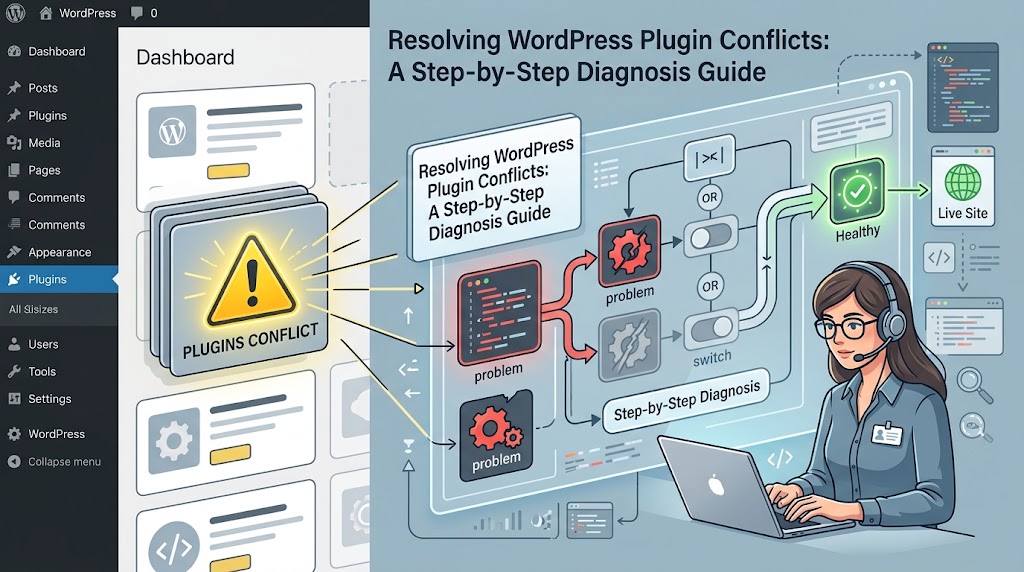
A Practical Plugin Conflict Workflow
When a WordPress website suddenly breaks, use this sequence:
Problem appears
      ↓
Reproduce the problem
      ↓
Check recent changes
      ↓
Check browser Console
      ↓
Check Network requests
      ↓
Check WordPress/PHP logs
      ↓
Test plugins in isolation
      ↓
Test the theme
      ↓
Identify the conflicting component
      ↓
Update / configure / replace
      ↓
Clear caches
      ↓
Test again
      ↓
Deploy the fix
This approach is much more reliable than randomly disabling plugins and hoping the problem disappears.
Frequently Asked Questions
How do I know if a WordPress plugin is causing a problem?
Temporarily disable plugins and test the problem again. If the problem disappears, activate plugins systematically until the problem returns. Browser Console errors and PHP logs can provide additional evidence.
Can two WordPress plugins conflict with each other?
Yes. Plugins can interact with the same WordPress hooks, JavaScript libraries, database data, APIs, or front-end functionality.
Can a WordPress theme conflict with a plugin?
Yes. A plugin can work correctly with one theme but fail with another because of differences in templates, JavaScript, CSS, hooks, or theme functionality.
What if I cannot access WordPress admin?
Use your hosting file manager, SFTP, or SSH to temporarily rename the suspected plugin directory inside:
wp-content/plugins/
Should I disable all plugins?
It can be useful as a diagnostic test, but don’t stop there. Reactivate plugins systematically to identify the actual cause.
Why does my plugin work when caching is disabled?
Your caching or optimization configuration may be changing JavaScript execution, CSS loading, page caching, or request behavior. Test optimization features individually.
Can a PHP version cause plugin conflicts?
Yes. Plugins can depend on particular PHP versions or behaviors. A PHP upgrade can expose compatibility problems in older code.
Should I edit the plugin’s PHP files to fix a conflict?
Usually not as a permanent solution. Plugin updates can overwrite your changes. Look for hooks, filters, configuration options, updates, or an alternative plugin instead.
Final Thoughts
WordPress plugin conflicts can look complicated, but they become much easier to solve when you approach them systematically.
Don’t immediately assume that the newest plugin is responsible. Reproduce the problem, check the browser and server logs, test plugins individually, test the theme, and look at recent changes.
The most useful troubleshooting tools are often already available:
- WordPress Site Health
- Troubleshooting mode
- Browser Developer Tools
- PHP error logs
- WordPress debug logs
- Server logs
- A staging environment
Once you identify the actual conflict, the solution is usually straightforward: update the software, change a conflicting setting, remove or replace an incompatible plugin, or correct the underlying code.
For a broader look at diagnosing WordPress problems, see our other WordPress troubleshooting guides, including our guide to fixing common WordPress errors and debugging PHP problems.