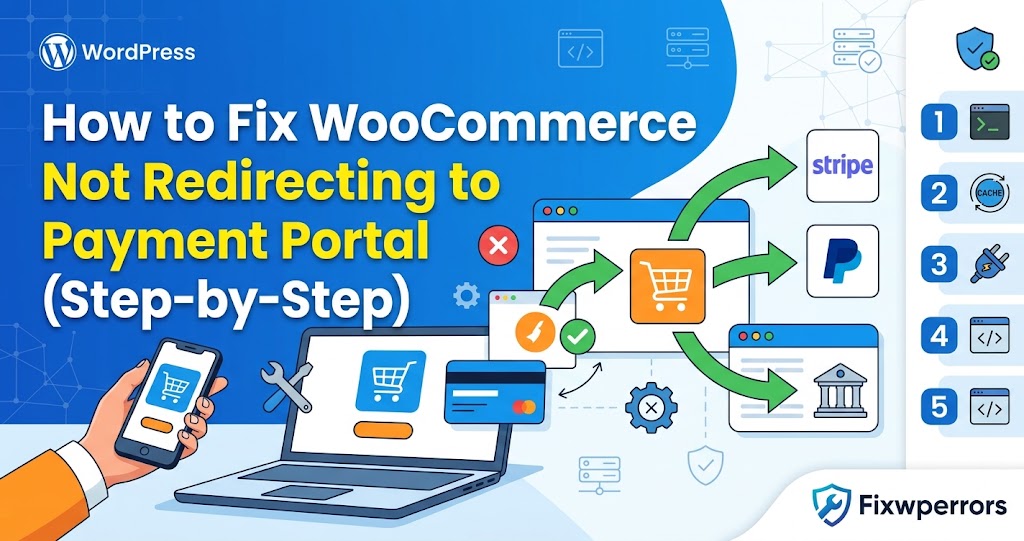
Few things are more stress-inducing for an e-commerce store owner than a broken checkout page. Imagine this scenario: a customer browses your shop, fills their cart, enters their billing details, and clicks “Place Order” or “Proceed to Payment.” But instead of being seamlessly redirected to Stripe, PayPal, or your gateway’s payment portal, the page simply hangs, reloads endlessly, or throws a cryptic error message.
If you have ever posted on the WordPress support forums or searched through developer boards, you have likely encountered threads titled “Reply To: Help needed with WooCommerce not redirecting to payment portal.” This is a common issue in the WooCommerce ecosystem, affecting thousands of store owners after plugin updates, theme changes, or server migrations. When your checkout fails to redirect, your conversion rate drops to zero immediately.
In this guide, we will walk through the exact reasons why WooCommerce fails to redirect to payment gateways and provide concrete, developer-grade solutions to resolve the problem for good.
What Causes WooCommerce to Fail Payment Redirections?
To understand how to fix the issue, you must first understand how WooCommerce processes a checkout order. When a user submits the checkout form, WooCommerce sends an asynchronous JavaScript (AJAX) request to the WordPress backend. The server processes the order, communicates with the payment gateway API, and returns a JSON response containing a redirect URL. JavaScript then reads this response and redirects the customer’s browser to the payment processor or thank-you page.
When this chain breaks, the redirection fails. Here are the primary root causes:
- JavaScript Conflicts: A script error from a plugin or custom theme breaks the checkout AJAX script, preventing the browser from processing the redirect instruction.
- Aggressive Caching Misconfigurations: Page caching plugins or server-level caches (like Varnish, Nginx FastCGI, or Cloudflare) serve a cached version of the checkout page or cache the WooCommerce REST API/AJAX responses.
- REST API or Admin-AJAX Blockage: Security plugins, web application firewalls (WAF), or server rules block access to
/wp-json/or/wp-admin/admin-ajax.php. - Payment Gateway API & Webhook Misconfigurations: Outdated API keys, mismatched sandbox/live environments, or blocked webhooks cause the gateway plugin to reject the transaction request silently.
- Exhausted PHP Resources: Low PHP memory limits or short execution timeout limits cause the server to crash mid-process while trying to connect to the payment gateway.
- SSL/HTTPS & Mixed Content Warnings: If your store serves HTTP scripts on an HTTPS page, browser security policies block the outbound payment request.
Step-by-Step Troubleshooting Guide
Follow these steps in order to diagnose and resolve the payment portal redirection issue on your WooCommerce website.
Step 1: Check the Browser Console for JavaScript Errors
Because WooCommerce relies heavily on AJAX for checkout processing, a single JavaScript error on the checkout page can freeze the submit button.
- Open your WooCommerce checkout page in an Incognito / Private browser window.
- Right-click anywhere on the page and select Inspect (or press
F12) to open Developer Tools. - Click on the Console tab.
- Attempt to place a test order and watch the console log.
If you see red text indicating an unhandled exception (such as Uncaught TypeError or jQuery(...).block is not a function), note the file name responsible. Frequently, third-party plugin scripts (like custom field builders, popups, or live chat widgets) break the standard WooCommerce script queue.
Step 2: Inspect the Network AJAX Response
If the JavaScript console appears clean, inspect the actual response returned by the WooCommerce checkout handler:
- In Developer Tools, switch to the Network tab.
- Filter the requests by clicking Fetch/XHR.
- Click the “Place Order” button on your checkout.
- Look for a request named
?wc-ajax=checkoutoradmin-ajax.php. - Click on the request and select the Response sub-tab.
A successful WooCommerce AJAX response looks like this JSON string:
{
  "result": "success",
  "redirect": "https://hooks.stripe.com/redirect/..."
}
If your server returns "result": "failure", an HTML error page, a 403 Forbidden status, or a 500 Internal Server Error, the problem lies within your backend server, firewall, or payment gateway setup.
Step 3: Exclude WooCommerce Pages from Caching
Caching dynamic e-commerce pages is one of the leading causes of payment portal redirection failures. Dynamic pages like Cart, Checkout, and My Account must never be cached.
To exclude these pages in plugins like WP Rocket, LiteSpeed Cache, or W3 Total Cache, add the following URL paths to your cache plugin’s exclusion list:
/cart/*
/checkout/*
/my-account/*
/?wc-ajax=*
If you are using Cloudflare, create a Cache Rule or Page Rule to bypass cache for checkout requests:
- URL Match:
*example.com/checkout/* - Cache Level: Bypass / Disable Cache
Additionally, disable Cloudflare features like Rocket Loader on checkout pages, as Rocket Loader delays script execution and frequently breaks WooCommerce payment integrations.
Step 4: Resolve Plugin and Theme Conflicts
If an updated plugin breaks WooCommerce functionality, isolating the culprit is crucial. Rather than testing directly on your live site, create a staging copy or use the Health Check & Troubleshooting plugin by the WordPress community.
- Install and activate the Health Check & Troubleshooting plugin.
- Go to Tools > Site Health > Troubleshooting.
- Enable Troubleshooting Mode (this disables plugins only for your logged-in user session, keeping the site live for visitors).
- Enable WooCommerce and your specific Payment Gateway plugin (e.g., WooCommerce Stripe Gateway).
- Switch to a default WordPress theme like Twenty Twenty-Four or Storefront.
- Test the checkout payment redirection again.
If the redirection works, re-enable your remaining plugins one by one until the redirection breaks. The last plugin enabled is the culprit.
Step 5: Verify WP REST API and Admin-AJAX Accessibility
Modern WooCommerce gateways (especially Stripe, PayPal Payments, and WooCommerce Payments) rely on the WordPress REST API to initialize payment intents. If security plugins or server firewalls block these requests, redirection fails.
Test your REST API availability by visiting the following URL in your browser (replace with your domain):
https://yourdomain.com/wp-json/wc/v3/If you see a 403 Forbidden, 404 Not Found, or Cloudflare challenge page instead of a JSON endpoint response, review your security setup:
- Wordfence / Sucuri / iThemes Security: Ensure API endpoint blocking rules are disabled for WooCommerce routes.
- ModSecurity: Ask your web host to inspect server logs for triggered ModSecurity rules blocking
/wp-json/oradmin-ajax.phpduring checkout. - Permalinks: Go to Settings > Permalinks in your WordPress dashboard and click Save Changes to flush rewrite rules.
Step 6: Increase PHP Memory Limit and Execution Limits
Connecting to external payment portals requires outbound HTTP requests. If your server hits PHP memory limits, the execution dies silently before transmitting the redirection header.
Open your wp-config.php file via FTP or File Manager and add the following code above the line that reads /* That's all, stop editing! Happy publishing. */:
// Increase WP Memory Limit for WooCommerce
define( 'WP_MEMORY_LIMIT', '256M' );
define( 'WP_MAX_MEMORY_LIMIT', '512M' );
Next, update your .htaccess file (for Apache servers) to grant sufficient execution time for API timeouts:
<IfModule mod_php7.c>
  php_value max_execution_time 300
  php_value memory_limit 256M
</IfModule>
Step 7: Check Gateway API Keys, Webhooks, and Mode Settings
Mismatched settings inside your gateway extension can silently disrupt the order creation flow. Verify your configuration under WooCommerce > Settings > Payments:
- Live vs. Test Mode: Ensure you are not mixing Test/Sandbox API keys with Live Mode settings.
- Webhook Endpoints: Ensure your payment provider (e.g., Stripe Dashboard) lists your active WooCommerce webhook URL. If webhooks fail, orders cannot transition to pending/processing status properly.
- Currency Support: Verify that your payment portal supports the store currency configured in WooCommerce settings.
Step 8: Enable WooCommerce Debug Logging
When an error occurs during checkout, WooCommerce logs the underlying API calls to help developers debug issues quickly.
- Navigate to WooCommerce > Status > Logs.
- Use the dropdown menu on the top right to select log files starting with your payment gateway’s name (e.g.,
stripe-...orpaypal-...) orfatal-errors. - Click View to review recent output.
Look for lines containing CRITICAL, ERROR, or API Connection Failed. The log entries will often provide exact details, such as an invalid API secret or a rejected credit card origin header.
Advanced Code Fixes for Developers
If standard troubleshooting does not fix the redirection, you can use custom hooks and code snippets to resolve common edge cases.
Force Non-Cached Checkout Script Execution
Add this snippet to your custom child theme’s functions.php file or via a code snippets plugin to prevent browsers from serving stale checkout scripts:
/**
 * Auto-clear dynamic checkout cache headers in WooCommerce
 */
add_action( 'template_redirect', 'custom_clear_checkout_cache' );
function custom_clear_checkout_cache() {
    if ( is_checkout() || is_cart() ) {
        nocache_headers();
        header( 'Cache-Control: no-cache, must-revalidate, max-age=0' );
        header( 'Pragma: no-cache' );
    }
}
Log and Debug AJAX Checkout Response Failures
If WooCommerce returns a generic error during checkout submit, intercept the processing filter to capture the internal error reason:
/**
 * Log WooCommerce checkout processing failures for debugging
 */
add_action( 'woocommerce_checkout_process', 'log_custom_checkout_errors' );
function log_custom_checkout_errors() {
    $logger = wc_get_logger();
    $context = array( 'source' => 'checkout-debug' );

    $logger->info( 'Checkout process initiated by User ID: ' . get_current_user_id(), $context );
}

add_action( 'woocommerce_checkout_order_processed', 'log_custom_order_success', 10, 3 );
function log_custom_order_success( $order_id, $posted_data, $order ) {
    $logger = wc_get_logger();
    $context = array( 'source' => 'checkout-debug' );

    $logger->info( 'Order successfully created: #' . $order_id . ' - Gateway: ' . $order->get_payment_method(), $context );
}
Prevention Tips to Keep Checkout Running Smoothly
Prevent checkout and payment redirection issues from reoccurring by following these e-commerce maintenance practices:
- Always Test Updates on Staging: Never update WooCommerce, your payment gateway extensions, or your main theme directly on your production server without testing checkout end-to-end on a staging environment first.
- Implement Automatic Checkout Testing: Tools like Robot Visitors or automated Selenium tests can run synthetic test orders daily to notify you immediately if checkout breaks.
- Keep Gateway Plugins Updated: Payment processors like Stripe and PayPal regularly update their security standards and API versions. Outdated gateway plugins can cause silent payment failures.
- Use Reliable Managed WooCommerce Hosting: Cheap shared hosting accounts often restrict outbound port connections or enforce low process timeouts that drop payment API calls. Choose managed WordPress hosts optimized for WooCommerce (such as Kinsta, WP Engine, or Nexcess).
- Monitor Webhooks and SSL Health: Ensure your SSL certificate is auto-renewed properly and check payment processor dashboards weekly for webhook delivery failure alerts.
Conclusion
When you see community posts like “Reply To: Help needed with WooCommerce not redirecting to payment portal,” the problem almost always traces back to script conflicts, overly aggressive page caching, REST API restrictions, or misconfigured payment credentials.
By following the diagnostic roadmap outlined in this guide—inspecting browser console logs, validating AJAX/REST responses, disabling cache on dynamic pages, and verifying API keys—you can locate the exact point of failure and restore smooth, high-converting payment redirects to your store.