If you edit your theme’s files directly, the next theme update overwrites every change. A child theme solves that. It’s a small theme of your own that inherits everything from the original (“parent”) theme, and holds only your changes. The parent can then be updated safely, and your customizations stay.
This guide shows how to create one for both classic and block themes, how to override parent files correctly, and how to fix the problems people hit most often.
Do You Actually Need One?
Not always. If you only want to add CSS, use Appearance → Customize → Additional CSS in a classic theme, or Appearance → Editor → Styles → Additional CSS in a block theme. Both survive theme updates. For small PHP snippets, a tiny custom plugin or an mu-plugin works too.
Create a child theme when you need to change template files, add several functions tied to the theme’s design, or make more than a few lines of customizations you want to keep organized.
Creating a Child Theme for a Classic Theme
A child theme needs one folder and two files. The examples below use Twenty Twenty-One. Replace twentytwentyone with your parent theme’s folder name.
1. Create the folder
Over SFTP or your host’s file manager, create a new folder in wp-content/themes/, for example twentytwentyone-child.
2. Add style.css
Create style.css in that folder with this header:
/*
 Theme Name: Twenty Twenty-One Child
 Template:   twentytwentyone
 Version:    1.0.0
*/
The Template line is the important one. It must match the parent theme’s folder name exactly, including capitalization. That’s not always the same as its display name, so check the folder in wp-content/themes/.
3. Add functions.php
Create functions.php to load the stylesheets:
<?php
add_action( 'wp_enqueue_scripts', 'mychild_enqueue_styles' );

function mychild_enqueue_styles() {
    wp_enqueue_style(
        'parent-style',
        get_template_directory_uri() . '/style.css'
    );
    wp_enqueue_style(
        'child-style',
        get_stylesheet_uri(),
        array( 'parent-style' ),
        wp_get_theme()->get( 'Version' )
    );
}
Many parent themes already load their own stylesheet, so the first wp_enqueue_style() may not be needed. After activating, open DevTools → Network → CSS and check that the parent’s style.css isn’t loaded twice. If it is, remove the parent-style call, and remove 'parent-style' from the child’s dependency list.
4. Activate it
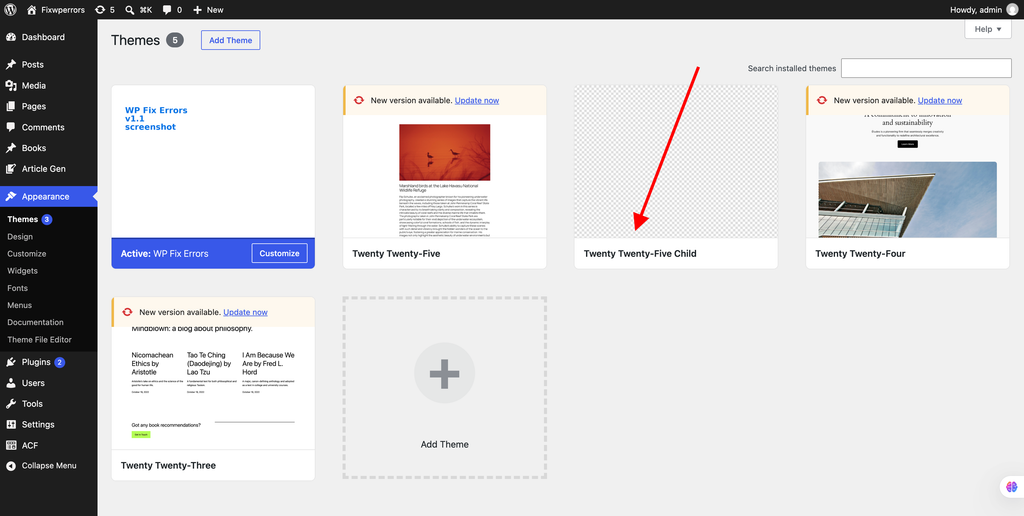
Go to Appearance → Themes. Your child theme appears alongside the parent. Activate it, and the site should look exactly the same as before. Optionally, add a screenshot.png (1200×900 pixels) to the child folder so it has a preview image.
Creating a Child Theme for a Block Theme
Block themes, such as Twenty Twenty-Five, need even less. A style.css with the same header (pointing Template at the parent folder, for example twentytwentyfive) is enough to create a working child theme. Block themes load their styles from theme.json, so you usually don’t need the functions.php above.
- Add a
theme.jsonto the child to change colors, fonts, spacing, or layout settings. It’s merged with the parent’s, so you only include what you’re changing. - Add template files to
templates/orparts/in the child to override the parent’s.
The free Create Block Theme plugin, maintained by the WordPress team, can generate a child theme from the Site Editor and save your Site Editor changes into its files.
Overriding Parent Theme Files
- Templates (such as
single.php,header.php, ortemplate-parts/content.php): copy the file from the parent into the same path in the child, then edit the copy. WordPress uses the child’s version. functions.phpis different: it’s never replaced. Both load, the child’s first and then the parent’s. Add your functions to the child’s file, and never copy the parent’s whole file across, or every function is declared twice and the site crashes.- Paths in code:
get_template_directory()andget_template_directory_uri()point to the parent theme.get_stylesheet_directory()andget_stylesheet_directory_uri()point to the child. Use the child versions to load files you’ve added to the child.
When the parent theme updates a template you’ve overridden, your copy doesn’t get the update. After major parent updates, compare your overridden files with the new versions.
Things That Don’t Carry Over When You Switch
WordPress stores some settings per theme, so activating a child theme can make them seem to disappear:
- Customizer settings, such as colors, logo, and layout options. Some themes offer an export and import option. Otherwise, set them again.
- Menu locations. Your menus still exist, but you may need to assign them again under Appearance → Menus → Manage Locations.
- Widgets, which may need reassigning to the child theme’s sidebars.
- Additional CSS added in the Customizer, which belongs to the theme it was added in. Copy it from the parent before switching. See our CSS not loading guide.
That’s why it’s best to create the child theme early, before customizing heavily.
Troubleshooting
“The parent theme is missing”
The Template line doesn’t match an installed theme folder. Check the spelling and capitalization against the folder name in wp-content/themes/, and make sure the parent theme is installed.
“Stylesheet is missing” under Broken Themes
WordPress can’t find style.css at the top level of the child folder. This usually happens when uploading a zip that contains an extra folder level. The style.css must sit directly inside wp-content/themes/your-child/.
The site looks unstyled after activating
The parent theme’s stylesheet isn’t loading. Add the parent-style enqueue from the functions.php example above.
A critical error after adding functions.php
Usually a copied function that already exists in the parent, or a typo. Remove the code over SFTP to bring the site back, then see our critical error guide to read the exact error.
Child CSS changes don’t appear
Bump the Version number in the child’s style.css header so browsers fetch the new file, and purge your caches.
Summary
A child theme is a folder in wp-content/themes/ with a style.css whose Template line names the parent folder, plus, for classic themes, a functions.php that loads the stylesheets. Override templates by copying them to the same path in the child, add functions to the child’s own functions.php, and set Customizer options, menus, and widgets again after switching.