You click Posts → Add New Post and nothing works: the editor never finishes loading, the button is missing, WordPress says you aren’t allowed to create posts, or the post just won’t save. Since adding content is the whole point of WordPress, this one is urgent.
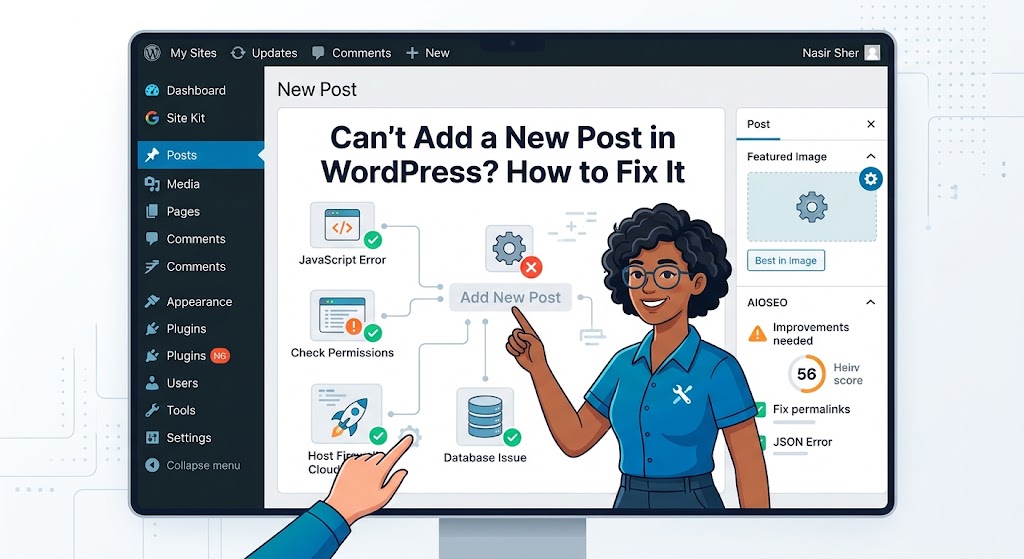
“Can’t add a new post” covers several quite different problems. The fastest way to fix it is to note exactly what happens when you try, then go straight to that cause. This guide is organized that way.
Step 1: What Exactly Happens?
- The editor is blank, or stuck on a loading spinner: a JavaScript problem. See Cause 1.
- “Sorry, you are not allowed to create posts as this user”, or the Add New button is missing: a permissions problem. See Cause 2.
- The editor opens, but saving or publishing fails with “Updating failed” or “Publishing failed”: a REST API problem. See Cause 3.
- “Could not insert post into the database”: a database problem. See Cause 4.
- “Connection lost. Saving has been disabled until you’re reconnected”: WordPress’s background connection is blocked. See Cause 5.
- “The link you followed has expired”: a security token or upload limit problem. See Cause 6.
Cause 1: The Editor Is Blank or Won’t Finish Loading
The block editor is a JavaScript application. If any script on the page throws an error, the editor stops rendering and you’re left with a white area or an endless spinner.
- Open the editor, press F12, and check the Console tab for red errors. The file path in the error usually names the plugin responsible, for example
/wp-content/plugins/plugin-name/. - Try a private window with no browser extensions. Ad blockers and some privacy extensions block editor scripts.
- If you use Cloudflare, turn off Rocket Loader, or exclude
/wp-admin/from it. It changes how scripts load and frequently breaks the editor. - Check that your caching or optimization plugin doesn’t minify, combine, or delay JavaScript in the admin area.
- Deactivate plugins to find the conflict, starting with the one named in the Console. Our guide to finding plugin conflicts shows the fastest way to narrow it down.
If the whole admin is unstyled, not just the editor, see the CONCATENATE_SCRIPTS fix in our CSS not loading guide. For a completely white screen, see our White Screen of Death guide.
Cause 2: Your User Can’t Create Posts
WordPress decides who can add posts by role:
- Administrators, Editors, and Authors can create and publish posts.
- Contributors can create posts but not publish them. They see Submit for Review instead of Publish.
- Subscribers can’t create posts at all, and see “Sorry, you are not allowed to create posts as this user.”
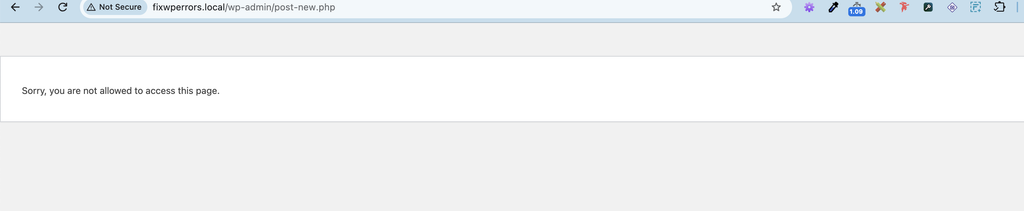
Check your role under Users → Profile, or ask an administrator. If you’re an administrator and still see this message, or every admin page refuses you, your role data is damaged. That’s usually caused by a changed database table prefix, and it’s covered in our guide to “Sorry, you are not allowed to access this page”.
If the missing Add New button is on a custom post type, check how the post type was registered. Custom capabilities or 'show_ui' => false can hide it. See our custom post types guide.
Membership, role editor, and some security plugins can also remove the ability to create posts. If your role looks right, test with those plugins deactivated.
Cause 3: Saving or Publishing Fails
The editor saves through WordPress’s REST API. If that request is blocked or returns an error, you see “Updating failed” or “Publishing failed”, often with “The response is not a valid JSON response.” The usual causes are permalinks that need refreshing, a security plugin or host firewall blocking the request (especially for posts that contain code), mismatched site addresses, or PHP warnings in the response. Our “not a valid JSON response” guide shows how to read the failed request in DevTools and fix each one.
Cause 4: “Could Not Insert Post Into the Database”
This means WordPress tried to create the post, and the database refused. There are two common reasons.
The posts table lost its AUTO_INCREMENT setting
This is a classic problem after a migration with a broken database import. The ID column of wp_posts is supposed to number new posts automatically. If that setting, or the table’s primary key, was lost in the import, new posts can’t get an ID. Depending on the database settings, WordPress either shows this error, or creates posts with an ID of 0 that then behave strangely.
To check, open phpMyAdmin, select your database, and run (replace wp_ with your table prefix):
SHOW CREATE TABLE wp_posts;The result should include `ID` bigint(20) unsigned NOT NULL AUTO_INCREMENT and PRIMARY KEY (`ID`). If AUTO_INCREMENT is missing, back up the database first, then run:
DELETE FROM wp_posts WHERE ID = 0;
ALTER TABLE wp_posts MODIFY ID BIGINT(20) UNSIGNED NOT NULL AUTO_INCREMENT;
If the primary key is missing too, add it first with ALTER TABLE wp_posts ADD PRIMARY KEY (ID);. A broken import rarely affects only one table, so check wp_postmeta (meta_id), wp_options (option_id), wp_comments, and wp_users the same way.
The disk or database quota is full
If your hosting account has run out of storage, the database can’t write new rows, and saving fails. You may also see “disk quota exceeded” in error logs or when uploading. Check disk usage in your hosting panel, delete old backups and logs stored on the account, and clean up the database as described in our database optimization guide. If you’re regularly near the limit, you need a larger plan.
Cause 5: “Connection Lost. Saving Has Been Disabled”
While you edit, WordPress checks in with the server every minute or so through a background request called the Heartbeat API. If those requests fail, the editor shows this message and stops saving, to protect you from losing work.
- Check your internet connection, and whether you’re still logged in.
- If you use a plugin that controls or disables Heartbeat, often found in caching and performance plugins, make sure it’s allowed in the post editor.
- Check the Network tab for failed requests to
admin-ajax.php. A 403 means a firewall or security plugin is blocking them. See our 403 guide.
Copy your content somewhere safe before reloading the page.
Cause 6: “The Link You Followed Has Expired”
- If it appears after leaving the editor open for a long time, your login or security token expired. Copy your content, reload, and try again.
- If it appears when saving a very long post or uploading a file, the request was larger than PHP allows. Raise
post_max_sizeandupload_max_filesize, as described in our image upload errors guide.
Summary
Note exactly what happens when you try to add a post. A blank or endless editor is a JavaScript conflict, so check the Console. “Not allowed to create posts” is your user role. “Updating failed” is a blocked or broken REST request. “Could not insert post into the database” points to a lost AUTO_INCREMENT after a migration, or a full disk. “Connection lost” means the Heartbeat API is blocked, and “link expired” means an expired token or a request over PHP’s size limits.