You load your site and instead of your homepage you get a single line on a white page: “There has been a critical error on this website.” Logged in, you may see a little more: “Please check your site admin email inbox for instructions.”
That message is WordPress catching a PHP fatal error and hiding the technical details from visitors. The real error, the one that tells you exactly what broke, is still there. Once you can see it, the fix usually takes minutes. This guide shows you how to find it and fix the causes I run into most.

What the Message Actually Means
Since WordPress 5.2, when PHP hits a fatal error (code that can’t continue running), WordPress shows this generic message instead of a raw PHP error or a blank white page. At the same time it tries to work out which plugin or theme caused the error, and emails the site’s administrator a special recovery link.
So the message itself tells you nothing about the cause. It almost always comes down to one of these:
- A plugin or theme update that’s incompatible with your PHP version, WordPress version, or another plugin.
- An edit to
functions.phpor a plugin file with a typo in it. - Your host upgrading PHP, and older code using functions that no longer exist.
- PHP running out of memory.
- Missing or damaged files after a failed update or upload.
Step 1: Check Your Email for the Recovery Link
Look in the inbox of the address set under Settings → General → Administration Email Address for an email with the subject “Your Site is Experiencing a Technical Issue”. Check spam as well.
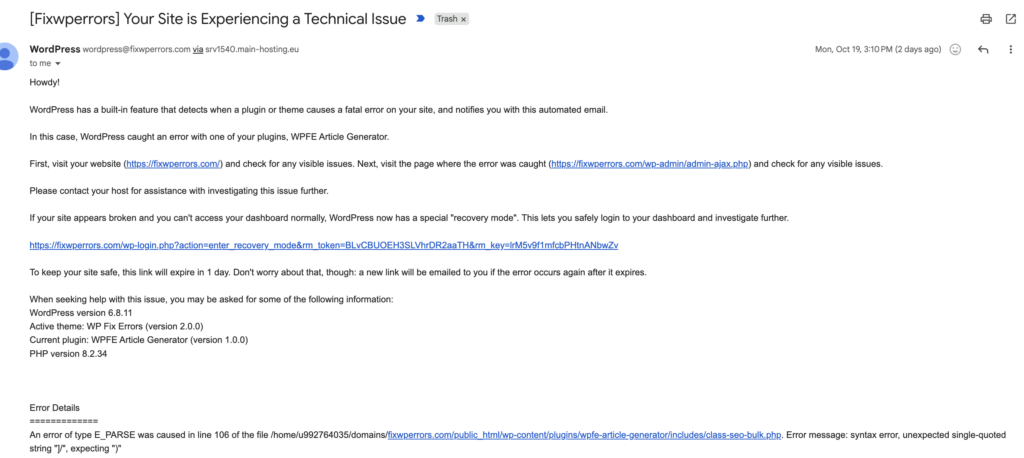
The email names the plugin or theme WordPress thinks caused the error, includes the error message itself, and contains a link that logs you in to recovery mode. In recovery mode, WordPress pauses the faulty plugin or theme only for your session, so you can get into the dashboard while visitors still see the error. From there:
- Go to Plugins (or Appearance → Themes). The paused item is highlighted with the error underneath.
- Deactivate it, update it if a newer version is available, or replace it.
- Click Exit Recovery Mode in the admin bar and check the site loads for visitors.
No email? That’s common. WordPress sends it at most once a day for the same problem, and many sites can’t send email reliably at all (see fixing WordPress not sending emails). If it doesn’t arrive within a few minutes, move on to Step 2.
Step 2: Find the Real Error in the Debug Log
Connect to your site over SFTP or your host’s file manager, open wp-config.php, and find the line define( 'WP_DEBUG', false );. Replace it with these three lines, keeping them above the “That’s all, stop editing!” comment:
define( 'WP_DEBUG', true );
define( 'WP_DEBUG_LOG', true );
define( 'WP_DEBUG_DISPLAY', false );
Reload the broken page once, then open wp-content/debug.log. The line you’re looking for starts with PHP Fatal error. For example:
PHP Fatal error: Uncaught Error: Call to undefined function some_old_function() in /home/user/public_html/wp-content/plugins/example-plugin/includes/class-loader.php:42Read it from the right. The file path tells you where the error is: /wp-content/plugins/example-plugin/ means that plugin, /wp-content/themes/your-theme/ means your theme. The text before it tells you what went wrong.

If debug.log stays empty, your host’s PHP error log will have the same line. Look for “Error log” or “Logs” in your hosting panel.
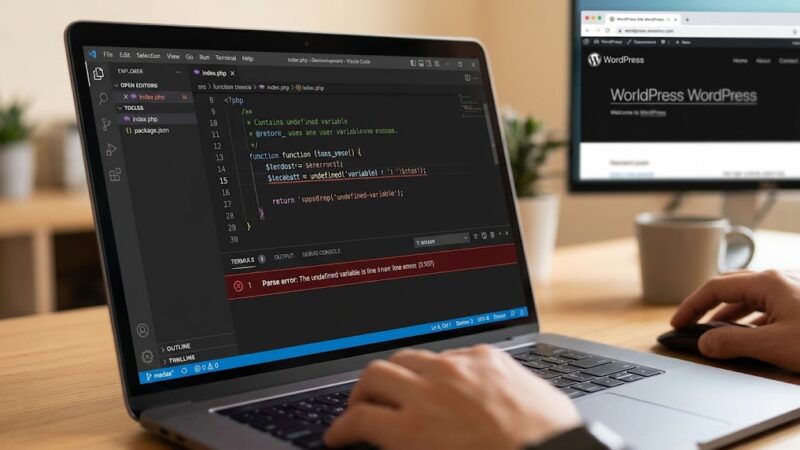
On a local or staging site, you can also show errors directly on the page by setting WP_DEBUG_DISPLAY to true. This is what the same error looks like with display turned on. Never do this on a live site, since every visitor would see your file paths and code.
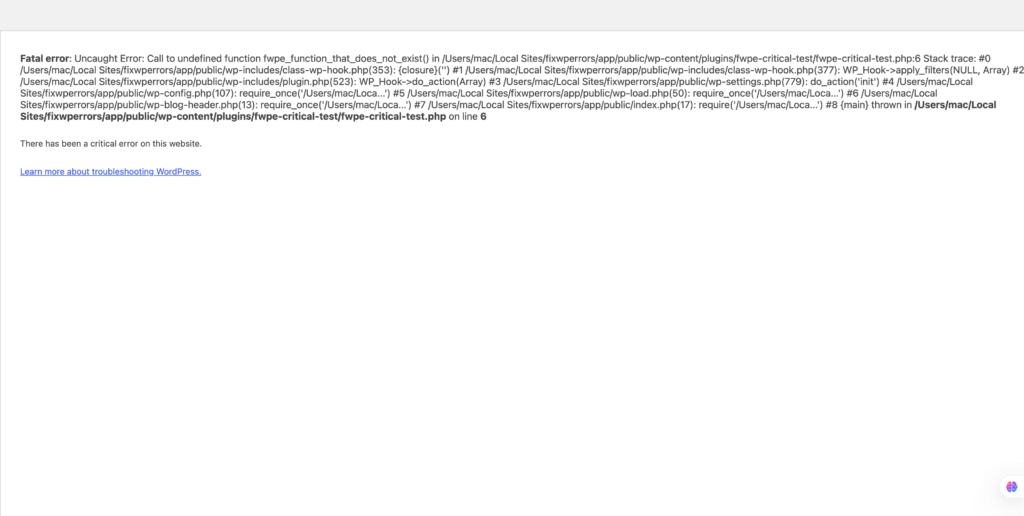
On a local or staging site, you can also show errors directly on the page by setting WP_DEBUG_DISPLAY to true. This is what the same error looks like with display turned on. Never do this on a live site, since every visitor would see your file paths and code.
Step 3: Fix It Based on What the Error Says
The path points to a plugin
Disable that one plugin without the dashboard: over SFTP, go to wp-content/plugins/ and rename the plugin’s folder, for example example-plugin to example-plugin-off. WordPress can no longer load it, and the site comes back. Then check for an update, contact the plugin’s developer, or find an alternative before renaming it back.
If you couldn’t find the error at all, rename the whole plugins folder to plugins-off. If the site loads, a plugin is the cause. Open wp-admin’s Plugins page once (so WordPress registers them as inactive), rename the folder back to plugins, and reactivate plugins one at a time until the error returns. Our guide to deactivating plugins when you’re locked out covers this in more detail.
The path points to your theme
Rename the theme’s folder in wp-content/themes/. WordPress then falls back to a default theme such as Twenty Twenty-Five, as long as one is installed. If you have no default theme, upload one first. If the error is in a child theme, check the child first, since that’s usually where custom code lives.
“PHP Parse error: syntax error”
This points to a typo in code: a missing semicolon, bracket, or quote. It usually happens right after someone edits functions.php or adds a snippet. The log gives the exact file and line number. Open that file over SFTP, fix the line or remove the snippet you just added, and save. The dashboard’s theme editor can’t help here, because the dashboard won’t load.
“Allowed memory size of … bytes exhausted”
PHP ran out of memory. Raise the limit by adding this to wp-config.php, above the “stop editing” line:
define( 'WP_MEMORY_LIMIT', '256M' );If the error persists, your host’s PHP limit is lower than that and needs raising in the hosting panel. Also look at which plugin is using that much memory, since a sudden jump usually has a cause. See our memory exhausted guide.
“Call to undefined function” right after a PHP upgrade
If the site broke the day your host upgraded PHP, older code is calling functions that newer PHP versions removed. Switch back to the previous PHP version in your hosting panel so the site works, update the plugin or theme named in the error, then upgrade PHP again. Under Tools → Site Health you can see which PHP version you’re on.
The error points to wp-admin or wp-includes
Errors inside WordPress’s own files usually mean an update didn’t finish or files were damaged. If you can reach the dashboard, use Dashboard → Updates → Re-install version. If you can’t, download the same WordPress version from wordpress.org, and upload its wp-admin and wp-includes folders over the existing ones. Don’t replace wp-content or wp-config.php. That’s where your content and settings live.
Step 4: Clean Up When the Site Is Back
- Set
WP_DEBUGback tofalseinwp-config.php. - Delete
wp-content/debug.log. By default it sits in a public folder, so anyone who knows the URL can read it, including file paths and plugin details. - If you renamed any folders, rename them back or remove the plugin or theme for good.
- Exit recovery mode if you’re still in it.
How to Avoid It Next Time
- Test plugin, theme, and PHP updates on a staging copy first. Most hosts offer one-click staging, or use a local copy with a tool like Local.
- Update one plugin at a time on live sites, so you know which one broke things.
- Keep a recent backup you know how to restore without the dashboard.
- Add code snippets through a child theme or a small custom plugin, and make sure you have SFTP access before editing.
- Make sure your administration email address is one you actually read, so the recovery email reaches you.
Summary
The critical error message hides a PHP fatal error. Use the recovery email if it arrives. If it doesn’t, turn on the debug log and read the PHP Fatal error line: the file path tells you which plugin or theme broke, and the message tells you why. Disable that one item by renaming its folder, fix the cause, then turn debugging off and delete the log.
If you see a completely blank page with no message at all, our White Screen of Death guide covers that version of the problem.