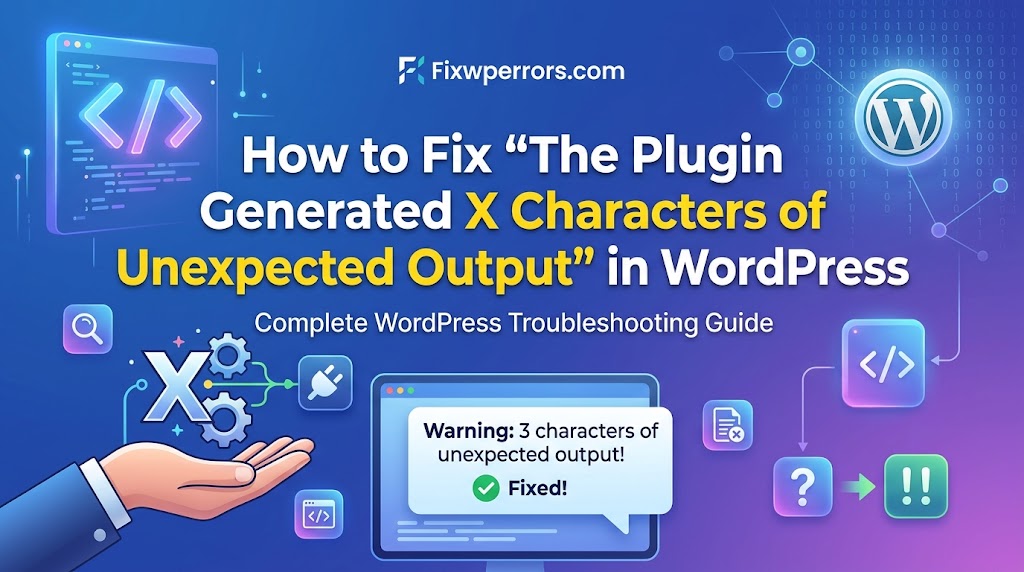
You activate a plugin, and instead of the usual “Plugin activated” notice WordPress shows:
“The plugin generated 3 characters of unexpected output during activation. If you notice ‘headers already sent’ messages, problems with syndication feeds or other issues, try deactivating or removing this plugin.”
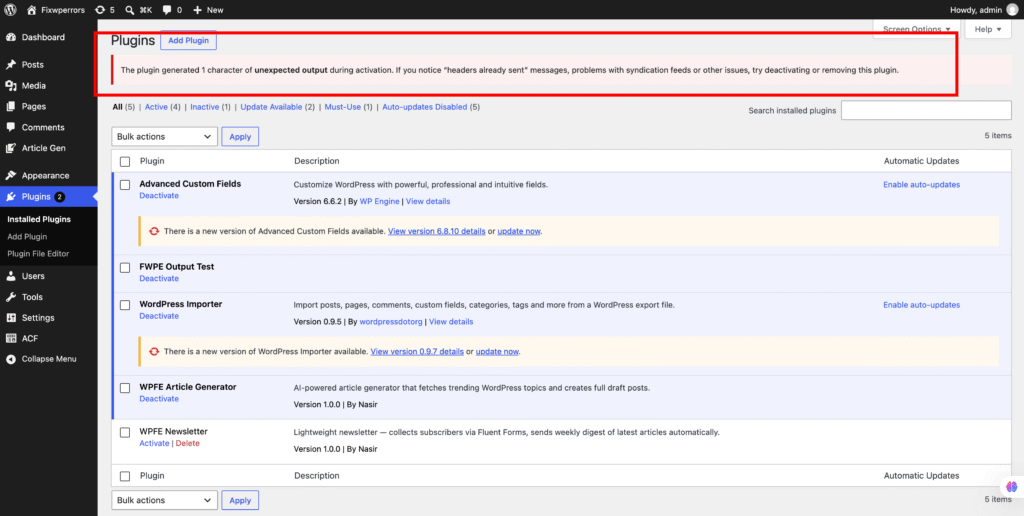
Despite how it sounds, the plugin usually did activate. WordPress noticed that the plugin printed something while it was being activated, when it should have printed nothing, and it warns you because that kind of stray output can break other things later. This guide explains what the output usually is, how to see it, and when you actually need to act.
What “Unexpected Output” Means
During activation, WordPress captures everything the plugin’s code prints. A properly written plugin prints nothing at that point. If anything at all comes out, even a single space or line break, WordPress counts the characters and shows this notice.
The output is nearly always one of these:
- Whitespace outside the PHP tags: a blank line or space before
<?phpat the top of a file, or after a closing?>at the end. The “3 characters” in many reports is often just a couple of line breaks. - An invisible byte order mark (BOM): some editors save UTF-8 files with three hidden bytes at the very start. WordPress counts them as output.
- PHP notices, warnings, or deprecation messages printed during activation. These are common after a PHP upgrade, when an older plugin uses code newer PHP versions warn about, and they only appear when errors are displayed on screen.
- Errors from creating database tables. Plugins that create tables on activation sometimes print SQL errors.
- Code that deliberately echoes something in its activation function.
Is It Safe to Ignore?
Often, yes, for now. If the plugin works and you don’t see any of the problems below, the stray output happened once during activation and won’t happen again. Update the plugin when a new version is out, and report the notice to its developer.
Act on it if you see any of these afterwards:
- A “Cannot modify header information – headers already sent” warning on your site or in the error log.
- Logins that don’t stick, redirects that don’t happen, or settings that won’t save.
- Broken RSS feeds or sitemaps (an XML error such as “XML declaration allowed only at the start of the document”).
Those happen when the same stray output is printed on every page load, not just during activation. Output sent before WordPress has finished sending its HTTP headers stops it from setting cookies and redirects, and breaks XML files.
Step 1: See What the Output Actually Is
The notice only gives a character count. To see the output itself, test on a staging or local copy. Create a small must-use plugin at wp-content/mu-plugins/capture-activation-output.php:
<?php
add_action( 'activated_plugin', function () {
    file_put_contents( WP_CONTENT_DIR . '/activation-output.txt', ob_get_contents() );
} );
Deactivate and reactivate the plugin, then open wp-content/activation-output.txt. You’ll see exactly what was printed: a PHP warning with a file and line number, an SQL error, or what looks like nothing at all, which means whitespace or a BOM. Delete both files when you’re done.
Step 2: Find Where Stray Output Starts
If you also have a “headers already sent” warning, it tells you exactly where to look:
Warning: Cannot modify header information - headers already sent by (output started at /home/user/public_html/wp-content/plugins/example-plugin/example-plugin.php:1)The file and line after “output started at” is where the stray output begins. Line 1 almost always means whitespace or a BOM before <?php. A line at the very end of a file means whitespace after a closing ?>. Any other line is usually an echo or a printed notice. Note that the warning itself is often reported in a different file, such as pluggable.php. What matters is the “output started at” part.
Step 3: Fix It
If it’s someone else’s plugin
- Update the plugin. This is a common bug that developers fix quickly.
- If the output is a PHP deprecation notice and you’re on a live site, make sure errors aren’t displayed on screen: set
define( 'WP_DEBUG_DISPLAY', false );inwp-config.php, or turn offdisplay_errorsin your hosting panel. That stops the notice from being printed, while it’s still logged. - Report it on the plugin’s support forum, including the output from Step 1.
- If it breaks your site and there’s no fix, deactivate it and look for an alternative.
If it’s your own plugin or theme code
- Make sure
<?phpis the very first thing in every PHP file, with nothing before it, not even a blank line. - Leave out the closing
?>at the end of files that contain only PHP. It isn’t needed, and it prevents trailing whitespace from ever becoming output. WordPress’s own coding standards recommend this. - Save files as UTF-8 without BOM. In VS Code, the encoding is shown at the bottom right; click it and choose “Save with Encoding → UTF-8”.
- Don’t
echoanything in activation hooks. If you need to tell the admin something, store a value and show it later with anadmin_noticescallback. - Develop with
WP_DEBUGon, so notices show up while you’re writing code rather than on someone else’s site.
Summary
The notice means the plugin printed something during activation. It’s usually whitespace before <?php or after ?>, a hidden BOM, or a PHP notice. If the plugin works and nothing else breaks, update it and report it. If you see “headers already sent”, broken logins, or broken feeds, use the “output started at” location to find the stray output, and fix or replace the plugin.
If activating a plugin takes the whole site down instead, see our critical error guide.