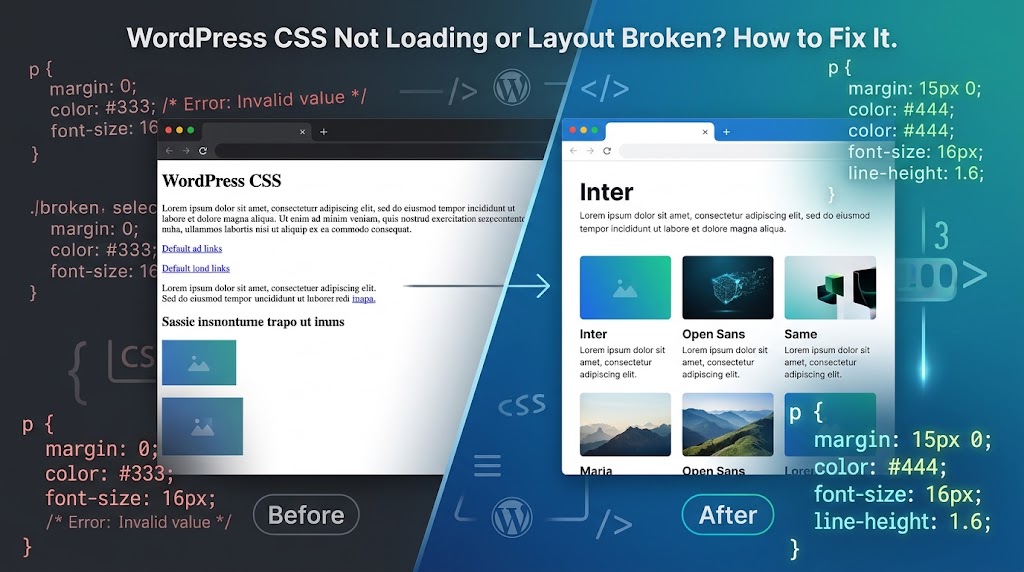
Your WordPress site suddenly looks like a page from 1998: plain black text, blue links, images stacked down the left side. Or the styling mostly works, but after an update the layout is broken, spacing is off, and changes you made to the CSS no longer show up.
In both cases the HTML is fine. The browser either isn’t receiving your stylesheets, is receiving old ones, or is receiving CSS that something else overrides. This guide shows how to find out which, and how to fix each cause.
Step 1: Check Whether the CSS Is Loading at All
Open the broken page, press F12 to open DevTools, and reload the page.
- In the Console tab, look for red errors that mention a
.cssfile. - In the Network tab, click the CSS filter and reload. Every stylesheet should show status 200. Anything showing 404, 403, 500, or “(blocked)” is your problem.
The Console messages point to specific causes:
Failed to load resource: the server responded with a status of 404: the file isn’t where WordPress thinks it is (see “Stylesheet returns 404” below).Refused to apply style ... because its MIME type ('text/html') is not a supported stylesheet MIME type: almost always the same 404 problem in disguise. The server sent back an HTML error page instead of CSS.Mixed Content: The page at https://... was loaded over HTTPS, but requested an insecure stylesheet http://...: the browser blocked the file (see “Mixed content” below).
If every stylesheet loads with status 200 and there are no errors, the CSS is arriving. Skip ahead to “CSS loads but changes don’t show” or “Layout broke after a theme update.”
Stylesheet Returns 404 After a Move or URL Change
WordPress builds stylesheet URLs from your site address. If the site was moved to a new domain, folder, or from HTTP to HTTPS, and the addresses weren’t updated everywhere, the theme asks for CSS at the old location.
- Check Settings → General. WordPress Address and Site Address must match the domain you’re actually using, including
https://andwwwor not. - Check
wp-config.phpforWP_HOMEandWP_SITEURL. If they’re set, they override the dashboard values. - Click a failed CSS URL in the Network tab. If the path looks right but still 404s, confirm the file exists on the server in that exact folder. Uploads over FTP sometimes skip files.
If you see a 403 instead, the server is refusing to serve the file. Check that theme files have 644 permissions and folders 755, and see our guide to fixing 403 Forbidden errors.
Mixed Content Blocks the Stylesheet
If your site loads over HTTPS but a stylesheet is requested over plain HTTP, modern browsers block it outright. The page then renders with no styling from that file. This usually happens after switching to HTTPS when the site address still starts with http://, or when a theme or plugin hard-codes an http:// URL.
Set both addresses in Settings → General to https://, and fix any hard-coded URLs. Our SSL guide covers moving a WordPress site fully to HTTPS.
CSS Loads but Your Changes Don’t Show
This is the most common version of the problem, and it’s almost always caching. There are usually several layers, and you need to clear the right one:
- Browser cache. Test in a private window first. If your changes appear there, your normal browser has an old copy. A hard refresh (Ctrl+Shift+R, or Cmd+Shift+R on Mac) clears it for that page.
- Caching and optimization plugins. LiteSpeed Cache, WP Rocket and similar plugins store combined and minified copies of your CSS. Purge all caches after every CSS change.
- Server or host cache. Many hosts cache pages at the server level. Purge it from your hosting panel.
- CDN cache. If you use Cloudflare or another CDN, purge it as well, or purge the specific CSS file’s URL.
If you write your own theme code, the lasting fix is versioning. WordPress adds a ?ver= value to each stylesheet URL, and changing that value forces browsers and caches to fetch the new file. Pass a real version number when you enqueue the stylesheet:
function mytheme_enqueue_styles() {
    wp_enqueue_style(
        'mytheme-style',
        get_stylesheet_uri(),
        array(),
        wp_get_theme()->get( 'Version' )
    );
}
add_action( 'wp_enqueue_scripts', 'mytheme_enqueue_styles' );
Bump the Version line in your theme’s style.css header whenever you release a change. While you’re developing, you can use filemtime( get_stylesheet_directory() . '/style.css' ) as the version instead, so it changes automatically each time you save the file.
An Optimization Plugin Broke the Styling
If the site looked fine until you enabled CSS minify, combine, “unused CSS removal”, or “critical CSS”, the optimization is the cause. Features that remove unused CSS (such as LiteSpeed Cache’s UCSS) are the usual culprits: they decide some styles aren’t needed and leave them out, so menus, sliders, or anything shown by JavaScript loses its styling.
- Turn off the CSS optimization features one at a time, purging the cache after each, until the layout returns.
- Keep the feature that broke things off, or add the affected stylesheet or selectors to its exclude list.
- Test while logged out. Many optimization plugins don’t optimize pages for logged-in administrators, so the site can look fine to you and broken to visitors.
Layout Broke After a Theme Update
If the styling changed the moment you updated your theme, one of these is usually the reason:
You edited the theme’s own files
A theme update replaces all of the theme’s files, including any CSS or template changes you made directly. Those edits are gone. Put custom CSS in Appearance → Customize → Additional CSS (classic themes), the Site Editor’s Styles → Additional CSS (block themes), or a child theme, all of which survive updates.
Your child theme no longer matches the parent
If you use a child theme, the parent theme may have renamed classes or changed its markup, so your old child CSS no longer targets the right elements. Inspect the broken element (right-click → Inspect) to see its current classes, and update your selectors.
Also check that the child theme still loads the parent’s stylesheet. Many parent themes enqueue their own CSS, but some expect the child to do it:
function mychild_enqueue_styles() {
    wp_enqueue_style(
        'parent-style',
        get_template_directory_uri() . '/style.css'
    );
}
add_action( 'wp_enqueue_scripts', 'mychild_enqueue_styles' );
Block theme templates were customized in the Site Editor
With a block theme, any template, template part, or style you changed in the Site Editor is saved in the database. A theme update doesn’t replace those saved versions. If the update fixed something but your site still looks old, open Appearance → Editor, find the template, and use its Reset option to go back to the theme’s current version. Note that resetting discards your changes to that template.
A page builder needs to rebuild its CSS
Page builders such as Elementor generate CSS files for each page. After a theme or builder update, those files can be stale. Use the builder’s regenerate option (in Elementor, Elementor → Tools → Regenerate Files & Data), then purge your caches.
Custom CSS Disappeared After Switching Themes
CSS added under Appearance → Customize → Additional CSS is saved for the theme that was active at the time. When you switch themes, it seems to vanish. It’s still there: switch back to see it, copy it, then paste it into the new theme’s Additional CSS.
The WordPress Admin Area Has No Styling
If the dashboard itself appears unstyled, WordPress’s admin stylesheets aren’t loading. WordPress normally combines them into a single request through load-styles.php, and a server or security rule can break that. Add this line to wp-config.php, above the “stop editing” comment, so the admin loads each file separately:
define( 'CONCATENATE_SCRIPTS', false );If the admin works after that, the combined request was the problem. Your host or a security plugin may be blocking load-styles.php, which is worth reporting to them.
Still Broken? Rule Out Plugins
If none of the above explains it, a plugin may be adding CSS that overrides your theme. Test on a staging copy by deactivating plugins and reactivating them one at a time. Our guide to diagnosing plugin conflicts walks through it.
Summary
Start in DevTools. A 404, 403, or MIME type error means the stylesheet isn’t being delivered, so check your site addresses, files, and permissions. A mixed content error means the CSS is being loaded over HTTP. If everything loads but changes don’t show, clear each cache layer and version your stylesheets. If the layout broke after an update, look for lost theme edits, outdated child theme CSS, saved Site Editor templates, or stale page builder files.