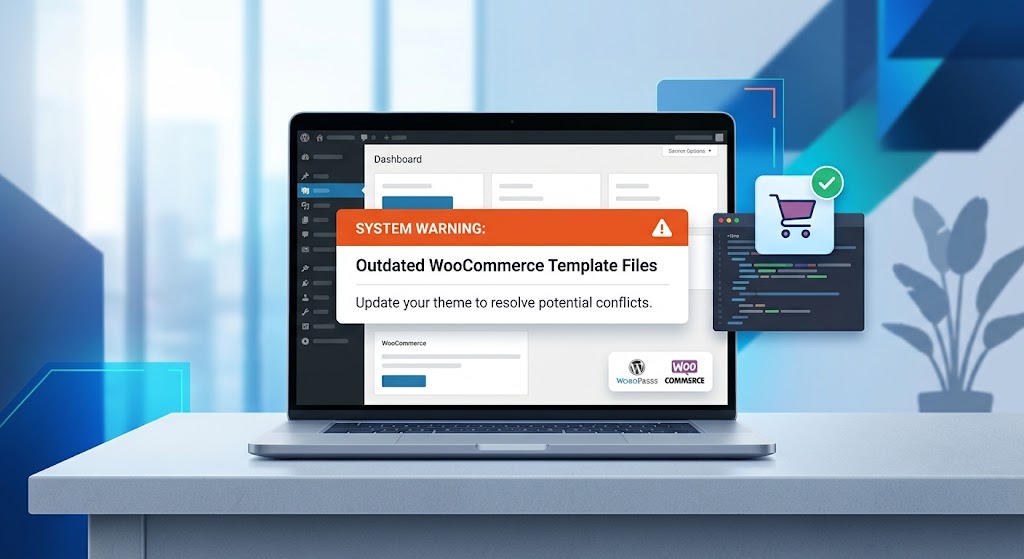
After a WooCommerce update, a notice appears in your dashboard: “Your theme contains outdated copies of some WooCommerce template files.” Nothing looks broken, but the warning stays, and you’re not sure whether to ignore it, update something, or start editing files.
The quick answer you’ll find everywhere is “update your theme”. That’s right when it works. This guide covers what to do when it doesn’t: how to tell which outdated files actually matter, how to update a customized template without losing your changes, and what to do when the warning won’t go away even though the files are current.
What the Warning Means
WooCommerce builds its shop, cart, checkout, account pages, and emails from template files in wp-content/plugins/woocommerce/templates/. A theme can override any of them by placing a copy at the same path inside a woocommerce folder in the theme, for example:
wp-content/plugins/woocommerce/templates/cart/cart.php
wp-content/themes/your-theme/woocommerce/cart/cart.php
WordPress then uses the theme’s copy instead of WooCommerce’s. Every template file has a version number in its header comment, such as @version 9.4.0. When WooCommerce updates a template and your theme’s copy still carries an older version number, WooCommerce shows this warning.
The warning doesn’t mean anything is broken. It means your theme is using an older copy of a file, and WooCommerce can no longer guarantee that copy still matches how the plugin works.
Step 1: See Exactly Which Files Are Outdated
Go to WooCommerce → Status and scroll to the Templates section near the bottom. It lists every template your theme overrides, and marks the outdated ones with your version number and WooCommerce’s current version.
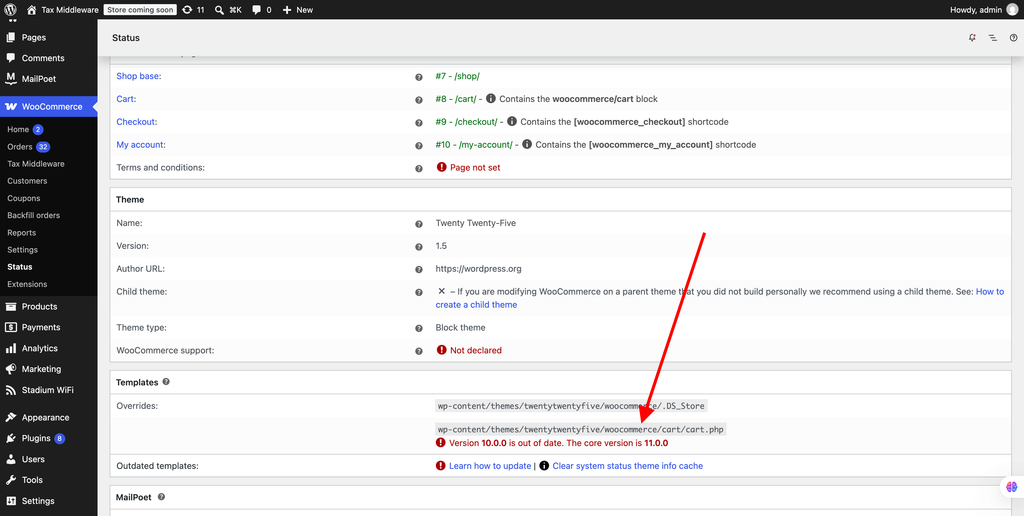
Note two things for each outdated file:
- Whose copy it is. The path tells you whether it’s in your parent theme, your child theme, or a plugin. If it’s in a theme or plugin you don’t maintain, its developer needs to update it. If it’s in your child theme, you do.
- Which template it is. Some matter far more than others (see Step 2).
Step 2: Decide How Urgent It Is
Not every outdated template carries the same risk. Prioritize these:
- Checkout and payment templates (files in
checkout/, such asform-checkout.phpandpayment.php). Changes here can break payment gateways or checkout fields. Fix these first. - Cart templates (
cart/), which affect quantities, coupons, and totals. - Email templates (
emails/), which can show missing or wrong order details. - My Account templates (
myaccount/), which affect logins, orders, and downloads.
Outdated product page and archive templates are usually cosmetic. Still worth updating, but less urgent.
Then test the store end to end: add products to the cart, apply a coupon, complete a test order with each payment method, and check the order email. If everything works, you have time to fix the files properly instead of rushing.
Step 3: Update the Theme First
If the outdated copies belong to a commercial or free theme, update it under Appearance → Themes. Theme developers usually ship updated templates soon after a major WooCommerce release. Check the theme’s changelog, and contact its support if no update is available. Don’t edit the parent theme’s template files yourself, because the next theme update replaces them.
Step 4: Update Your Own Overrides Without Losing Your Changes
If the outdated files are in your child theme, they’re yours to update. The common advice, “copy the new file from WooCommerce”, throws away whatever you changed. This is the safer way:
- Find the WooCommerce version your copy was based on. It’s the
@versionnumber in your file’s header. - Get three versions of the file: your current override, the original WooCommerce template at that old version (download that WooCommerce release from its WordPress.org page under Advanced View), and the current WooCommerce template from
wp-content/plugins/woocommerce/templates/. - Compare your override with the old original. The differences are exactly your customizations, nothing more.
- Start from the current template, and apply only those customizations to it.
- Save it to your child theme at the same path. The header now carries the new
@version.
Any code editor can compare files. In VS Code, right-click the first file, choose Select for Compare, then right-click the second and choose Compare with Selected. From a terminal:
diff -u original-9.0.0-cart.php your-theme-cart.phpBetter still: replace the override with a hook
Many overrides exist only to add a line of text, change a label, or move one element. WooCommerce has action and filter hooks throughout its templates for exactly that, and hooks never go out of date. For example, to add a note above the Add to Cart button, there’s no need to override the whole product template:
add_action( 'woocommerce_before_add_to_cart_button', function () {
    echo '<p class="shipping-note">Free shipping on orders over $50.</p>';
} );
If your customization can be done with a hook, move it to your child theme’s functions.php and delete the override file. That’s one less file to maintain after every update. Our guide to WordPress hooks explains how actions and filters work.
When the Warning Won’t Go Away
Sometimes the warning stays even after you’ve updated everything:
- The theme updated the file but not its version number. Open the template in the theme and check its
@versionline. If the content matches the current WooCommerce file and only the number is old, the theme developer forgot to bump it. Report it to them. The warning is harmless in that case. - Cached status results. WooCommerce caches some of its status checks. Go to WooCommerce → Status → Tools, clear WooCommerce transients, purge your object cache if you use Redis or Memcached, then reload the Status page.
- An old override left in a child theme. If you copied a template into your child theme years ago and the parent has since updated, your child theme’s old copy still wins. Remove it or update it as in Step 4.
- A plugin overriding templates. Some plugins ship their own template copies. The path in the Status list shows which one. Update the plugin, or ask its developer.
Using Block Checkout? Check Whether the Override Even Applies
Newer stores use the Cart and Checkout blocks by default. Those blocks don’t use the classic PHP templates, so an override of cart/cart.php or checkout/form-checkout.php has no effect on a store using them. The warning can still appear, but your customization isn’t actually running. That’s a good moment to delete the override, and recreate the change with block settings or block-compatible extensions if you still need it.
If Something Is Already Broken
If the store shows a critical error after a WooCommerce update, or checkout stopped working, an outdated template calling a function that no longer exists is a common cause. Rename your child theme’s woocommerce folder over SFTP to switch off all your overrides at once and confirm the cause. Then restore them one by one. Our critical error guide shows how to read the exact error, and our WooCommerce checkout guide covers payment problems.
Summary
The warning means your theme uses older copies of WooCommerce template files. Check WooCommerce → Status → Templates to see which ones, fix checkout, cart, email, and account templates first, and update the theme if the copies are its own. For your own child theme overrides, compare against the original version to find your changes and apply them to the new template, or better, replace the override with a hook. If the warning persists, check for an un-bumped version number or cached status results, and remember that block-based checkout ignores classic cart and checkout templates entirely.