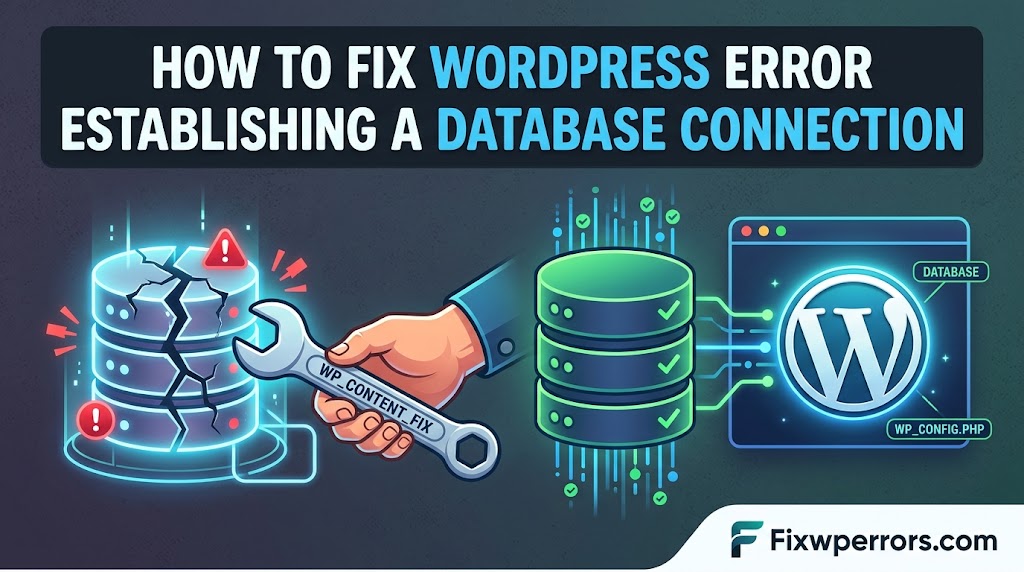
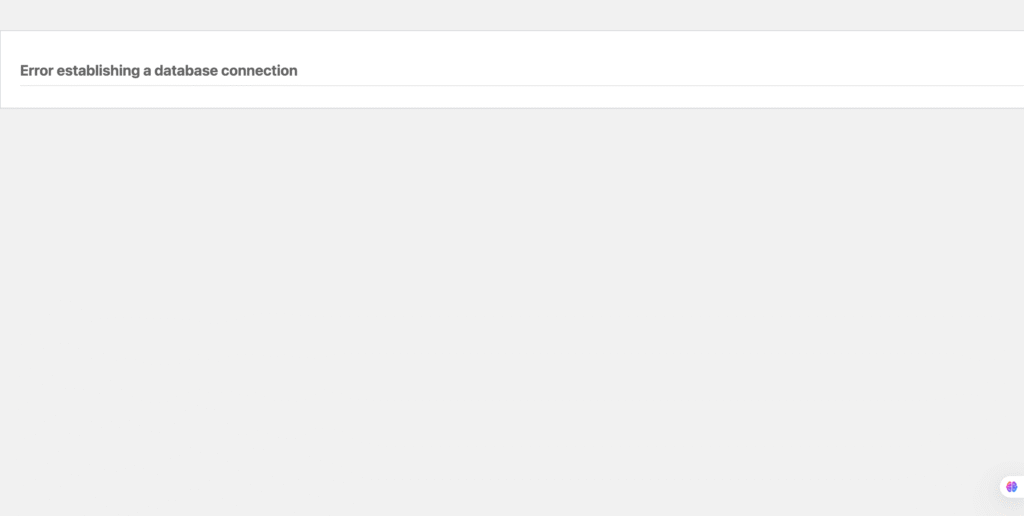
“Error establishing a database connection” means WordPress started up but couldn’t talk to its MySQL or MariaDB database. Every post, page, setting, and user lives in that database, so without it WordPress has nothing to show, and every page on the site displays the same message.
The cause is nearly always one of three things: the connection details in wp-config.php are wrong, the database server isn’t responding, or the database itself is damaged. This guide shows you how to find out which in a few minutes, instead of trying fixes at random.
Step 1: Check Whether It’s the Whole Site
Load a few different pages, and try /wp-admin/ as well.
- Every page shows the error: WordPress can’t connect at all. Go to Step 2.
- The front end shows the error, but wp-admin says “One or more database tables are unavailable. The database may need to be repaired”: the connection works and some tables are damaged. Go to “Repair damaged tables” below.
- It comes and goes: the database server is overloaded or restarting. Go to “The error comes and goes”.
Step 2: Check the Details in wp-config.php
Open wp-config.php in your WordPress root over SFTP or your host’s file manager. These four lines control the connection:
define( 'DB_NAME', 'database_name_here' );
define( 'DB_USER', 'username_here' );
define( 'DB_PASSWORD', 'password_here' );
define( 'DB_HOST', 'localhost' );
Compare each one with your hosting panel’s database section (in cPanel, MySQL Databases; on Hostinger, Databases → Management). Check them carefully, character by character:
DB_NAMEandDB_USERoften carry a prefix on shared hosting, such asu123456_wpdb. The prefix is part of the name.DB_PASSWORDcan’t be read back from most panels. If you’re not sure, set a new password for the database user in the panel and paste the same value intowp-config.php. If the password contains a single quote (') or a backslash, escape it with a backslash, or choose a password without them.DB_HOSTislocalhoston most hosts, but not all. Some use a hostname likemysql.example.com, an IP address, or a port such aslocalhost:3306. Your hosting panel or welcome email shows the right value.- The user must be assigned to the database. In cPanel, check that the user appears under the database with All Privileges. A user that exists but isn’t linked to the database can’t connect to it.
This step fixes most cases, especially right after a migration, a change of hosting plan, or someone resetting the database password.
Step 3: Test the Connection Directly
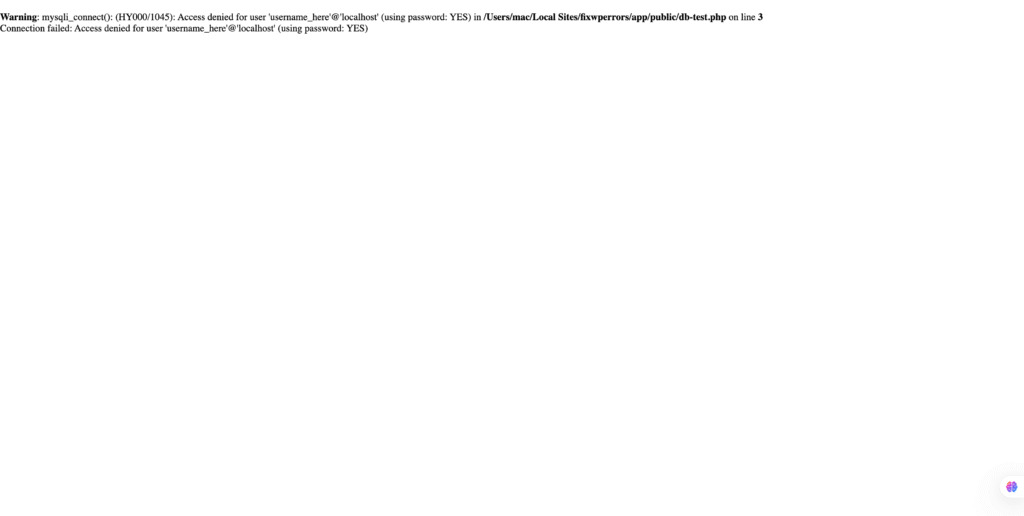
If the details look right but the error stays, test them outside WordPress. That gives you the database server’s actual error message, which WordPress hides. Create a file called db-test.php in your WordPress root, fill in the same four values from wp-config.php, and open it in your browser:
<?php
mysqli_report( MYSQLI_REPORT_OFF );
$link = mysqli_connect( 'localhost', 'username_here', 'password_here', 'database_name_here' );
if ( ! $link ) {
    exit( 'Connection failed: ' . mysqli_connect_error() );
}
echo 'Connected successfully';
Delete the file as soon as you’ve seen the result. It contains your database password in plain text.
The message tells you exactly what’s wrong:
Access denied for user 'x'@'localhost' (using password: YES): the username or password is wrong, or the user isn’t assigned to the database.Unknown database 'x':DB_NAMEis wrong, or the database doesn’t exist on this server.No such file or directory,Connection refused, orphp_network_getaddresses: getaddrinfo failed:DB_HOSTis wrong, or the database server is down. On some servers, switchinglocalhostto127.0.0.1(or the reverse) fixes it, because the two connect in different ways.Too many connections: the database server is overloaded. See below.- “Connected successfully” but WordPress still fails: the details in
wp-config.phpdon’t match what you typed into the test, or the database tables are damaged.
Repair Damaged Tables
If wp-admin reports that tables are unavailable, WordPress has a built-in repair tool. Add this line to wp-config.php, above the “stop editing” comment:
define( 'WP_ALLOW_REPAIR', true );Then visit https://example.com/wp-admin/maint/repair.php and click Repair Database. Remove the line straight after. The repair page doesn’t require a login, so anyone could open it while the setting is on.
You can also repair tables from phpMyAdmin: select the database, tick all tables, and choose Repair table from the dropdown. Take a database backup before repairing if you can.
The Error Comes and Goes
If the site works most of the time and shows the error at random, the database server is struggling rather than misconfigured:
- Traffic spikes or bot attacks can exhaust database connections. Page caching (for example LiteSpeed Cache) means most visitors never touch the database, which helps a lot.
- Heavy plugins and scheduled tasks, such as backups, statistics, or broken cron jobs, can overload it at particular times. Check your host’s resource usage graphs for spikes when the errors happen.
- Disk space or database quota running out stops the database from working properly. Check usage in your hosting panel, and clear old backups or logs stored on the account.
- The host’s database server may be overloaded or restarting. Send support the exact times of the errors so they can check their logs.
After a Migration
Migrations cause a large share of database connection errors. After moving a site, check that:
- The database was actually imported on the new server, and the user is assigned to it there.
wp-config.phphas the new server’s database name, user, password, and host, not the old ones.- The
$table_prefixinwp-config.phpmatches the prefix of the imported tables. A wrong prefix doesn’t give this error. Instead, WordPress shows its installation screen, because it can’t find its tables.
On a multisite network, there are additional places where the domain is stored. See our multisite guide.
Summary
Check whether the error affects every page or only shows “tables unavailable” in wp-admin. Then compare the four DB_ settings in wp-config.php with your hosting panel, and use a short test script to get the database’s real error message: “Access denied” means credentials, “Unknown database” means the name, and “Connection refused” means the host or server. Repair damaged tables with WP_ALLOW_REPAIR, and treat errors that come and go as a load problem.