A 403 Forbidden error means the server received the request, understood it, and refused to serve it. Unlike a 404, the page or file exists. Something between the visitor and WordPress has decided they aren’t allowed to see it.
On WordPress sites that “something” is usually one of five things: file permissions, a rule in .htaccess, a security plugin, your host’s firewall, or a CDN like Cloudflare. The fastest way to fix it is to work out which one is refusing the request before changing anything. This guide shows you how.
Step 1: Narrow Down Where the 403 Happens
Answer these first, because each answer points to a different cause:
- Is it the whole site, or one part? The whole site points to permissions,
.htaccess, or a missingindex.php. Only/wp-admin/orwp-login.phppoints to a security plugin or an IP restriction. Only images or uploads points to file permissions or hotlink protection. - Is it everyone, or only you? Try your phone on mobile data. If the site works there, your IP address has been blocked by a security plugin, your host, or Cloudflare.
- Did it start after a specific action? For example, saving a post, installing a security plugin, moving hosts, or editing
.htaccess.
Then look closely at the error page itself, because its style tells you who sent it:
- A plain page saying “Forbidden. You don’t have permission to access this resource” comes from the web server (Apache or LiteSpeed). Look at permissions,
.htaccess, and the host’s firewall. - A plain “403 Forbidden” with nginx underneath comes from an Nginx server. Look at permissions and the server configuration.
- A page from a security plugin, such as Wordfence’s “Your access to this site has been limited”, means that plugin blocked you.
- A Cloudflare page saying “Sorry, you have been blocked” with a Ray ID means Cloudflare’s firewall blocked the request.
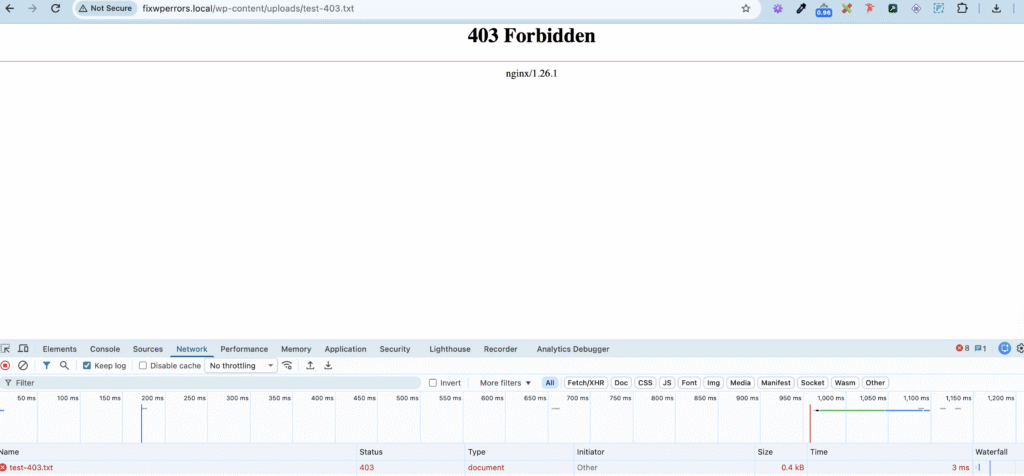
If you can, also check your hosting panel’s error log. Lines like client denied by server configuration point to an .htaccess or server rule, Permission denied points to file permissions, and anything mentioning ModSecurity points to the host’s firewall.
Fix 1: Correct File and Folder Permissions
The web server needs to be able to read your files. The standard WordPress permissions are:
- Folders:
755 - Files:
644 wp-config.php:640or600is fine if your host supports it,644otherwise.
Permissions often go wrong after a migration, an unzip done with the wrong settings, or a security plugin “hardening” the site too far. To reset them with FileZilla:
- Connect over SFTP and right-click your WordPress root folder (usually
public_html). Choose File permissions. - Enter 755, tick Recurse into subdirectories, choose Apply to directories only, and click OK.
- Right-click the same folder again, enter 644, tick Recurse into subdirectories, choose Apply to files only, and click OK.
If you have SSH access, the same thing from the WordPress root:
find . -type d -exec chmod 755 {} \;
find . -type f -exec chmod 644 {} \;
Never use 777. It doesn’t fix 403 errors properly, and many servers refuse to run files with those permissions anyway. If permissions look right but the error remains, the files may be owned by the wrong user after a migration, which your host can correct.
Fix 2: Rule Out the .htaccess File
A bad rule in .htaccess can block the whole site, or only certain folders. To test it, rename .htaccess in your WordPress root to .htaccess-off over SFTP and reload the site.
- If the 403 disappears (posts may now show 404s), the file was the cause. Go to Settings → Permalinks and click Save Changes to create a clean default file, then re-add any custom rules one at a time.
- If nothing changes, rename it back. The cause is elsewhere.
Also check for extra .htaccess files in wp-admin, wp-content, or wp-content/uploads. Security plugins and old hardening guides often add rules there, such as an IP restriction on wp-admin that locks you out when your IP changes.
For reference, the default WordPress rules look like this:
# BEGIN WordPress
<IfModule mod_rewrite.c>
RewriteEngine On
RewriteRule .* - [E=HTTP_AUTHORIZATION:%{HTTP:Authorization}]
RewriteBase /
RewriteRule ^index\.php$ - [L]
RewriteCond %{REQUEST_FILENAME} !-f
RewriteCond %{REQUEST_FILENAME} !-d
RewriteRule . /index.php [L]
</IfModule>
# END WordPress
Our .htaccess guide covers editing the file safely.
Fix 3: Make Sure index.php Exists
If the whole site shows 403 right after a migration or a failed upload, check that index.php is present in your WordPress root. Without it, the server has nothing to show for the folder, and with directory listings turned off (as they should be), it refuses with a 403. Re-upload index.php from a fresh copy of WordPress if it’s missing.
Fix 4: Check Your Security Plugin
Security plugins such as Wordfence, Solid Security, and All-In-One Security block IP addresses after failed logins, block whole countries, and block requests that look like attacks. A 403 that only affects you, or only wp-login.php, is very often one of these.
- If you can still reach the dashboard from another device or network, look in the plugin’s blocking or lockout log and unblock your IP.
- If you can’t, rename the plugin’s folder in
wp-content/plugins/over SFTP. That deactivates it, and the block lifts.
One catch with Wordfence: its firewall can be set up to run before WordPress loads, through a file called wordfence-waf.php referenced in .user.ini, php.ini, or .htaccess. If renaming the plugin folder doesn’t lift the block, look for an auto_prepend_file line pointing to that file and comment it out temporarily.
Fix 5: Check Your Host’s Firewall (ModSecurity)
Many hosts run a web application firewall, commonly ModSecurity, in front of every site. It blocks requests that match attack patterns, and on WordPress that sometimes catches normal actions:
- Saving a post that contains code samples,
<script>tags, or SQL-like text. - Requests to
admin-ajax.phpor the REST API from certain plugins. - Uploads with unusual file names.
The giveaway is a 403 that happens only on one specific action, every time. Check the error log for ModSecurity entries, or send your host the time of the error and the URL. They can whitelist the specific rule for your site, which is better than turning the firewall off.
Fix 6: Check Cloudflare or Your CDN
If the 403 page is branded by Cloudflare, log in to Cloudflare and open Security → Events. Each blocked request shows the rule that blocked it, along with the Ray ID from the error page. Typical causes are a custom firewall rule, a country block, Bot Fight Mode, or a managed WAF rule matching a plugin’s requests. Adjust or skip that rule for the affected URL rather than turning protection off for the whole site.
Fix 7: Images or Uploads Return 403
If pages load but images show as broken and return 403:
- Check permissions on
wp-content/uploadsand its subfolders (755 for folders, 644 for files). Files uploaded by some backup or migration tools end up with stricter permissions. - Look for an
.htaccessfile insidewp-content/uploadsthat blocks more than PHP files. - Check whether hotlink protection is enabled in your hosting panel or CDN. If it doesn’t list your own domain (including www and non-www), it blocks your own images.
Still Getting a 403?
If none of these explain it, a plugin other than your security plugin may be restricting access. Membership and maintenance-mode plugins are common examples. Disable plugins as described in our guide to deactivating plugins when you’re locked out, and if the error persists with no plugins active, send your host the exact URL, the time, and your IP address so they can check their server logs.
Summary
A 403 means something is refusing the request. Check who sent the error page and whether it affects everyone. Then work through the likely causes: file permissions (755 folders, 644 files), .htaccess rules, a missing index.php, your security plugin, your host’s firewall, and Cloudflare. Fix the specific rule that blocks you instead of switching protection off entirely.