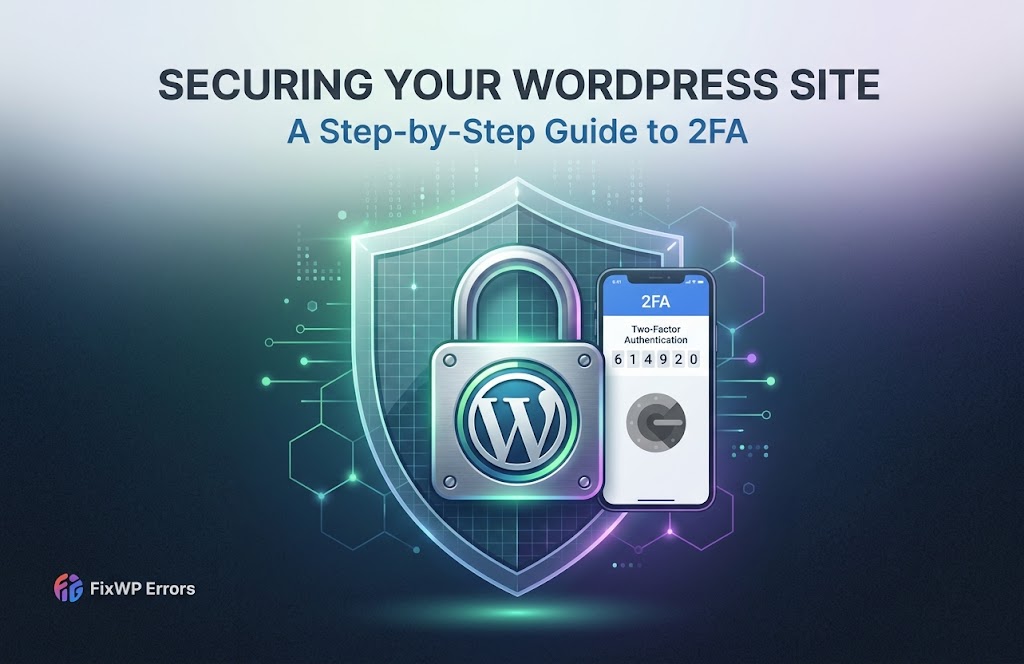
Two-factor authentication (2FA) means that logging in to WordPress needs two things: your password, and a short code from something only you have, usually an app on your phone. If your password is guessed, leaked, or reused from a breached website, an attacker still can’t get in.
It’s the most effective single step you can take against login attacks, it takes about five minutes to set up, and WordPress doesn’t include it by default. This guide shows how to add it, set it up for your users, and avoid locking yourself out.
Choosing a Method
2FA plugins offer several kinds of second factor. In order of preference:
- Security keys and passkeys (such as a YubiKey, or your phone or laptop’s built-in passkey support). The strongest option, and resistant to phishing, but you need a plugin that supports them.
- Authenticator apps such as Google Authenticator, Microsoft Authenticator, Authy, or the one built into your password manager. They generate a new six-digit code every 30 seconds. This is the best balance of security and convenience for most sites.
- Email codes, which are better than nothing, but anyone who gets into your email gets into WordPress too. Only use them as a fallback.
Avoid relying on SMS codes where you have a choice, since phone numbers can be hijacked.
Choosing a Plugin
Any of these is a solid choice:
- Two Factor, the free plugin maintained by WordPress contributors. Lightweight and focused: authenticator apps, email codes, and backup codes.
- Wordfence Login Security, also included in the full Wordfence plugin. Authenticator apps and recovery codes, plus the option to require 2FA for chosen roles.
- Solid Security (formerly iThemes Security), which bundles 2FA with other login protection.
If you already run a security plugin that offers 2FA, use its version rather than adding a second plugin. The steps below use the free Two Factor plugin, and the others work in much the same way.
Setting Up 2FA With an Authenticator App
- Install and activate Two Factor from Plugins → Add New Plugin.
- Go to Users → Profile and scroll down to Two-Factor Options.
- Choose the authenticator app option. A QR code appears.
- Open your authenticator app, add a new account, and scan the QR code.
- Enter the six-digit code the app shows to confirm it’s working, and save.
- Generate backup codes in the same section, and store them in your password manager or another safe place. Each code works once, and they’re how you get in if you lose your phone.
- Set the authenticator app as your primary method, and save your profile.
[SCREENSHOT: the Two-Factor Options section in a Local user profile, with the QR code blurred.]
Log out and log back in to test it. After your password, WordPress asks for the code from your app.
Setting It Up for Other Users
Every user sets up 2FA on their own profile, since only they have their phone. As the site owner:
- Ask everyone with the Administrator, Editor, or Shop Manager role to turn it on. These accounts can do the most damage if compromised.
- If you need to enforce it, use a plugin that can require 2FA for certain roles, such as Wordfence Login Security or Solid Security. Users are then asked to set it up the next time they log in.
- Send users a short note with the steps above. Most problems come from people skipping the backup codes.
If You’re Locked Out
You lost your phone
Log in with one of your backup codes. Then go to your profile, set up the authenticator app again on your new phone, and generate fresh backup codes.
Codes are always rejected
Authenticator codes depend on the time. If your phone’s clock, or the server’s clock, is off by more than a minute or so, every code is wrong. Turn on automatic date and time on your phone first. If that doesn’t help, ask your host to check the server time.
No phone, no backup codes
Another administrator can turn off 2FA on your account from Users → Edit User. If you’re the only administrator, disable the 2FA plugin by renaming its folder in wp-content/plugins/ over SFTP, log in with just your password, then reactivate the plugin and set 2FA up again. Our guide to deactivating plugins when you’re locked out shows how.
Because anyone with SFTP or hosting access can do that, 2FA protects the WordPress login, not your server. Protect your hosting account with its own strong password and 2FA too.
Apps and Integrations
Services that connect to WordPress, such as the mobile app, automation tools, or a headless front end, can’t enter a 2FA code. Use WordPress’s built-in Application Passwords for them instead, under Users → Profile → Application Passwords. Each one can be revoked individually, and none of them can be used to log in to the dashboard.
Summary
Install a 2FA plugin, such as Two Factor, Wordfence Login Security, or Solid Security, set up an authenticator app from your profile, save your backup codes, and ask every administrator and editor to do the same. Keep the clock in mind if codes fail, and use Application Passwords for apps. Together with strong passwords and login limits, covered in our brute force protection guide, 2FA stops almost every login attack.