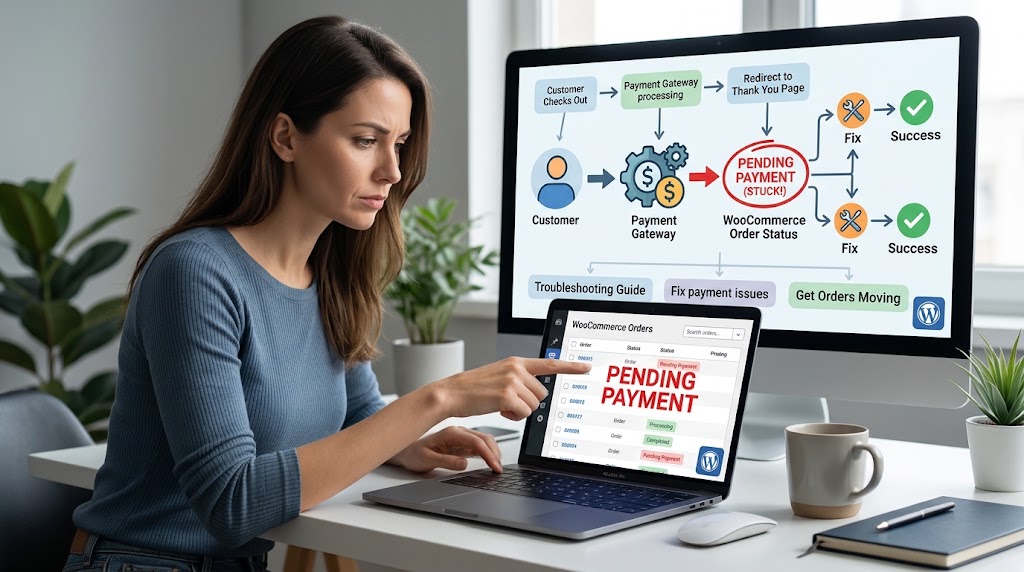
A customer says they paid. Your payment provider shows the money. But in WooCommerce the order is still sitting on Pending payment: no confirmation email went out, stock wasn’t updated, and the order may be cancelled automatically within the hour.
Some pending orders are completely normal. The ones that matter are orders that were paid but never updated. This guide shows how to tell the two apart, why paid orders get stuck, and how to fix both the stuck orders and the cause.
What “Pending Payment” Means
WooCommerce creates the order the moment the customer clicks Place Order, with the status Pending payment. It stays there until the payment gateway tells WooCommerce the payment succeeded, which moves it to Processing (or Completed for virtual or downloadable products).
Two other statuses often get confused with it:
- On hold is normal for manual methods such as direct bank transfer and cheque. Those orders wait for you to confirm the money arrived.
- Failed means the gateway reported the payment as declined or unsuccessful.
Pending orders also hold stock for a while. Under WooCommerce → Settings → Products → Inventory → Hold stock (minutes), WooCommerce reserves the stock for unpaid orders and cancels them automatically once that time runs out (60 minutes by default).
Step 1: Check Whether the Customer Actually Paid
Before fixing anything, look up the order in your payment provider’s dashboard (Stripe, PayPal, and so on), searching by the customer’s email or the order number:
- No payment there: the order is genuinely unpaid. The customer probably left at the payment step, closed the PayPal window, or the card was declined before a charge was made. This is normal, and the order cancels itself after the hold stock time. Many pending orders mean shoppers are dropping off at the payment step, which is a checkout problem rather than a technical fault. See our checkout redirect guide.
- A successful payment there: the payment went through, but WooCommerce was never told. Keep reading.
Also open the order in WooCommerce and read its Order notes on the right. Gateways add notes at each step, and the last note often shows exactly where things stopped.
Why Paid Orders Stay Pending: the Gateway Never Reported Back
A payment provider tells WooCommerce about a successful payment in one of two ways:
- When the customer returns to your site after paying, the gateway plugin checks the payment and updates the order.
- By webhook: the provider’s servers send a message straight to your site, whether or not the customer comes back.
If the customer closes the tab after paying, loses connection during 3D Secure authentication, or uses a payment method that confirms later (such as some bank payments), the webhook is the only way the order gets updated. When orders are paid but stay pending, a failing webhook is the cause almost every time.
Step 2: Check the Webhook Deliveries
Every major provider shows whether its webhooks reached your site:
- Stripe: in the Stripe Dashboard, open the webhooks section of the Developers area and select the endpoint for your site. Each event shows its delivery attempts and the response your site gave.
- PayPal: your PayPal developer or business dashboard shows webhook (and older IPN) delivery history.
- Other gateways: look for “webhooks”, “notifications”, or “callbacks” in the provider’s settings.
Then check that the webhook URL configured with the provider matches what your gateway plugin expects. The plugin usually shows the correct URL on its settings page. For the WooCommerce Stripe plugin, it looks like https://yourdomain.com/?wc-api=wc_stripe.
The response code tells you what went wrong:
- No attempts at all: the webhook isn’t set up, it points to the wrong URL, or it’s configured in test mode while the store runs in live mode, or the reverse.
- 400 or 401: your site received it but rejected it, usually because the webhook signing secret in the plugin doesn’t match the one from the provider. Copy the secret from the provider’s endpoint settings into the plugin again.
- 403: a security plugin, your host’s firewall, or Cloudflare blocked it. Cloudflare’s bot protection and challenges are a common culprit, because a webhook is an automated request. See Step 3.
- 301 or 302: the webhook URL redirects, for example from
httptohttps, or between www and non-www. Providers generally don’t follow redirects for webhooks, so use the exact final URL. - 500: PHP crashed while handling it. Check WooCommerce → Status → Logs for the gateway log and the
fatal-errorslog at that time. - Timeouts: your server took too long to respond. Slow plugins running on every request are a frequent cause.
Step 3: Fix What’s Blocking the Webhook
- Firewalls: allow the webhook URL in your security plugin, and check Cloudflare’s Security → Events. Skip bot checks and challenges for the webhook path rather than turning protection off. Our 403 guide covers each firewall.
- Maintenance mode, coming-soon pages, and password protection: these block webhooks completely, which is a common problem on newly launched stores and staging sites.
- A changed domain: after moving the store or switching to HTTPS, update the webhook URL with the provider.
- Caching: make sure the webhook URL is never cached. Anything with
wc-apiin it should be excluded. See our caching guide. - Background tasks: some gateways process webhooks through WooCommerce’s scheduled actions. If those are past due, orders update late or not at all. Check WooCommerce → Status → Scheduled Actions for failed or pending actions.
Once the cause is fixed, most providers let you resend a failed event from the webhook’s delivery history. Resending updates the stuck order the normal way.
Step 4: Fix the Orders That Are Already Stuck
For each order that was definitely paid:
- Resend the payment event from your provider’s dashboard if possible. This is the cleanest fix, because the plugin records the transaction ID and status itself.
- If you can’t resend it, confirm the payment in the provider’s dashboard, open the order in WooCommerce, change the status to Processing, and add an order note with the provider’s transaction ID.
- Check that the customer received their confirmation email. If not, use Order actions → Resend new order notification on the order screen, and see our guide to WordPress emails not sending if emails aren’t arriving at all.
Act quickly on paid orders, because WooCommerce cancels pending orders automatically once the hold stock time has passed.
Testing Webhooks on a Local Site
A local development site isn’t reachable from the internet, so Stripe can’t send it webhooks directly. The free Stripe CLI solves this by forwarding test events to your local site:
stripe listen --forward-to https://your-site.local/?wc-api=wc_stripeIt prints a webhook signing secret (starting with whsec_). Paste that into the Stripe plugin’s test-mode webhook secret field. Every test payment now shows its webhook events in the terminal, with your site’s response code next to each one, so you can confirm webhooks work before going live.
Summary
Pending payment is normal for orders the customer never paid, and those cancel automatically. If the provider shows a successful payment, WooCommerce wasn’t told, and the webhook is almost always why. Check its delivery history and response code: fix the signing secret for 400 and 401 responses, firewalls and Cloudflare for 403s, the exact URL for redirects, and the logs for 500s. Then resend the failed events, or confirm the payment and update the stuck orders by hand.