The White Screen of Death is exactly what it sounds like: you load your WordPress site and get a completely blank white page. No error, no message, nothing to go on.
On modern WordPress it’s less common than it used to be. Since version 5.2, most PHP fatal errors show “There has been a critical error on this website” instead of a blank page. If that’s the message you see, our critical error guide is the one you need. A page that is truly blank means something happened that WordPress couldn’t catch, or the page isn’t failing the way it looks. This guide covers how to tell which, and how to fix each case.
Step 1: Find Out What Kind of Blank Page It Is
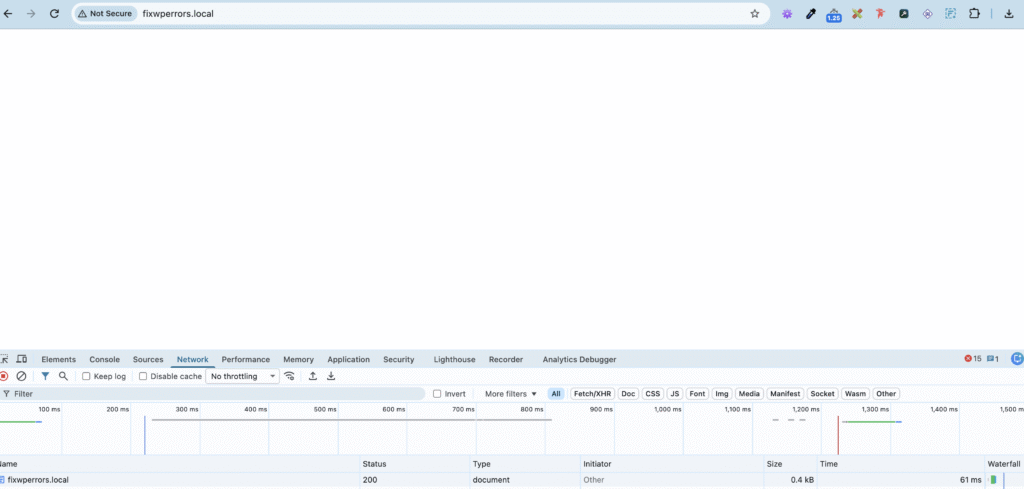
A blank page can mean very different things. Two quick checks tell them apart:
- Open DevTools (F12), go to the Network tab, and reload. Click the first request (the page itself) and note its status code.
- Press Ctrl+U (Cmd+Option+U on Mac) to view the page source, and see whether there’s any HTML in it.
Then match what you found:
- Status 500 and no HTML: PHP failed before it could show anything. Chrome may show “This page isn’t working. HTTP ERROR 500”. See Fixes 1 to 3.
- Status 200 and no HTML: the server says everything is fine but sent nothing. Usually a cached blank page or a theme template that outputs nothing. See Fixes 4 and 5.
- Status 200 with HTML in the source, but the page looks blank: the content is there and something is hiding it, usually CSS or JavaScript. See our CSS not loading guide and check the Console tab for errors.
- Only the block editor is blank: that’s a JavaScript problem in the admin. See Fix 6.
Step 2: Turn On the Debug Log
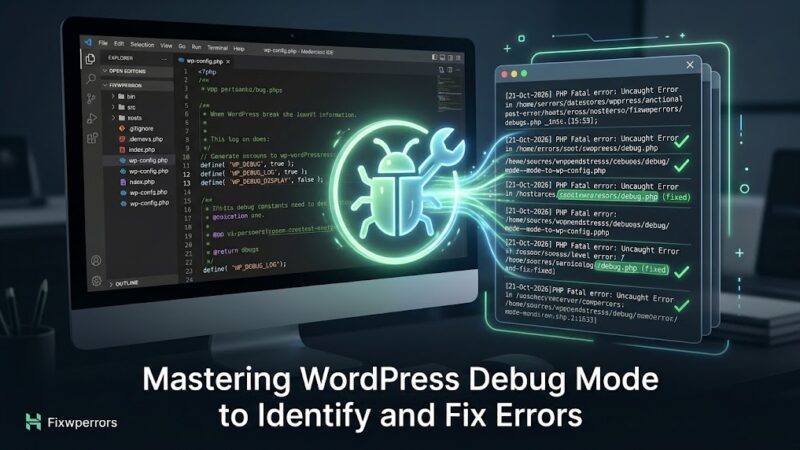
For a 500 blank page, the actual error is in a log. Add these lines to wp-config.php, above the “That’s all, stop editing!” comment, replacing any existing WP_DEBUG line:
define( 'WP_DEBUG', true );
define( 'WP_DEBUG_LOG', true );
define( 'WP_DEBUG_DISPLAY', false );
Reload the page and check wp-content/debug.log for a line starting with PHP Fatal error or PHP Parse error. If debug.log stays empty, check your hosting panel’s PHP error log instead. Errors that happen before WordPress loads only appear there.
Fix 1: An Error in wp-config.php
If you edited wp-config.php just before the site went blank, the error is almost certainly there. WordPress loads that file before it can catch errors, so a mistake in it gives you a blank 500 page instead of the critical error message.
- Open
wp-config.phpover SFTP and look at what you changed. Common mistakes are a missing semicolon, an unclosed quote, smart quotes (’instead of') pasted from a website, or a line added belowrequire_once ABSPATH . 'wp-settings.php';. - The host’s PHP error log gives the exact line number, for example
PHP Parse error: syntax error, unexpected ... in /home/user/public_html/wp-config.php on line 42. - Edit the file in a code editor, not a word processor, and keep a backup before every change.
Fix 2: A Leftover Caching Drop-In
Caching and object-cache plugins install “drop-in” files directly in wp-content, such as advanced-cache.php, object-cache.php, and db.php. WordPress loads these very early. If the plugin that created them was deleted, updated badly, or moved to a server without the cache service it needs (for example Redis or Memcached), the drop-in can crash every page.
Over SFTP, rename any of those files you find in wp-content (for example to object-cache.php-off) and reload. If the site returns, reinstall or reconfigure the caching plugin properly, or leave the file removed if you no longer use it. If wp-config.php still has define( 'WP_CACHE', true ); and you’ve removed your caching plugin, delete that line too.
Fix 3: A Plugin, Theme, or Memory Error
If the debug log names a plugin or theme folder, the fix is the same as for the critical error message: disable that item by renaming its folder over SFTP. If the log shows nothing, rename wp-content/plugins to plugins-off to test all plugins at once. Our critical error guide walks through reading the log line and each type of error in detail.
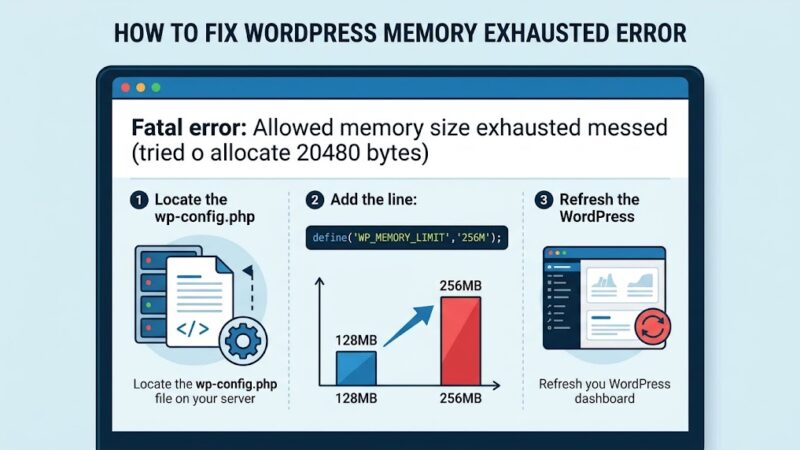
Very large memory errors can kill PHP before WordPress manages to show its message, so a blank page can also be Allowed memory size ... exhausted. See our memory exhausted guide.
Also check wp-config.php for define( 'WP_DISABLE_FATAL_ERROR_HANDLER', true );. That line turns off WordPress’s error handling, so every fatal error becomes a blank page. It’s sometimes added during development and forgotten. Remove it on live sites.
Fix 4: A Cached Blank Page
If the page returns status 200 with no HTML, and especially if it’s blank for visitors but fine when you’re logged in, your cache may have stored a blank copy from the moment an error occurred. The error has gone, but the cache keeps serving the empty page.
- Purge your caching plugin (for example LiteSpeed Cache → Purge All).
- Purge your host’s server cache from the hosting panel.
- Purge your CDN, such as Cloudflare.
- Test in a private window after each step.
Fix 5: The Theme Outputs Nothing
A theme can return an empty page without any PHP error, for example when a template file is empty or was only partly uploaded, or a template exits early. Switch to a default theme to test. If you can’t reach the dashboard, rename your theme’s folder in wp-content/themes/ so WordPress falls back to a default theme such as Twenty Twenty-Five. If the site comes back, re-upload a fresh copy of your theme, or check the template that renders the blank page.
If only one page or post is blank while the rest of the site works, look at what’s different about it: a custom page template, a shortcode, or a block from a specific plugin.
Fix 6: The Block Editor Is Blank
If the site works but the editor shows a white screen when you open a post, the PHP side is fine. The editor is a JavaScript application, and a JavaScript error stops it from rendering. Open DevTools and check the Console tab while the editor loads. The error usually names the plugin whose script failed. Deactivate that plugin, or test by deactivating plugins one at a time. Caching or optimization plugins that minify or combine admin scripts are a common cause, so exclude wp-admin from those features.
Clean Up Afterwards
- Set
WP_DEBUGback tofalse. - Delete
wp-content/debug.log. It’s publicly readable by default. - Rename back, or remove, any folders and drop-ins you renamed.
- Purge every cache layer one more time.
Summary
Check the status code and page source first. A blank 500 page means PHP failed early: look in wp-config.php, caching drop-ins, plugins, memory, and the WP_DISABLE_FATAL_ERROR_HANDLER setting. A blank 200 page with no HTML points to a cached empty page or a theme problem. HTML that’s present but invisible is a CSS or JavaScript issue, and a blank editor is a JavaScript error you can find in the console.