You click Update or Publish in the block editor and get a red notice instead: “Updating failed. The response is not a valid JSON response.” (or “Publishing failed”). Your changes aren’t saved, and nothing else on the screen hints at why.
The block editor saves posts by sending them to WordPress’s REST API, and it expects a JSON reply. This error means the reply wasn’t JSON. It might have been an HTML error page, a firewall block, a redirect, or JSON with a PHP warning stuck in front of it. Once you see what came back instead, the fix is usually quick.
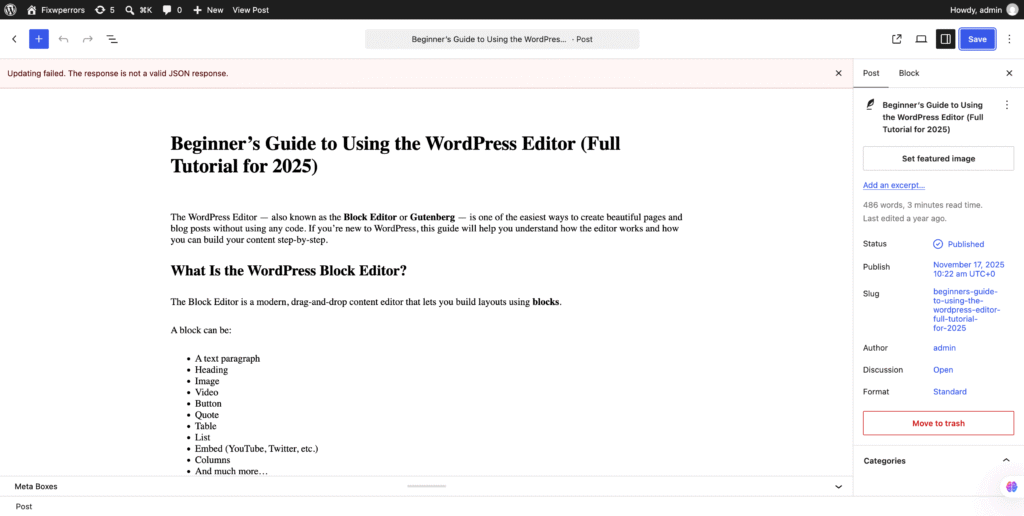
Step 1: See What the Server Actually Sent Back
This one check usually tells you the cause directly:
- In the editor, open DevTools (F12) and go to the Network tab.
- Click Update again so the error appears.
- Find the failed request. It’s usually red, and its URL contains
/wp-json/wp/v2/posts/(orpages, orrest_route=). - Note its status code, then open its Response tab.
Match what you see:
- 404, or an HTML page from your theme: the REST API URL isn’t being routed to WordPress. See Fix 1.
- 403, or a page from your host, Cloudflare, or a security plugin: a firewall blocked the save. See Fix 2.
- 301 or 302, or a request to a different domain or to
http://: a site address mismatch. See Fix 3. - Status 200, but the response starts with
<br />orWarning:orDeprecated:before the{: a PHP message corrupted the JSON. See Fix 4. - 401, or JSON mentioning
rest_forbiddenorrest_cookie_invalid_nonce: the REST API is disabled or your login session expired. See Fix 5.
Tools → Site Health also tests the REST API. If it reports “The REST API encountered an error” or “an unexpected result”, its details show the same response, which confirms the problem is site-wide.
Fix 1: Refresh Permalinks (404 or HTML Page)
The REST API lives at https://yoursite.com/wp-json/, and that address only works if WordPress’s rewrite rules are in place. If .htaccess is missing or was overwritten, the request ends at a 404 page, and the editor receives HTML.
- Go to Settings → Permalinks and click Save Changes without changing anything. WordPress rewrites its rules.
- Visit
https://yoursite.com/wp-json/in your browser. You should see a page of JSON text. If you get a 404, the rules still aren’t working. - Check that
.htaccesscontains the WordPress block. Our .htaccess guide shows the default rules. On Nginx, the server needs WordPress’stry_filesrule, which your host sets up.
If you use “Plain” permalinks, the editor uses ?rest_route= URLs instead, and this cause doesn’t apply.
Fix 2: A Firewall Blocked the Save (403)
Security plugins, your host’s firewall (often ModSecurity), and Cloudflare inspect the content of every request. A post that contains code samples, <script> or <iframe> tags, SQL-like text, or long URLs can look like an attack, and the save is blocked with a 403.
The giveaway is that only some posts fail, usually the ones with code or embeds, while short plain posts save fine. To confirm, remove the suspicious block, save, then add it back.
- Security plugin: check its firewall or blocking log for your own IP and that time. Most let you whitelist the rule, or the REST API path, for logged-in administrators.
- Host firewall: send your host the time of the failed save and the URL from the Network tab. They can disable the specific ModSecurity rule for your site.
- Cloudflare: check Security → Events for the blocked request, and skip that rule for
/wp-json/when you’re logged in.
Our 403 Forbidden guide covers each of these in more detail.
Fix 3: Site Address Mismatch (Redirects or Mixed HTTP/HTTPS)
If Settings → General lists http:// but you use the site over https://, or the two addresses differ in www, the editor sends its save to one address, gets redirected to the other, and the save fails. Make WordPress Address and Site Address identical, and match the address you actually use, including https://. Then reload the editor.
If you set WP_HOME or WP_SITEURL in wp-config.php, check those too, since they override the dashboard settings.
Fix 4: PHP Warnings Breaking the JSON
If the response is a valid save with a PHP message in front of it, the save may even have worked, but the editor can’t read the reply. This happens when PHP errors are displayed on screen, and a plugin or theme triggers a warning or deprecation notice during the request.
- Stop errors from being displayed on a live site: in
wp-config.phpsetdefine( 'WP_DEBUG_DISPLAY', false );, or turn offdisplay_errorsin your hosting panel. That fixes the editor straight away. - Fix the cause: the warning names the file and line, which points to the plugin or theme responsible. Update it, or report it to its developer.
Stray output from a plugin can cause the same thing. See our guide to unexpected plugin output.
Fix 5: REST API Disabled or Session Expired (401)
- If you installed a plugin or snippet that disables the REST API, it also breaks the block editor, which depends on it. Change its settings to allow logged-in users, or remove it.
- A
rest_cookie_invalid_noncemessage means your login session expired while the editor was open. Copy your content, reload the editor, and save again.
A Quick Workaround While You Investigate
If you need to save urgently, switch the problem block to a Classic block, or copy the content somewhere safe, reload, and try saving in smaller pieces to find the block that triggers the error. Avoid permanently installing the Classic Editor plugin to “fix” this. It hides the error without solving it, and other features that rely on the REST API will still fail.
Summary
The editor expected JSON and got something else. Open the failed request in DevTools and read the status code and response: a 404 or HTML page means refresh permalinks, a 403 means a firewall blocked the content, a redirect means a site address mismatch, a PHP warning before the JSON means errors are being displayed, and a 401 means the REST API is disabled or your session expired.