Image uploads in WordPress fail in a surprising number of ways, but almost every failure comes with a specific message. That message tells you whether the problem is the file’s size, its type, the uploads folder, the server’s temporary storage, or the image processing step after the upload.
This guide is organized by those messages. Find the one you’re seeing and go straight to its fix.
First: Check the Basics in Site Health
Go to Tools → Site Health → Info and open the Media Handling and Server sections. They show your maximum upload size, PHP’s upload_max_filesize and post_max_size, the image library in use (Imagick or GD), and which image formats it supports. Under Directories and Sizes, you can also see whether the uploads folder is writable. Keep that screen open while you work through the fixes below.
“The uploaded file exceeds the upload_max_filesize directive in php.ini”
The file is bigger than PHP allows. The upload screen also shows “Maximum upload file size” under the uploader, which is the smaller of PHP’s upload_max_filesize and post_max_size.
Raise both values, keeping post_max_size equal to or larger than upload_max_filesize. In order of reliability:
- Your hosting panel’s PHP settings, which most hosts offer.
- A
.user.iniorphp.inifile in your WordPress root containing the lines below. Changes can take a few minutes to apply. .htaccesswithphp_value upload_max_filesize 64Mandphp_value post_max_size 64M. This only works with Apache’s PHP module or LiteSpeed. On PHP-FPM it gives a 500 error, so remove it if that happens.
upload_max_filesize = 64M
post_max_size = 64M
On a multisite network there’s a second limit in Network Admin → Settings → Max upload file size. See our multisite guide.
“HTTP error” or 413 Request Entity Too Large
If the uploader shows a plain “HTTP error”, open DevTools (F12) → Network before uploading again, then click the failed request to see its status code:
- 413: the web server rejected the request size before PHP saw it. On Nginx that’s
client_max_body_size, which your host has to raise. Cloudflare also caps uploads at 100 MB on its free and Pro plans. - 403: a firewall blocked the upload, often ModSecurity reacting to the file name or contents, or a security plugin. See our 403 guide.
- 500 or 502: PHP crashed while handling the upload, usually while processing a large image. Check
debug.logand see the next section.
“The server cannot process the image”
WordPress shows this when the upload worked but generating the thumbnail sizes failed. The full message says the server may be busy or short on resources, and suggests a maximum size of 2560 pixels.
The cause is image dimensions, not file size. A 6000×4000 photo can be a 3 MB file, but decoding it needs well over 100 MB of memory, and WordPress then creates several resized copies. To fix it:
- Resize the photo to around 2560 pixels on its longest side before uploading. WordPress scales anything larger down to that size anyway.
- Raise
WP_MAX_MEMORY_LIMIT(used for image processing) and PHP’smemory_limit. Our memory exhausted guide covers both. - If small images fail too, the image library may be broken. Site Health shows whether Imagick or GD is available, and your host can repair it.
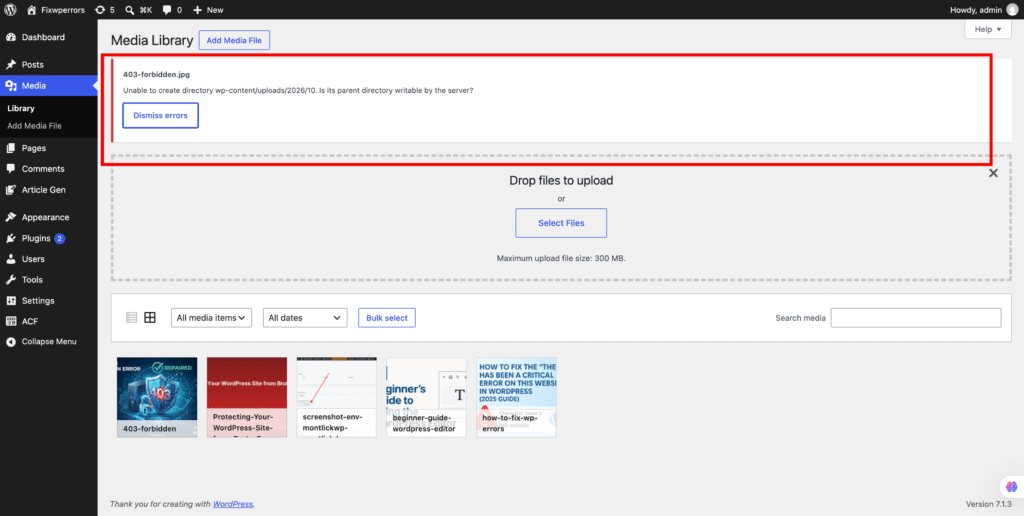
“Unable to create directory wp-content/uploads/… Is its parent directory writable by the server?”
WordPress stores uploads in year and month folders, such as wp-content/uploads/2026/10/, and creates a new one each month. This message means it couldn’t create that folder:
- Over SFTP, set
wp-content/uploadsand its subfolders to755. Don’t use777. - If the permissions are already 755, the folder may be owned by a different user than the one PHP runs as, which is common after a migration. Your host can fix the ownership.
- If the path in the message looks wrong (for example it points to the old server’s folder after a move), an old custom upload path is stored in the database. Open
/wp-admin/options.php, findupload_path, and clear it so WordPress uses the default location.
“Failed to write file to disk” or “Missing a temporary folder”
Both come from PHP before WordPress gets the file. PHP first saves every upload to a temporary folder on the server:
- “Failed to write file to disk” usually means the disk or your hosting account’s storage quota is full, or the temporary folder isn’t writable. Check disk usage in your hosting panel, and clear out old backups or logs stored on the account.
- “Missing a temporary folder” means PHP’s
upload_tmp_dirisn’t set or doesn’t exist. Ask your host to fix it, or point WordPress at a folder of its own by addingdefine( 'WP_TEMP_DIR', dirname( __FILE__ ) . '/wp-content/temp/' );towp-config.phpand creating thattempfolder.
“Sorry, you are not allowed to upload this file type”
WordPress only accepts file types on its allowed list, such as JPEG, PNG, GIF, WebP, AVIF, PDF, and common document, audio, and video formats. Some notable exceptions:
- PHP isn’t allowed by default, because PHP files can contain scripts. Use a plugin that sanitizes PHP on upload rather than simply allowing the type.
- A wrong extension, for example a PNG renamed to .jpg, can be rejected, because WordPress checks the file’s actual contents. Re-export the image in its real format.
- Users below the Administrator and Editor roles have a shorter list of allowed types on some setups.
WebP or AVIF Won’t Upload
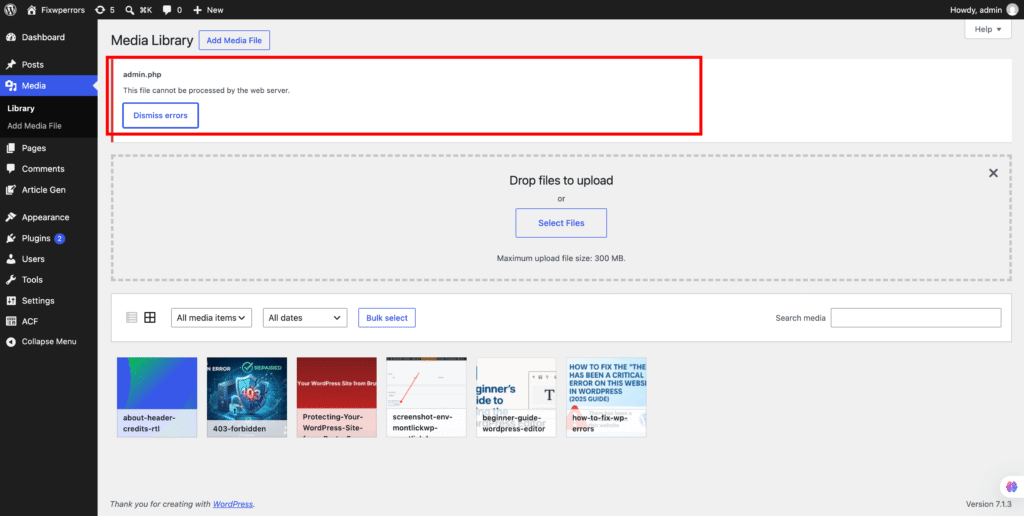
WordPress supports WebP since version 5.8 and AVIF since 6.5, but only if the server’s image library supports them. If JPEG uploads work and WebP or AVIF fail, often with a message that the web server can’t process the image, check Site Health → Info → Media Handling for the supported formats. Your host can enable support by updating Imagick or GD. Until then, convert the image to JPEG or PNG before uploading.
If None of These Match
- Try the browser uploader (Media → Add New → “browser uploader” link). If it works, the problem is with JavaScript in the normal uploader, often from a plugin.
- Deactivate image optimization and security plugins one at a time. They hook into every upload. See diagnosing plugin conflicts.
- Rename the file to plain letters, numbers, and hyphens, without spaces, accents, or symbols.
- Turn on the debug log (see our critical error guide) and check
debug.logright after a failed upload.
Summary
Read the exact message. Size limits are PHP’s upload_max_filesize and post_max_size, or the web server for 413 errors. “Cannot process the image” means the dimensions are too big for the available memory. “Unable to create directory” and “Failed to write file to disk” are permissions, ownership, disk space, or the temporary folder. File type errors come from WordPress’s allowed list, or from WebP and AVIF support missing on the server.