“This page isn’t working. example.com redirected you too many times.” Chrome shows it as ERR_TOO_MANY_REDIRECTS, and Firefox says “The page isn’t redirecting properly”. Either way, your site is stuck in a loop: one rule sends the browser to address A, another sends it back to address B, and the browser gives up after about 20 rounds.
The fix is almost never complicated, but you need to know which two rules are fighting. This guide shows how to see the loop itself, then fixes the causes I see most often on WordPress sites.
Step 1: Rule Out Your Browser
Browsers remember permanent (301) redirects, so an old redirect can keep looping even after the site is fixed. Open the site in a private window first. If it loads there, clear cookies and cached data for that one site in your normal browser, and you’re done.
If the private window loops too, the problem is on the site. Keep going.
Step 2: See the Loop
Guessing wastes time. Look at the actual redirect chain, which shows you exactly what’s fighting:
- Open DevTools (F12) and the Network tab, and tick Preserve log.
- Load the page. You’ll see the same few URLs repeating, each with status 301 or 302.
- Click a few of them and look at the Location response header, which shows where each one redirects to.
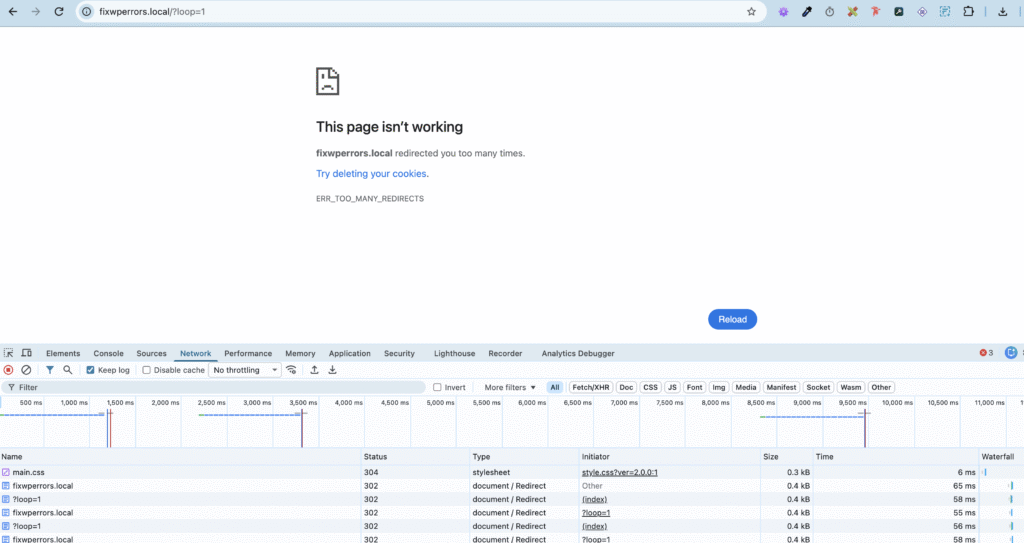
If you have a terminal, this shows the same chain in one command:
curl -sIL --max-redirs 10 https://example.com | grep -iE "^(HTTP|location)"Now look at what changes between the URLs in the loop. That tells you the cause:
http://↔https://: an HTTPS conflict, usually Cloudflare or a proxy (Fix 1 or 2).www.example.com↔example.com: WordPress and your host or DNS disagree about www (Fix 3).- The same URL, or a URL with a parameter added and removed: a plugin or a custom redirect rule (Fix 4).
wp-login.php↔wp-admin: a login cookie problem (Fix 5).
Fix 1: Cloudflare SSL Set to “Flexible”
This is the single most common cause. In Cloudflare’s Flexible mode, visitors connect to Cloudflare over HTTPS, but Cloudflare connects to your server over plain HTTP. Your server or WordPress sees an HTTP request and redirects to HTTPS. Cloudflare passes that request to your server over HTTP again, and the loop begins.
If your server has a valid SSL certificate (most hosts provide one free), the fix takes seconds:
- In Cloudflare, go to SSL/TLS → Overview.
- Change the mode from Flexible to Full (strict).
- Purge Cloudflare’s cache and test in a private window.
If your server has no certificate at all, install one first. Our SSL guide covers this.
Fix 2: A Proxy or Load Balancer Hides HTTPS From WordPress
Some hosts and setups terminate HTTPS at a proxy, so PHP receives every request as plain HTTP even though the visitor used HTTPS. WordPress then believes the request isn’t secure and keeps redirecting to HTTPS, especially in wp-admin.
If your host confirms that’s the setup, tell WordPress to trust the proxy’s header. Add this to wp-config.php, above the “That’s all, stop editing!” line:
if ( isset( $_SERVER['HTTP_X_FORWARDED_PROTO'] ) && 'https' === $_SERVER['HTTP_X_FORWARDED_PROTO'] ) {
    $_SERVER['HTTPS'] = 'on';
}
Only add this when your site really is behind a proxy that sets the header. Your host can confirm which header they use.
Fix 3: Site Addresses Don’t Match the Server’s Redirects
WordPress redirects visitors to the address in Settings → General. If your host, .htaccess, or DNS provider redirects the other way, for example your host forces www while WordPress is set to the non-www address, they fight forever.
Pick one address, then make everything agree with it:
- Set WordPress Address (URL) and Site Address (URL) to exactly the same version, with the same
https://and the same www choice. - Check your hosting panel and
.htaccessfor a www or non-www redirect, and make it point the same way. - If you use a redirect or SSL plugin that also forces www or HTTPS, keep one place in charge and turn the duplicate off.
If the loop locks you out of the dashboard, set the addresses in wp-config.php instead, above the “stop editing” line:
define( 'WP_HOME', 'https://example.com' );
define( 'WP_SITEURL', 'https://example.com' );
Alternatively, open phpMyAdmin, find the wp_options table (your prefix may differ), and edit the siteurl and home rows.
Fix 4: A Plugin or Custom Rule Is Looping
Redirect plugins, SSL plugins, security plugins, multilingual plugins, and custom .htaccess rules can all create loops, often after a change that looked harmless, such as adding a redirect from a page to itself under a slightly different URL.
- Rename
wp-content/pluginstoplugins-offover SFTP. If the loop stops, rename it back and reactivate plugins one at a time. See deactivating plugins when you’re locked out. - If plugins aren’t the cause, rename
.htaccessto.htaccess-off. If the loop stops, one of your custom rules is responsible. Recreate the default file from Settings → Permalinks → Save Changes and add your rules back one by one. - Check your caching plugin and CDN. A cached redirect can keep looping after the cause is fixed, so purge every cache after each change.
Our .htaccess guide covers writing HTTPS and www redirects correctly.
Fix 5: Login Page Keeps Redirecting Back to Itself
A related loop happens only when logging in. You enter your details, WordPress sends you to wp-admin, and you land back on wp-login.php. That means the login cookie isn’t being accepted:
- Clear your cookies for the site and try again.
- Make sure WordPress Address and Site Address match the address you’re actually visiting (see Fix 3). A cookie set for
www.example.comisn’t sent toexample.com. - Check
wp-config.phpfor aCOOKIE_DOMAINsetting that doesn’t match your domain. - If you’re on Cloudflare Flexible or behind a proxy, Fixes 1 and 2 apply here too, because WordPress sets secure cookies only over HTTPS.
Summary
Clear the browser first, then look at the actual redirect chain in DevTools or with curl. What changes in the loop tells you the cause: http/https points to Cloudflare Flexible mode or a proxy, www/non-www to mismatched site addresses, and the same URL to a plugin or .htaccess rule. Fix that one conflict, then purge every cache.