This is one of the most common PHP errors on WordPress sites:
PHP Fatal error: Allowed memory size of 268435456 bytes exhausted (tried to allocate 20480 bytes) in /home/user/public_html/wp-content/plugins/example-plugin/includes/import.php on line 214Visitors usually see “There has been a critical error on this website” or a blank page, and the line above is waiting in the error log. It means PHP hit its memory ceiling while running a request. Sometimes raising that ceiling is the right fix. Often it isn’t, and raising it just hides a plugin or process that’s using far too much. This guide shows how to tell the difference.
How to Read the Error
The numbers in the message tell you more than they appear to:
- “Allowed memory size of … bytes” is your current limit. 67108864 is 64 MB, 134217728 is 128 MB, 268435456 is 256 MB, and 536870912 is 512 MB.
- “tried to allocate … bytes” is just the last small piece PHP asked for when it ran out. A small number here doesn’t mean the problem is small. Something else had already used up almost everything.
- The file and line show where memory ran out, not necessarily what used it. Still, a path inside
/wp-content/plugins/name/or/wp-content/themes/name/is your best first suspect.
Also note when it happens. On every page points to a limit that’s too low for your setup or a plugin loading too much. Only during an import, backup, image upload, or report points to that one heavy task. Right after an update points to that update.
Step 1: Check Your Current Limits
Go to Tools → Site Health → Info. Under Server you’ll see the PHP memory limit, and under WordPress Constants you’ll see WP_MEMORY_LIMIT and WP_MAX_MEMORY_LIMIT.
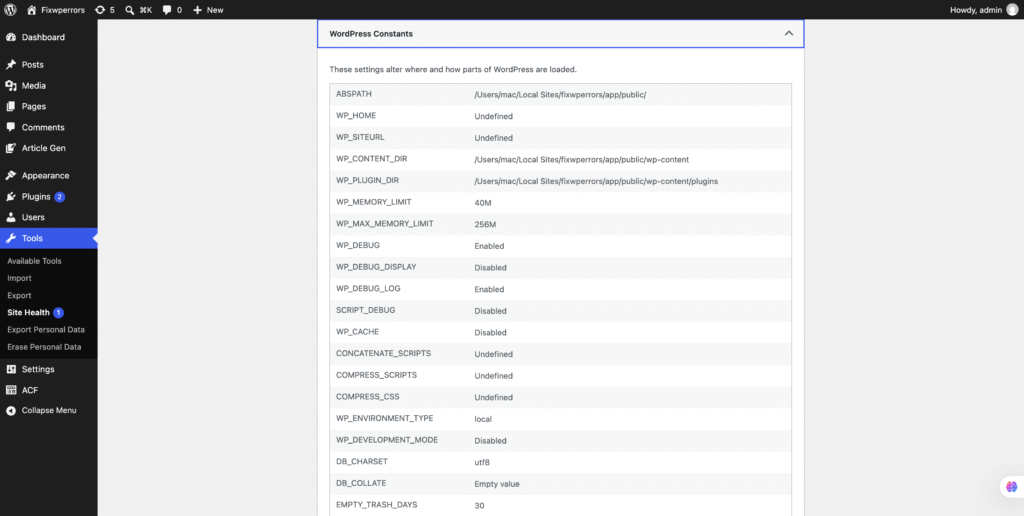
There are two separate limits, and both matter:
- PHP’s
memory_limitis set by your host. It’s the real ceiling for every PHP request. - WordPress’s
WP_MEMORY_LIMITis how much WordPress asks for on the front end (default 40 MB, or 64 MB on multisite). WordPress raises PHP’s limit to this value if it’s higher.WP_MAX_MEMORY_LIMITis the same for the admin area and image processing (default 256 MB).
WordPress can only raise PHP’s limit if the host allows it. If your host sets a hard limit of 128 MB, no wp-config.php setting will get you past 128 MB.
Step 2: Raise the WordPress Limit
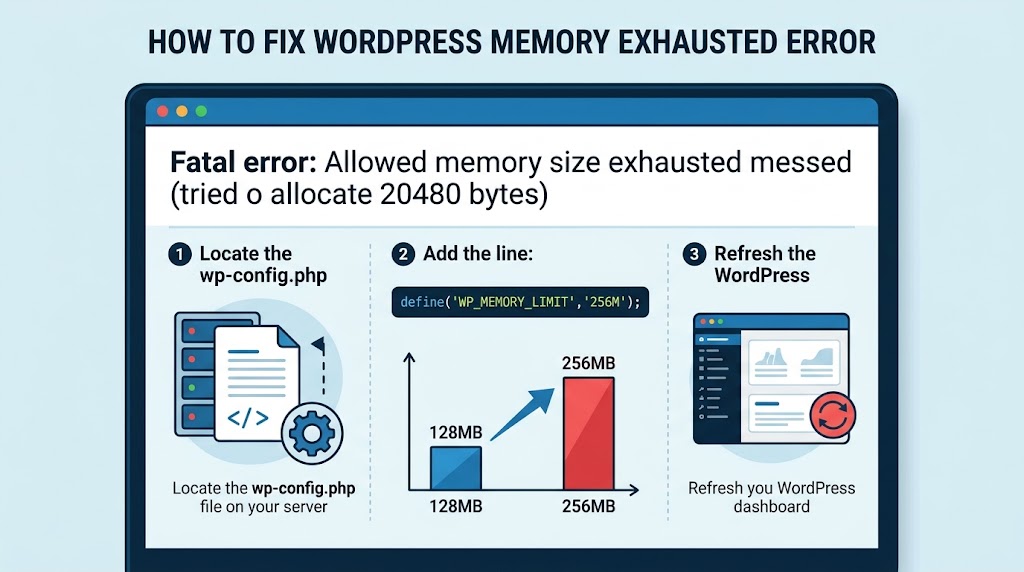
Add these lines to wp-config.php, above the “That’s all, stop editing!” comment:
define( 'WP_MEMORY_LIMIT', '256M' );
define( 'WP_MAX_MEMORY_LIMIT', '512M' );
Check Site Health again. If WP_MEMORY_LIMIT shows 256M but the PHP memory limit is still lower, your host is capping it. Move on to Step 3.
Make sure the lines don’t already exist further down the file, and that they sit above the “stop editing” comment. Settings placed after require_once ABSPATH . 'wp-settings.php'; have no effect.
Step 3: Raise PHP’s Limit
Use the first of these that your host supports:
- Your hosting panel. Most panels have a PHP settings or “PHP options” screen with a
memory_limitfield. This is the most reliable method. - A
.user.iniorphp.inifile in your WordPress root, containingmemory_limit = 256M. Changes to.user.inican take a few minutes to apply. .htaccess, withphp_value memory_limit 256M. This only works when PHP runs as an Apache module or LiteSpeed LSAPI. On PHP-FPM it causes a 500 error, so remove the line if that happens.
If you can’t change it at all, ask your host. On shared plans the maximum is often fixed.
For most sites, 256 MB is plenty. Busy WooCommerce stores, page builders, and large imports can justify 512 MB. Avoid -1 (unlimited): one broken process can then consume all the server’s memory and take other sites down with it.
Step 4: If Raising the Limit Doesn’t Help, Find What’s Using the Memory
If the error moves up with the limit, for example it fails at 256 MB, then at 512 MB, then at 1 GB, raising it further won’t help. Something is using memory without stopping, usually a loop in a plugin, a theme, or custom code. Find it instead:
- Read the log line. Turn on the debug log (the three
WP_DEBUGlines in our critical error guide) and check which plugin or theme path the error points to. - Test plugins. Rename
wp-content/pluginstoplugins-offover SFTP. If the error stops, reactivate plugins one at a time. See deactivating plugins when you’re locked out. - Test the theme by switching to a default theme such as Twenty Twenty-Five.
- Measure. The free Query Monitor plugin shows the peak memory used by each page in the admin bar. Load a few pages with plugins on and off to see which one makes the number jump.
Common Causes and What to Do
Imports, exports, and backups
Tasks that process thousands of rows or files at once are the most common trigger. Use smaller batches if the plugin offers them, run them at quiet times, or use WP-CLI if your host provides SSH, since command-line PHP often has a higher limit.
Image uploads
If the error happens while uploading an image, PHP ran out of memory resizing it. A 6000×4000 photo needs far more memory than its file size suggests. Resize large photos before uploading. WordPress uses WP_MAX_MEMORY_LIMIT for image processing, so raising that value helps here.
WooCommerce and page builders
Large stores, complex product pages, and page builders like Elementor genuinely need more memory than a simple blog. 256 MB is a sensible baseline for these sites.
A recent update
If the error appeared right after updating a plugin or theme, roll that item back or check its support forum before raising limits. Memory problems in new releases are common and usually fixed quickly.
Custom code
A function that calls itself, a WP_Query with 'posts_per_page' => -1 on a large site, or a hook that triggers itself (such as calling wp_update_post() inside save_post) can use unlimited memory. The log line’s file and line number point straight at it.
Clean Up
- Set
WP_DEBUGback tofalseand deletewp-content/debug.log. - Keep the memory limit at a sensible value rather than the highest number you tried.
- Remove Query Monitor when you’re done if you don’t use it regularly.
Summary
The error message tells you your current limit and roughly where memory ran out. Check both limits in Site Health, raise WP_MEMORY_LIMIT in wp-config.php, and raise PHP’s memory_limit through your host if it’s capped. If the error keeps happening at higher limits, stop raising it and find the plugin, theme, or task that’s using the memory.