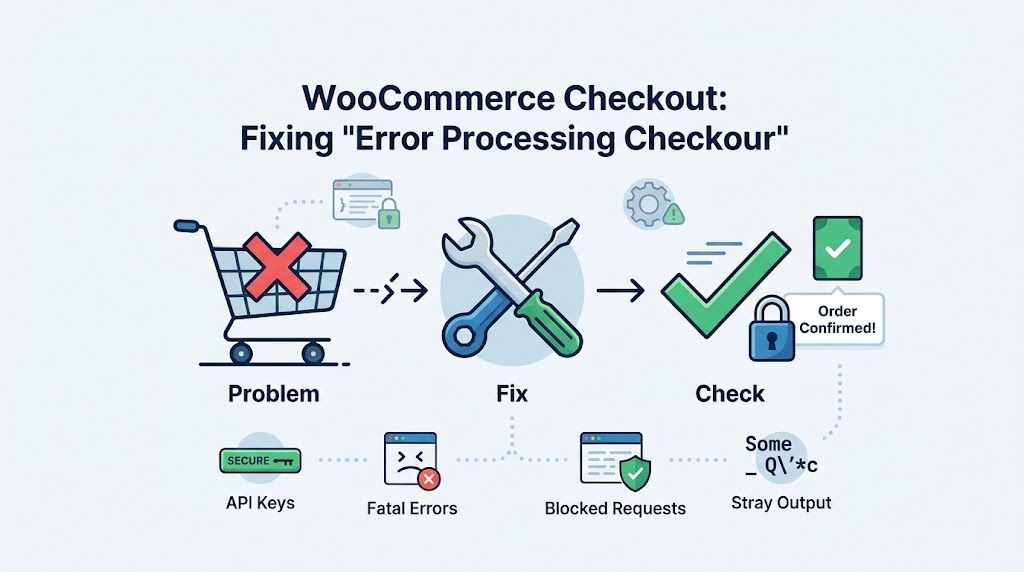
A customer fills in the checkout, clicks Place Order, and gets a red box: “Error processing checkout. Please try again.” No order is created, and trying again gives the same result. For a store owner it’s one of the worst errors to see, because it says nothing about the cause.
There’s a reason it’s so vague, and once you know it, the problem gets much easier to track down. This guide explains where the message comes from, how to see the real error behind it, and the causes I’d check first.
Where the Message Actually Comes From
On the classic WooCommerce checkout, clicking Place Order sends the form to your server in the background, and the server replies with a short JSON message: either success with a redirect URL, or a specific error such as “Billing email is required.”
“Error processing checkout. Please try again.” is what WooCommerce’s checkout script shows when that reply doesn’t contain a usable result: the payment gateway reported a failure without saying why, the server answered with something other than the order result, or the reply couldn’t be read at all. In other words, the message isn’t the error. It means the real error was lost on the way back to the browser.
That’s why generic advice (“check your card details, try another browser”) rarely helps store owners. The fix is to look at what the server actually sent back.
Step 1: Read the Real Response
- Open your checkout page in a private window, add a product, and fill in the form. Use a test payment method if you can.
- Press F12, open the Network tab, and click the Fetch/XHR filter.
- Click Place Order.
- Click the request whose URL contains
?wc-ajax=checkout, note its status code, and open its Response tab.
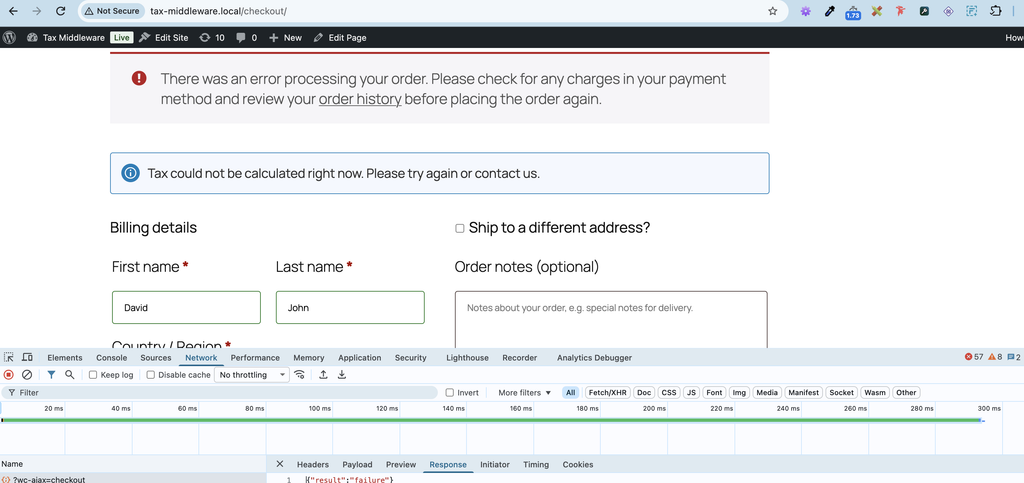
What you see tells you where to go next:
- JSON with
"result": "failure"and no message: the payment gateway, or a plugin, failed the order without explaining why. See Cause 1. - Status 500, or an HTML error page instead of JSON: PHP crashed while creating the order. Depending on your WooCommerce version, customers may see “Internal Server Error” instead of the usual message. See Cause 2.
- Just
0or-1, a 403, or a page from a firewall or Cloudflare: the request never reached WooCommerce’s checkout properly. See Cause 3. - A 301 or 302 redirect: a site address or HTTPS mismatch. See Cause 3.
- Text,
Warning:orDeprecated:in front of the JSON: PHP messages or a plugin printed output into the reply. WooCommerce usually repairs this itself. See Cause 4.
If your checkout page uses the newer Checkout block, the request goes to /wp-json/wc/store/v1/checkout instead. Read it the same way. Our WooCommerce checkout guide covers the differences between the two checkouts.
Cause 1: The Gateway or a Checkout Field Fails Silently
If the reply is valid JSON with "result": "failure" and no message, something rejected the order without adding an explanation. That’s usually the payment gateway:
- Payment gateway errors: wrong or expired API keys, test keys used in live mode, an unsupported currency, or the gateway’s own API being unreachable. Turn on your gateway’s debug log in its settings, place a test order, and check its log under WooCommerce → Status → Logs. The log usually states the real reason.
- Custom checkout fields: checkout field editor plugins can add required fields that are hidden or can’t be filled in, so validation fails. Address field changes, such as removing or merging address lines, cause the same problem with some gateways and shipping plugins.
Cause 2: A PHP Fatal Error During Checkout
If the response is a 500 or empty, PHP crashed while processing the order. WooCommerce usually records the exact error:
- Go to WooCommerce → Status → Logs and open the log named
fatal-errorsfor today’s date. - Also check
wp-content/debug.logif debug logging is on, and your host’s PHP error log.
The error names the file responsible. Payment gateways, checkout field editors, shipping and tax plugins, and outdated WooCommerce template overrides in your theme are the usual suspects. For outdated templates, see our guide to outdated WooCommerce template files, and for reading fatal errors in general, see our critical error guide.
Cause 3: The Request Is Blocked or Redirected
- Firewalls: security plugins, your host’s ModSecurity rules, and Cloudflare can block the checkout request, especially when address or order note fields contain unusual characters. Check the firewall log, or Cloudflare’s Security → Events, for the time of your test, and allow that rule for the checkout. Our 403 guide covers each firewall.
- Caching: a cached checkout page carries an expired security token, so the server rejects the order. Make sure cart, checkout, and account pages, and URLs containing
wc-ajax, are excluded from page caching and from CDN caching. See our caching guide. - Redirects: if the WordPress Address and Site Address in Settings → General don’t match the address customers use, including
https://and www, the checkout request gets redirected and fails.
Cause 4: PHP Messages or Plugin Output in the Reply
If a PHP warning, a notice, or a plugin’s echo is printed during checkout, it ends up in front of the JSON. Current versions of WooCommerce’s checkout script try to repair this by finding the JSON inside the reply. When the repair works, the order goes through, and the browser Console logs “Fixed malformed JSON” along with the original output. When the extra output gets in the way of the repair, checkout fails.
Either way, fix it rather than relying on the repair:
- Stop errors from being displayed on your live site: set
define( 'WP_DEBUG_DISPLAY', false );inwp-config.php, or turn offdisplay_errorsin your hosting panel. Errors are still logged, but they stay out of the reply. - Fix the cause: the warning text names the file and line, which points to the plugin or theme responsible. Update it, or report it to the developer.
Our guides to WordPress debug mode and unexpected plugin output explain both.
A Fix Some Stores Needed: Order Attribution
After the Order Attribution feature arrived in WooCommerce 8.5, some store owners reported that turning it off stopped this error. It adds tracking fields to the checkout form, which certain themes, caching setups, and consent plugins didn’t handle well. If the steps above don’t find a cause, test it: go to WooCommerce → Settings → Advanced → Features, turn off Order Attribution, save, purge your caches, and try a test order. If that fixes it, update WooCommerce and the conflicting plugin, then try turning the feature back on later.
Still Failing? Test for Conflicts Without Affecting Customers
Use the Health Check & Troubleshooting plugin to disable plugins and switch to a default theme for your session only, keeping WooCommerce and your payment gateway active. If checkout works in troubleshooting mode, re-enable plugins one at a time until it breaks. Our guide to finding plugin conflicts walks through it.
Summary
“Error processing checkout. Please try again.” means WooCommerce’s checkout script didn’t get a usable result from your server. Open the wc-ajax=checkout request in DevTools and read the response: a failure with no message points to your gateway or checkout fields (check the gateway log), a 500 means a fatal error (check the fatal-errors log), and 0, a 403, or a redirect means a firewall, caching, or site address problem. Clean up any PHP output in the reply too. If none of those explain it, test Order Attribution and run a conflict test.