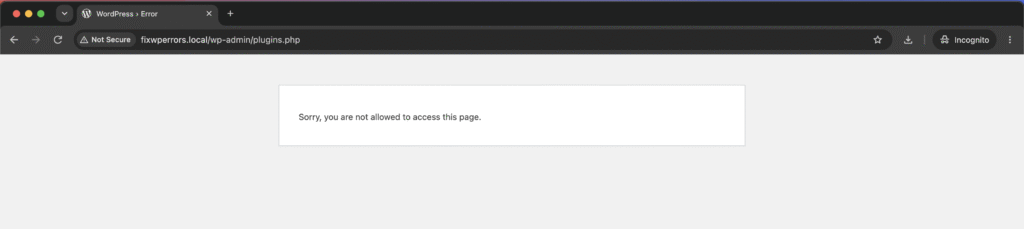
“Sorry, you are not allowed to access this page.” WordPress shows this whenever the logged-in user doesn’t have the permission (WordPress calls it a capability) that a particular admin screen requires.
Sometimes that’s exactly right: an Editor isn’t supposed to open the Plugins screen. It becomes a problem when it happens to an administrator, or on every admin page, because then WordPress no longer knows that you’re an administrator. This guide covers both cases, starting with the quick checks.
Step 1: Check Which Page and Which User
- Only one page, and the URL contains
admin.php?page=: that page usually belongs to a plugin. If the plugin has been deactivated or removed, its pages no longer exist, and WordPress shows this message instead. Old bookmarks and links in emails often lead here. Check that the plugin is active. - Only certain screens, such as Plugins, Themes, or Settings, while other admin pages work: check your role under Users → Profile, or ask another administrator to check it. Editors, Authors, and other roles can’t open those screens by design.
- Every admin page, as an administrator, usually right after logging in: WordPress can’t read your administrator role. That’s almost always one of the database causes below.
Cause 1: The Database Table Prefix Was Changed
This is the most common cause of an administrator suddenly being locked out of every page. WordPress stores each user’s role in the usermeta table under a key that includes the table prefix, for example wp_capabilities. The list of roles is stored in the options table as wp_user_roles.
If the prefix is changed, for example by a security plugin, during a migration, or by hand in wp-config.php, and those keys keep the old prefix, WordPress looks for newprefix_capabilities, finds nothing, and treats you as a user with no role at all.
To check, open phpMyAdmin and compare the $table_prefix value in wp-config.php with the keys in the usermeta table. If $table_prefix is abc_ but the role keys are still called wp_capabilities and wp_user_level, that’s your problem.
Back up the database, then run these queries in phpMyAdmin, replacing wp_ with the old prefix and abc_ with the new one:
UPDATE abc_usermeta
SET meta_key = REPLACE(meta_key, 'wp_', 'abc_')
WHERE meta_key LIKE 'wp\_%';

UPDATE abc_options
SET option_name = 'abc_user_roles'
WHERE option_name = 'wp_user_roles';
The first query renames every user setting that still carries the old prefix, including roles. The second renames the stored role list. Log out, log back in, and the admin area should work again.
Cause 2: Your User Has Lost the Administrator Role
A plugin bug, a role editor plugin, or a mistaken change in Users can remove the administrator role from your account. Check it in phpMyAdmin:
- Open the
userstable and note your user’sID. - In the
usermetatable, find the row with thatuser_idand the meta keywp_capabilities(with your prefix). - For an administrator, its value should be exactly
a:1:{s:13:"administrator";b:1;}. If it’s different, edit it to that value. - Also check that the
wp_user_levelrow for that user is10.
The value has to be typed exactly. The 13 is the length of the word “administrator”, and WordPress can’t read the value if it doesn’t match.
With SSH access, WP-CLI does the same thing more safely:
wp user set-role 1 administratorReplace 1 with your user ID or username. If you can’t find a working administrator account at all, create a new one with wp user create newadmin you@example.com --role=administrator, log in with it, and fix the original account from Users.
Cause 3: The Roles Themselves Are Broken
If several administrators lose access at once, or role editor plugins show missing or strange capabilities, the stored role definitions (wp_user_roles in the options table) may have been damaged. Role editor plugins modify that one option, and a failed save can corrupt it.
With WP-CLI, you can restore WordPress’s default roles:
wp role reset --allThat removes any custom capabilities a role editor plugin added to the default roles, so note your customizations first. Without SSH, restore the wp_user_roles row from a recent database backup.
Cause 4: A Security or Membership Plugin
Security, membership, and admin-customization plugins can hide or block admin pages for certain users, sometimes including administrators after a settings change. If your role checks out but the message persists, deactivate those plugins as described in our guide to deactivating plugins when you’re locked out, then reactivate them one at a time.
On a Multisite Network
On multisite, network screens such as Network Admin → Plugins and Themes are only for Super Admins. A site administrator gets this message there by design. If you should be a Super Admin, check the site_admins row in the wp_sitemeta table. It lists Super Admin usernames, and the list must include yours. With WP-CLI, use wp super-admin add yourusername. Our multisite guide covers how network permissions work.
Summary
If only one plugin page shows the message, check that the plugin is active. If only certain screens do, check your role. If an administrator sees it everywhere, look in the database: a changed table prefix with old role keys is the most common cause, followed by a missing administrator role on your user and damaged role definitions. Fix them with the SQL or WP-CLI commands above, after taking a backup.