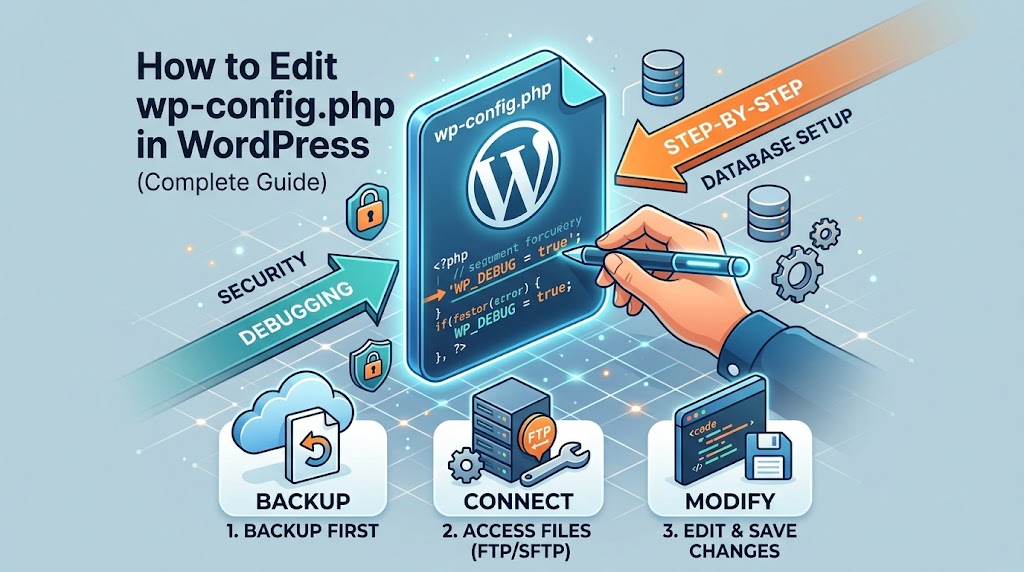
wp-config.php is the file WordPress reads first on every request. It holds your database connection details, security keys, and any settings that need to be in place before WordPress itself loads. Many fixes on this site involve adding one line to it.
It’s also the one file where a single typo takes the entire site down. This guide covers where it is, how to edit it without breaking anything, and the settings worth knowing.
Where to Find It
wp-config.php sits in your WordPress root folder, next to wp-admin, wp-content, and wp-includes. On most hosts that’s public_html or a folder named after your domain.
If it isn’t there, check one folder up. WordPress also looks in the folder above the root, and some setups keep it there for security. On a brand-new install there may only be wp-config-sample.php. The installer creates the real file, or you can copy the sample, rename it to wp-config.php, and fill it in.
How to Edit It Safely
- Download a backup copy first. If anything goes wrong, uploading the backup restores the site in seconds.
- Edit with SFTP or your host’s file manager, not a dashboard plugin. If a mistake breaks the site, you lose access to the dashboard, but SFTP still works.
- Use a code editor such as VS Code, Sublime Text, or Notepad++. Word processors and some rich-text editors turn
'into curly quotes, and a single curly quote breaks the file. - Add new settings above this line:
/* That's all, stop editing! Happy publishing. */. Anything placed afterrequire_once ABSPATH . 'wp-settings.php';runs too late to have any effect. - Check whether a setting already exists before adding it. Defining the same constant twice causes a PHP warning, and only the first one counts.
- Reload the site immediately after uploading. If it shows a blank page or a 500 error, upload your backup and look for the typo. Our white screen guide covers errors in
wp-config.php.
Every setting follows the same pattern, with each line ending in a semicolon:
define( 'SETTING_NAME', 'value' );Text values go in quotes. true, false, and numbers don’t.
What’s Already in the File
Database settings
DB_NAME, DB_USER, DB_PASSWORD, and DB_HOST tell WordPress how to reach its database. If any of them is wrong, every page shows “Error establishing a database connection”. See our database connection guide.
Security keys and salts
Eight lines such as AUTH_KEY and SECURE_AUTH_SALT secure login cookies. They should be long random strings. You can replace the whole block with a fresh set from https://api.wordpress.org/secret-key/1.1/salt/, which logs every user out. That’s useful after a security incident, and covered in our security checklist.
Table prefix
$table_prefix is the start of every database table name, 'wp_' by default. Don’t change it on an existing site unless you also rename the tables and the prefix-based settings inside them. Otherwise WordPress can’t find its data, or administrators lose access (see our guide to “not allowed to access this page”).
Useful Settings to Add
Debugging
Turn on logging when you need to find an error, and turn it off afterwards. Our debug mode guide explains each option.
define( 'WP_DEBUG', true );
define( 'WP_DEBUG_LOG', true );
define( 'WP_DEBUG_DISPLAY', false );
Memory
define( 'WP_MEMORY_LIMIT', '256M' );
define( 'WP_MAX_MEMORY_LIMIT', '512M' );
These only work up to your host’s PHP limit. See our memory exhausted guide.
Site address
define( 'WP_HOME', 'https://example.com' );
define( 'WP_SITEURL', 'https://example.com' );
These override Settings → General, which is useful when a wrong address locks you out or causes a redirect loop. See our too many redirects guide.
Security
define( 'DISALLOW_FILE_EDIT', true );This removes the theme and plugin code editors from the dashboard. Recommended on every live site. A stronger option, define( 'DISALLOW_FILE_MODS', true );, also blocks installing and updating plugins and themes from the dashboard. Only use it if you deploy updates another way.
Revisions, autosave, and trash
define( 'WP_POST_REVISIONS', 10 );
define( 'AUTOSAVE_INTERVAL', 120 );
define( 'EMPTY_TRASH_DAYS', 30 );
These keep the 10 most recent revisions per post, autosave every 120 seconds instead of every 60, and empty the trash after 30 days, which is the default.
Automatic core updates
define( 'WP_AUTO_UPDATE_CORE', 'minor' );'minor' is the default: security and maintenance releases install automatically. Use true to include major versions, or false to turn core updates off. Leaving minor updates on is strongly recommended.
Scheduled tasks
define( 'DISABLE_WP_CRON', true );Stops WordPress running scheduled tasks on page loads. Only use it together with a real server cron job, as explained in our speed guide.
Environment type
define( 'WP_ENVIRONMENT_TYPE', 'staging' );Tells WordPress and plugins what kind of site this is: 'local', 'development', 'staging', or 'production' (the default). Some plugins use it to avoid sending emails or payments from test copies.
When WordPress asks for FTP details to update
If installing or updating plugins shows a “Connection Information” form asking for FTP credentials, WordPress can’t write to its own files. The real fix is file ownership: the files should belong to the user PHP runs as, which your host can correct. On servers where PHP already runs as the file owner, this setting tells WordPress to write directly:
define( 'FS_METHOD', 'direct' );Protecting the File
- Set its permissions to
640or600if your host supports it, so other users on the server can’t read it. - On Apache or LiteSpeed, block web access to it in
.htaccess, as shown in our .htaccess guide. - Never share it, commit it to a public code repository, or paste it into forums. It contains your database password.
Summary
Back up wp-config.php before every change, edit it over SFTP in a code editor, place new settings above the “stop editing” line, and reload the site right away. Use it for debugging, memory limits, site addresses, and security settings, and keep its permissions tight.